
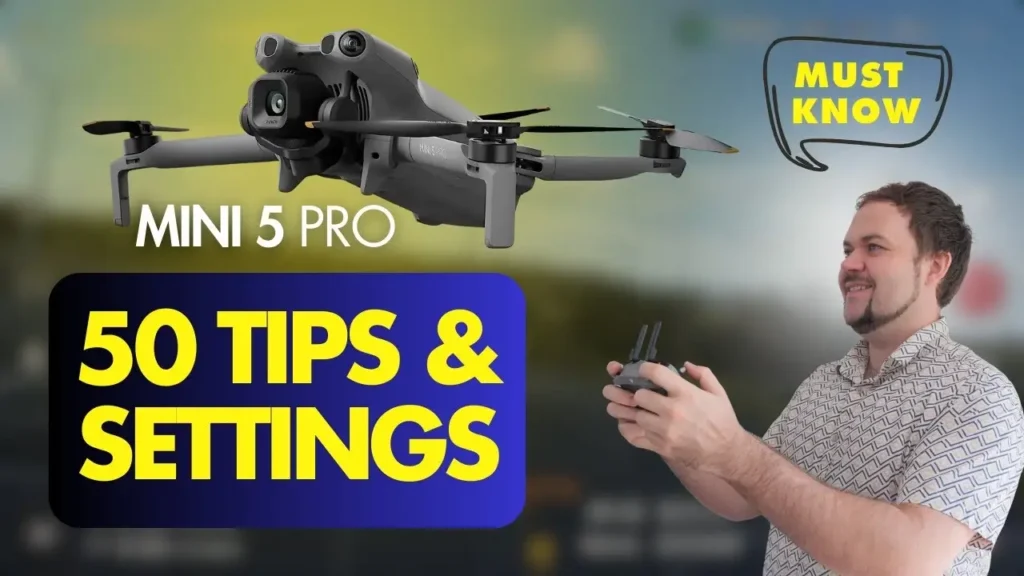
Have you just got yourself the Mini 5 Pro? Or maybe you’ve been using it for quite some time now, but you’re still overwhelmed with all of those different tips and tricks and all those different settings throughout the menus and you have no idea how to utilize the drone or get the most out of it. That’s what this article is all about Best 50 Tips & Settings for DJI Mini 5 Pro. So, throughout this article, I will break it down into different menus and within those menus, there’ll be tips associated with that menu just to make it easier for you to follow along.
Fly main menu
Let’s start out with the DJI Fly main menu. It shows the drone off to the right hand side, and there’s a few different buttons that you can interact here. So, starting out with tip number one.
01. DJI Academy and Learning Center
This is the DJI Academy and Learning Center. So, in the top right corner, there is that little book icon. You can tap on that and it will take you into the DJI Academy and you can go through here and actually learn a fair bit about all sorts of drones that are available out there.
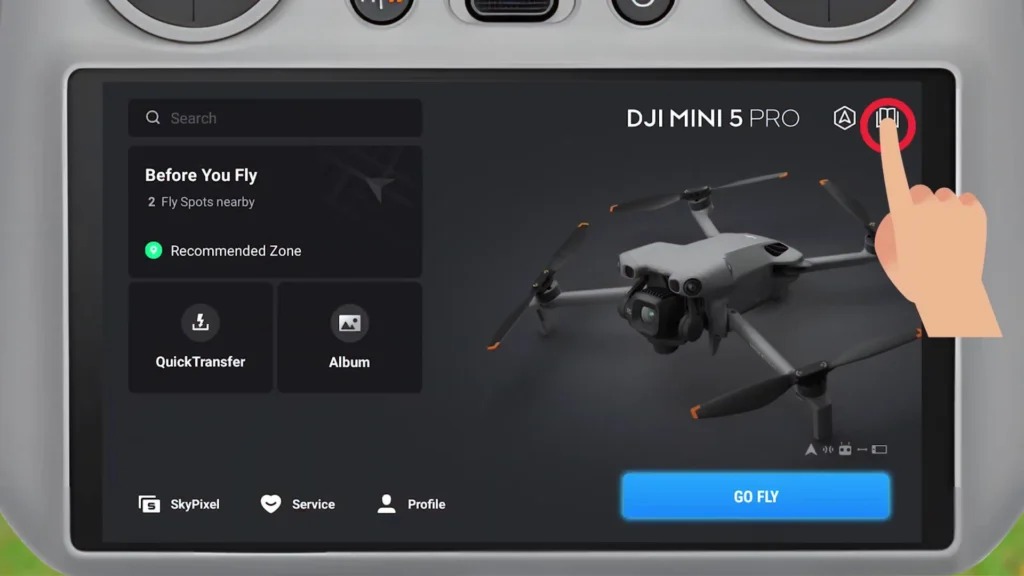
So, there’s all sorts of videos from DJI officially, from other content creators and there’s different lessons and courses that you can go through in the academy. Really handy tool if you’re just wanting to learn a little bit more about your drone. So, tip number one is kind of a joint tip here because you can also go back to the main menu here, this DJI Fly main menu, and there’s a search bar in the top left corner.
You can tap on that and it’ll actually load you into the learning center. It’s a slightly different interface here and it will break it down into just a few other courses and lessons that you can learn just at a glance. And so, for example, here you can see we’ve got daily flight and we’ve got new beginners and it’s put it into DJI Mini 5 Pro because it’s obviously a popular drone right now, but we’ve got Mini 5 Pro from beginner to master.
We can click on that and it’ll actually take us through to a few different lessons. So you can see there’s a few different like beginner lessons. We’ve got the Mavic 4 Pro as well from beginner to master by the looks of it and a bunch of other stuff in here. So you can just tap on them.
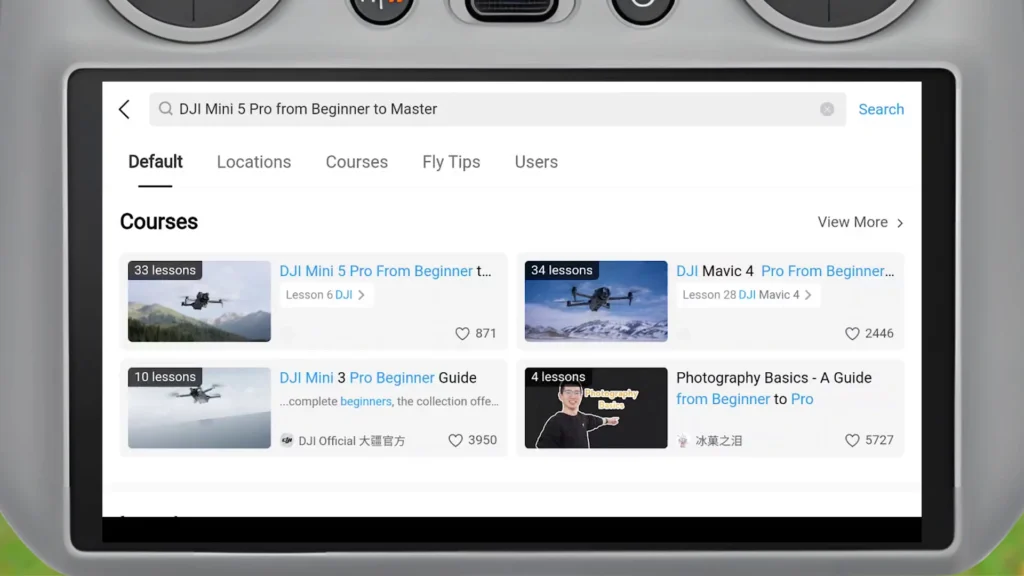
And these are six lessons by DJI by the looks of it. And they’re literally video lessons. They’re timestamped a lot of the time. And it’s really easy just to learn more about your drone through this interface here. It shows you, first use with the RC2. It shows you first use with the RCN3, quick transfer, gimbal roll rotation. and it shows you a bunch of different stuff here. So, very handy just to come in here and learn a little bit more.
02. DJI simulator
Moving on to tip number two. This is the DJI simulator. I’ve got a whole video on the channel showcasing the new DJI simulator that’s now embedded into the actual DJI Fly application. So, all you got to do is tap that little hexagon. I think it’s a hexagon with like an arrow head. Tap on that and it will take you through to the DJI simulator.
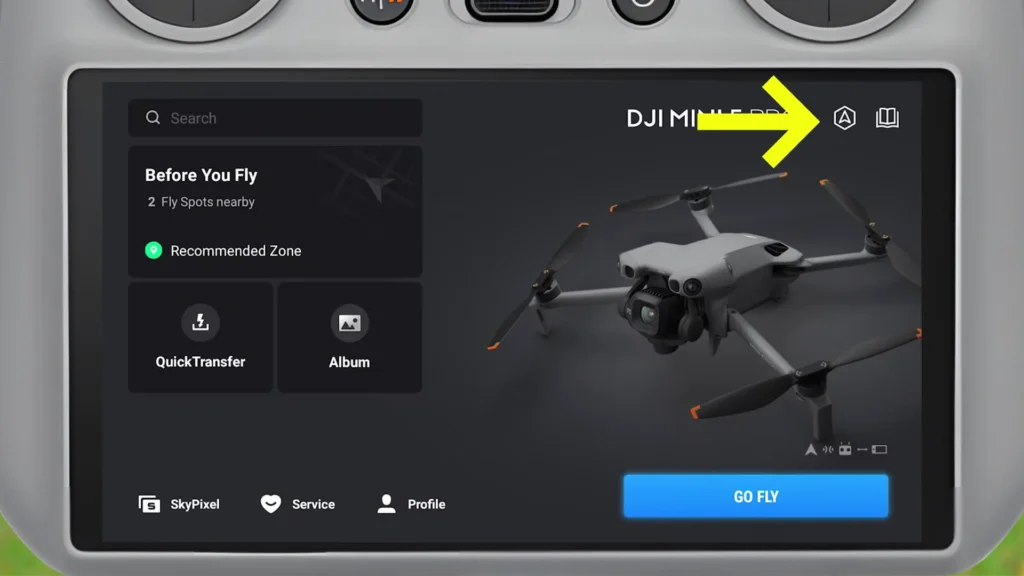
It looks like it actually loads up a separate application when it loads in the simulator. And in here, you can fly with a few different drones. There’s a few different locations as well, and you can really tighten up your settings in here. Play around with all the different settings, the way the camera moves, the way the drone moves, all that kind of stuff. It’s actually really cool because it gives you a chance to safely fly.
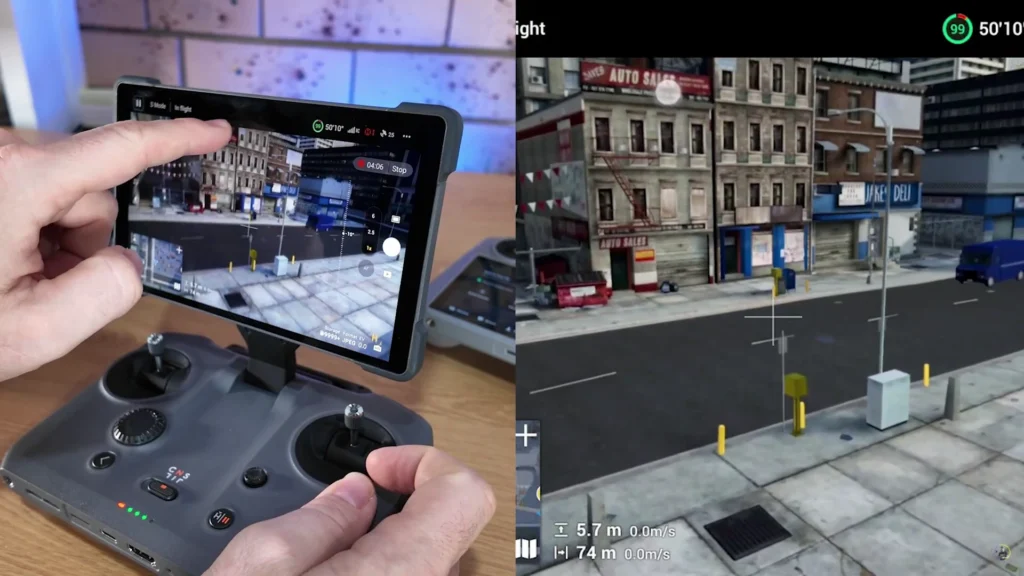
You’ve actually got to turn the drone off when you operate it. So, you’re exclusively using the controller to fly in a simulator. And I find this really helpful and I know it’s going to be helpful for a lot of people. So, make sure you utilize that because it is hyper accurate and really easy to follow.
03. Before you fly
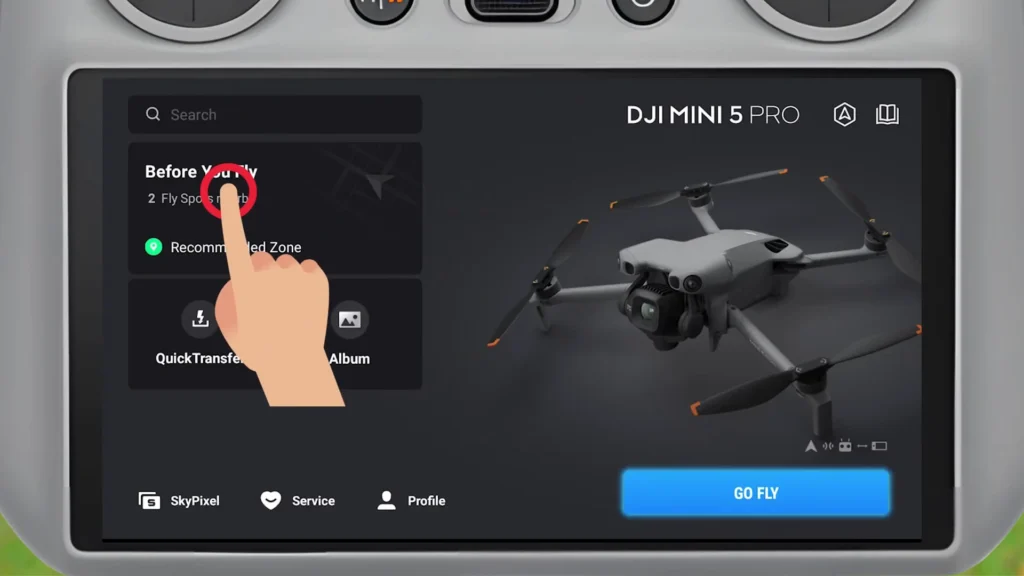
For tip number three, this is before you fly, which is just below that search icon. And it’ll actually show you some pretty helpful information. So, when you’re in this screen here, you can zoom out and it will show you some key locations. So, it lets us know where some of the major airports are, which is great to know, so you can avoid flying there.
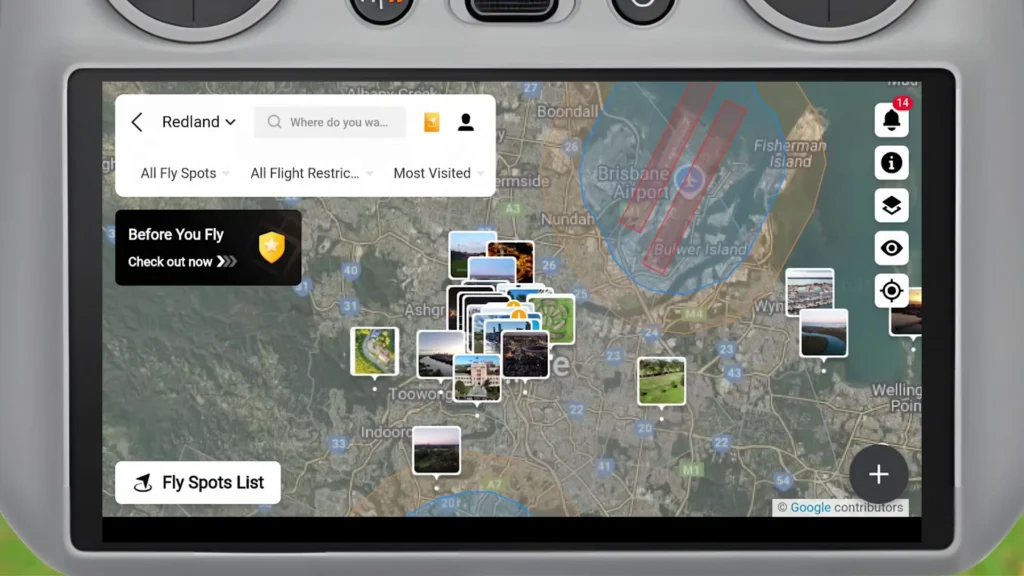
There’s the main Brisbane airport there as well. And it also shows you some really nice locations to check out as well. So, these are all like creator or user editions that have been submitted in. and you can just tap on them and see some cool locations to actually check out. So, this is also really handy for scouting out new locations.
You can see people who have submitted in here. You can add it to your plan. You can do all sorts of fun stuff in here. And then, like I said, when you zoom out, it gives you some information about you know, locations you have to avoid. And then there’s the fly spots list here, which is you know, all of those key areas that you can check out in your local area.
04. Quick Transfer
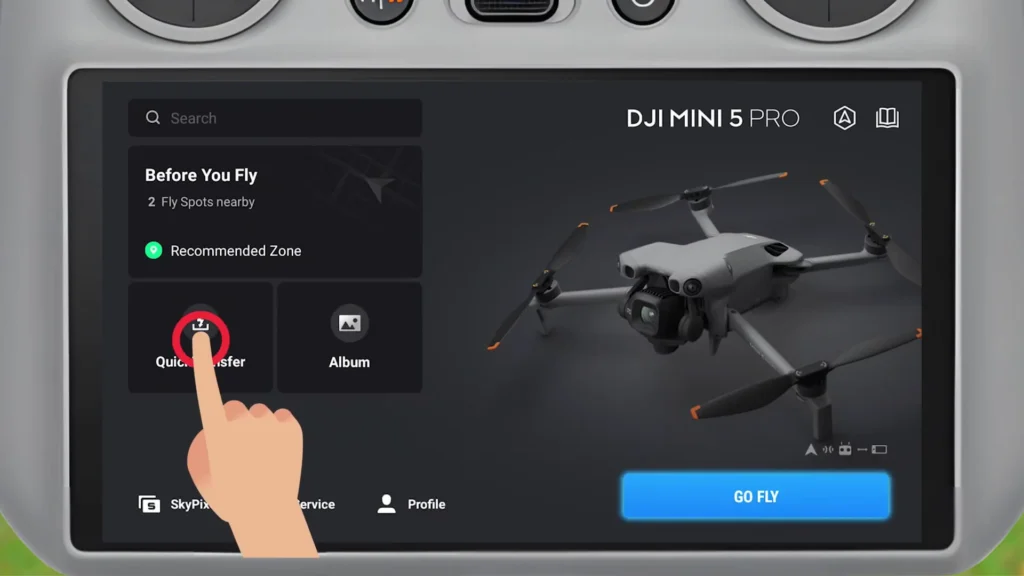
Moving on to tip number four. This is the quick transfer option, which is on this main menu here. You just tap on it and it will talk you through how to actually do the process. So, you just need to literally connect up your phone to the DJI Fly application and then follow these steps here.
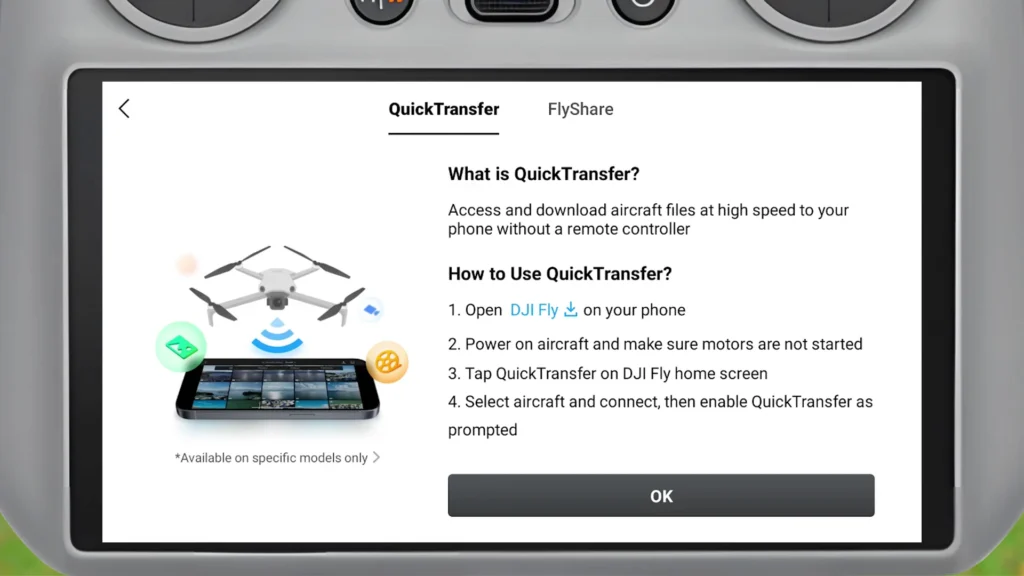
Connect it up by pressing and holding the button basically on the drone and it will connect it up so you can transfer footage straight across to your phone, iPad, you know, any other tablet device or whatever it may be that you’re using. Really, really simple stuff.
Profile Menu
Now, moving on to the profile menu now. So, it’s within the Fly main menu here, but you can see down the bottom there’s a little profile icon. And this is a whole new menu within itself.

05. Device Management
So for tip number five, I’ve got the device management menu, which you just tap on, and it will show you all the different drones that you’ve owned in the past. You can then tap on a drone, and it will let you know which account it’s been bound to.
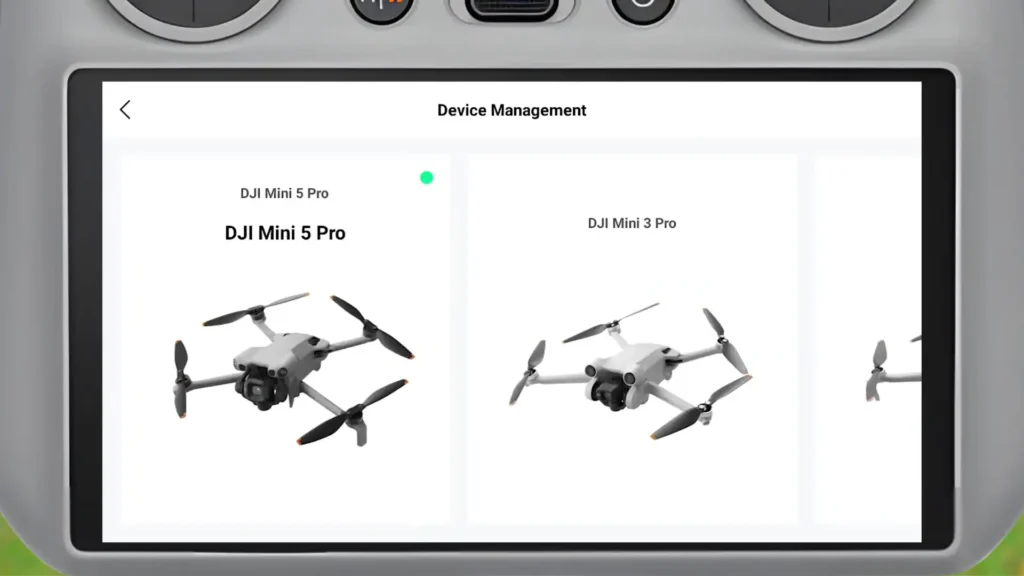
It will tell you the flight time, flight distance, gives you a bunch of really handy information in here. And this is great to jump into if you’re ever going to sell your drone. People are always going to ask, “What’s the flight distance” You know, how many hours of flight time have you had?
So, that’s where you want to come in just to find that information. And this is really handy just to see all the different drones that you’ve owned throughout your years of being a pilot. And then you can also see on the left hand side in this menu here, it tells you my total distance and hours and all that kind of stuff. And you can update that as well as you click on more.
06. DJI forum
Now, for tip number six, this is the DJI forum. And this is a very handy one actually because this just lets you jump into their official forum to find out some key information that you might need to know about your drone or another drone that you’re thinking about picking up.
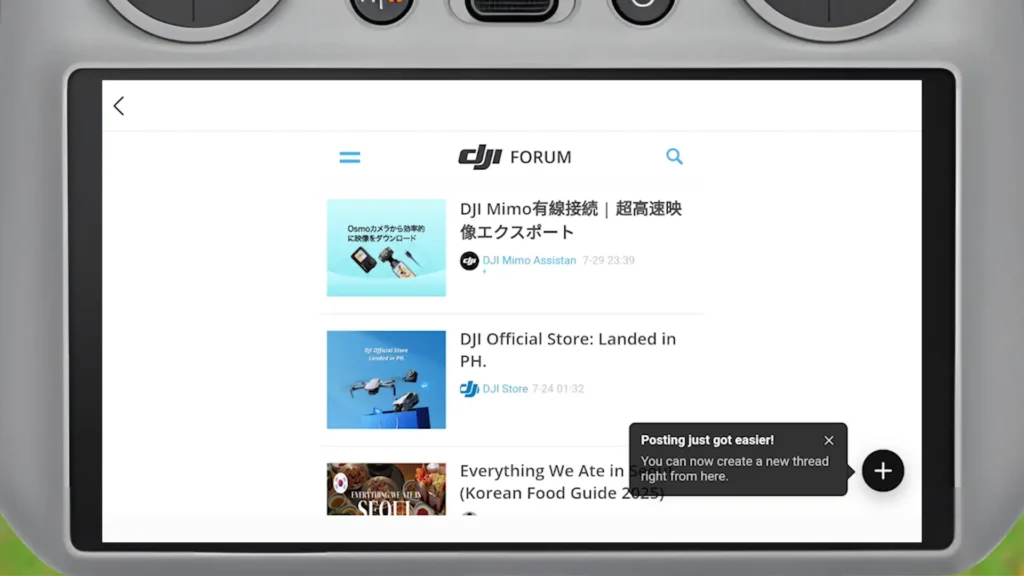
So, as you’re going through here, you can see there’s a lot of featured posts, but I can also tap on the menu, press on products here, and then I can choose the specific product that I’m wanting to actually start tracking and learning a bit more about, or maybe I want to post something about that product, and I want some input from the community.
07. Find my Drone Feature
So for tip number seven, this is the find my drone feature, which is available in a few different menus. But what this actually allows you to do is find your drone, right. So if you’ve ever lost your drone, if you’ve ever had any issues like that, you come in here and it will show you where the last location was, right?
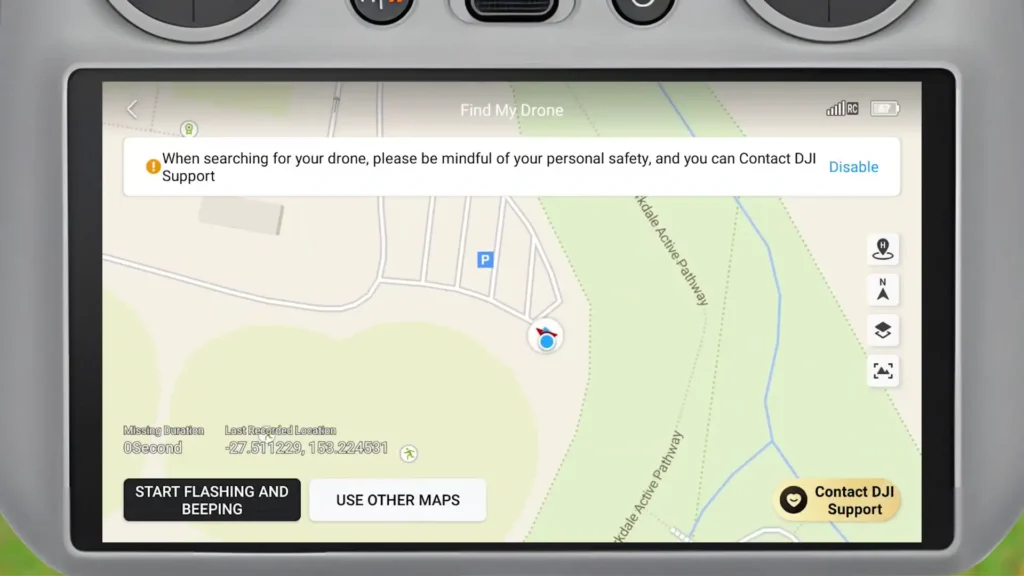
Where it actually picked up on that final signal from the drone. And sometimes it will show like a little video preview here. And then you can press the start flashing and beeping. You should be able to hear that. It’s quite an obnoxious sound, but that’s exactly what you need if you’ve lost your drone.
08. Offline Maps
Tip number eight is the offline maps which is just below find my drone. Tap on this one. If you don’t have your controller connected up to a personal hotspot or Wi-Fi or anything like that, this is very very handy if you’re in a remote location. Maybe you don’t have any sort of reception or you potentially just might not have anything cuz you’re overseas, let’s just say.
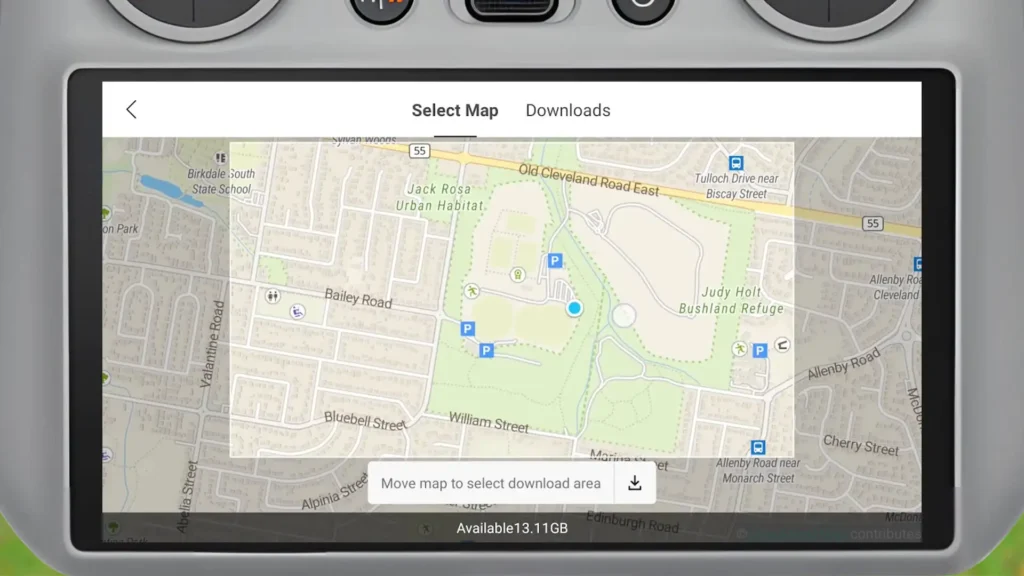
You can zoom out of a location and you can download that map offline. So that means when you’re in the location, you don’t need any connection to your phone or Wi-Fi or anything like that. it’s just downloaded offline and then it will just have it loaded ready to go.
09. Clear Cache
And so, for tip number nine, this is how you can clear your cache or cesh as people in different countries say. I’m just going to call it cache. And this is tip number nine. So, you go into the settings down the bottom. You then click on storage. And then you’ll see some information here, which is very nice to see.
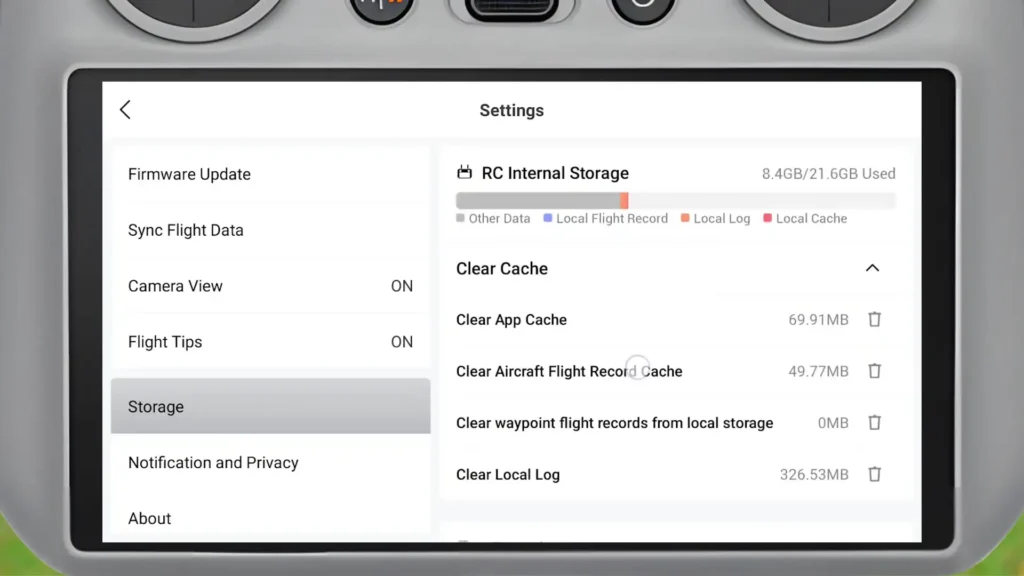
If I click on the drop down here where it says clear cache, we can see there’s app cache, there’s flight record cache, local storage for waypoints, and local log as well. So if you’re having any issues with anything, it’s always an easy rule of thumb to just come in and clear out the cache.
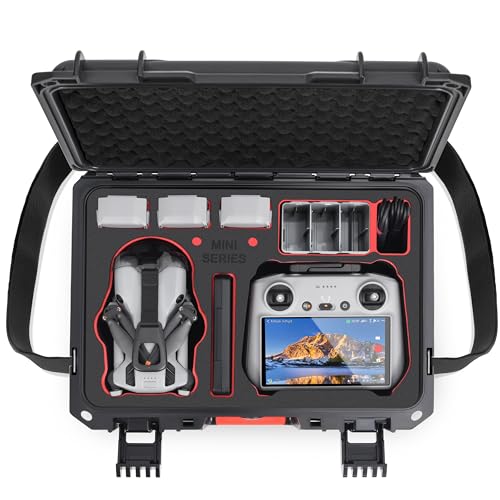
- Custom Design: This hard case is specifically designed for DJI Mini 5 pro/Mini 4 pro/Mini 3/Mini 3 Pro & RC 2 Controller…
- All-in-One Organization for Total Convenience: This rugged case is a complete storage solution designed to securely hold…
Flight Menu
So, moving on to the flight menu now, which is this menu here where you press go fly, it gives you just the full video feed from the camera perspective on the drone. And so, for tip number 10 and the first tip within the flight menu, it is the flight checklist.
10. Flight Checklist
So, in the top-left corner for us right now, it actually says Takeoff Permitted. It might say something else for you, but when you tap on that, it will give you any sort of error codes, which it’s actually doing for us today. It shows aircraft not in flight and vision systems and obstacle avoidance disabled. That’s an example of an error message, and you can see it’s not available just like that.
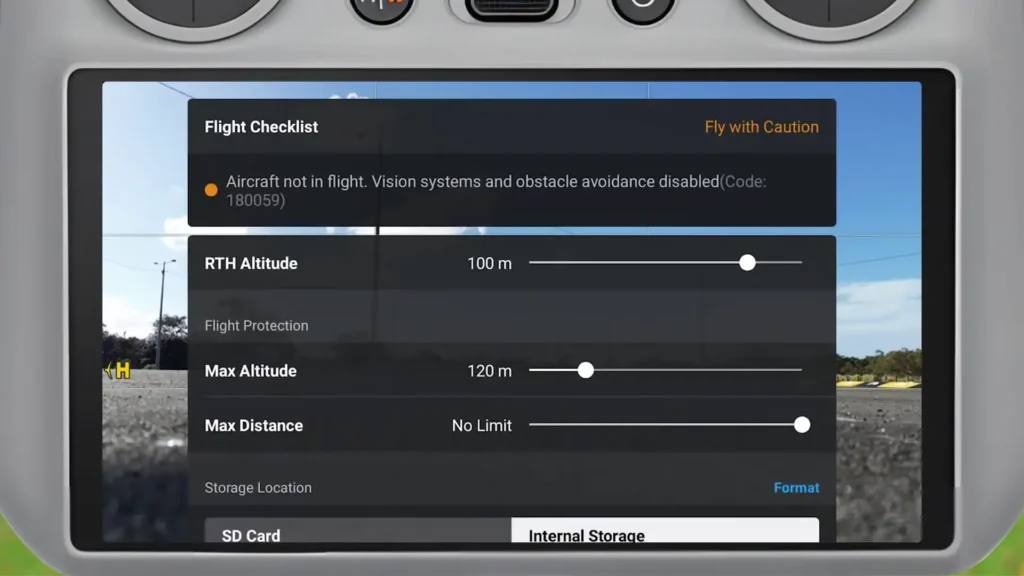
When I tap on Takeoff Permitted, it gives me this dropdown menu, where you get a detailed breakdown of any issues you might be experiencing. From here, you can also adjust the return-to-home altitude, max altitude, max distance, and change the storage location from the SD card to internal storage. It’s an easy little menu to pop into, and this is the first point of call for me to check if there are any error messages that might be tucked away.
11. Touchcreen Controls
For tip number 11, this is how you can control the camera with the touchcreen. Literally, all you have to do is press and hold on the screen and drag your finger down, finger down, finger down, or drag it up. Sometimes you can also look to the left and the right. On the Mini 5 Pro, we can’t do that, though. It’s just up and down. But, this is handy to have full control over the camera with the touch screen. Like I said, press and hold on the screen and then drag. And that’s as simple as it is to adjust that camera movement with the touchcreen.
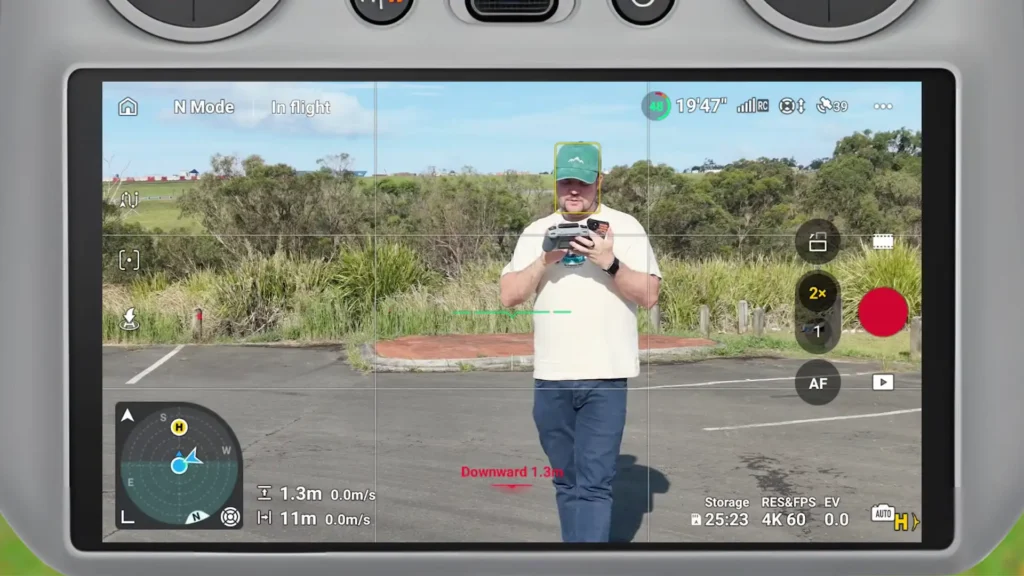
12. Subject Focusing
So, for tip number 12, we have subject focusing, which is one of my favorite newer additions to the DJI Fly application for the later drones. You’ll see that right now it’s tracked onto my face, and now it’s tracking my whole body. There’s a yellow rectangle or square around a subject, and it literally focuses in on that subject.
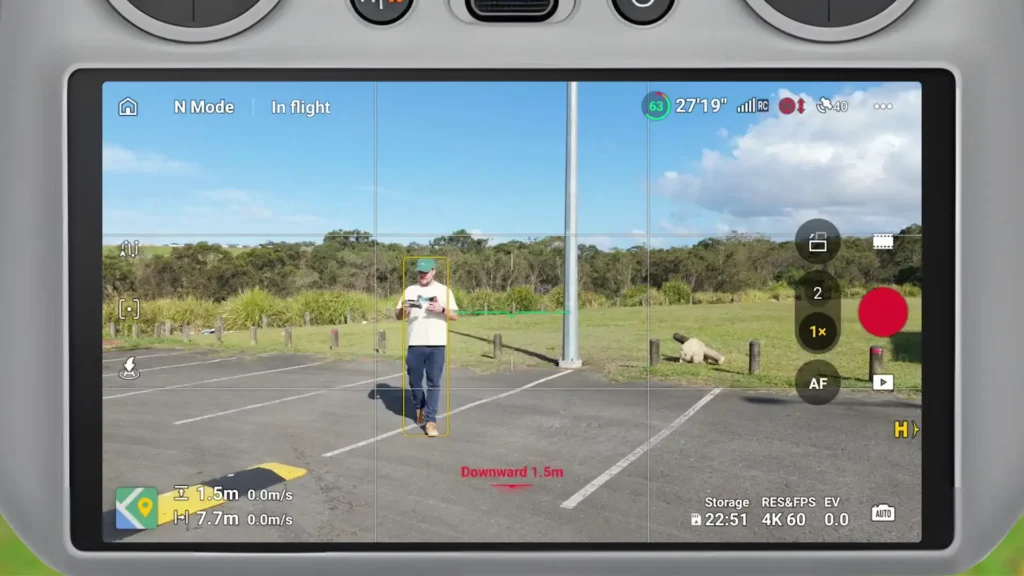
So, if I were to use that two-times zoom, it’s going to zoom in on me, and it’s now tracking my face as the subject focusing point. You can do this with all sorts of things, though, and it’s very very handy. I love to do it on a subject like myself because then I know that I’m in focus and that I am the focus point in this kind of scenario.
Really, really interesting stuff, because it actually optimizes the focusing on the drone. Even though a lot of the time it’s infinity focus and everything is in focus, sometimes things can be a bit soft—the focus point can be slightly off. So, if it’s tracking my face and saying, “Hey, that’s a subject”, you’re almost guaranteed to get really, really high-quality, well-focused videos and photos, depending on what you’re doing.
13. Quick Access Icons
Let’s check out tip number 13, which is the quick access icons. So, in the top-right-hand corner not the three dots, but on the left-hand side, we’ve got the satellites. You can tap on that, and it will tell you how many satellites there are, as well as the signal you’re getting.
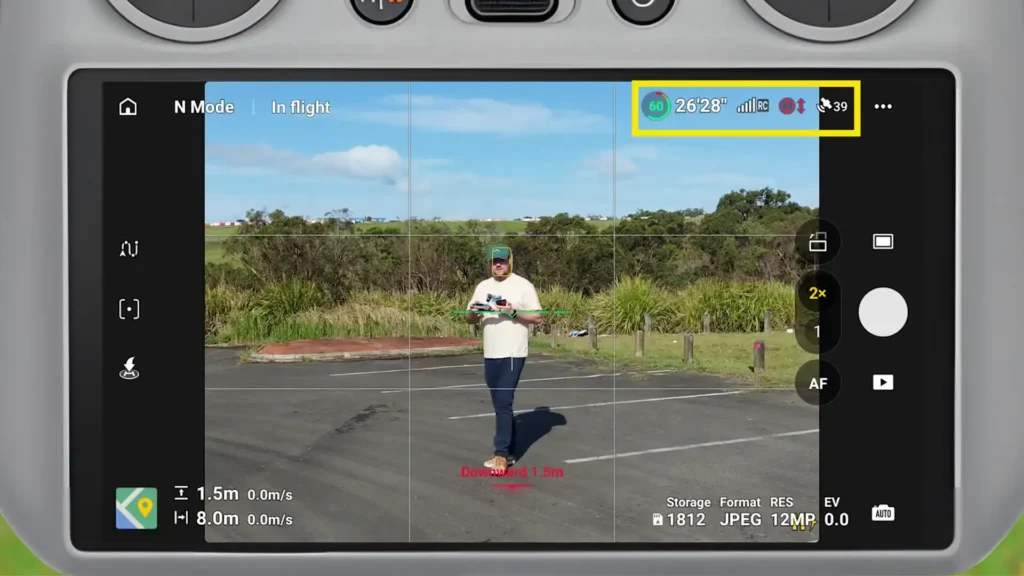
You can also tap on the next icon, and this will tell you about the obstacle avoidance. Right, so this looks like a new thing they’ve added. From this menu, without having to go into another menu, I can now enable obstacle avoidance directly. I can literally tap on that little radar-looking icon the obstacle avoidance icon and turn it off through this interface. I can put it into brake, or I can put it into bypass as well.
Then, on the left-hand side, this is the remote controller that’s the signal you’re getting. Right now, it’s strong, which is great. And then there’s the battery icon. If I tap on that, it gives me some very, very handy information. It shows a countdown for how long until it returns to home, how long until it forces a landing, and how long until the battery is completely depleted.
14. Waypoints
Moving on to tip number 14, this is waypoints, which you’ll find on the left-hand side. You can tap on that, and from here, I can literally just press the C1 button. I press that button, fly back, press the C1 button again, move in different directions, increase altitude, and do all sorts of things.
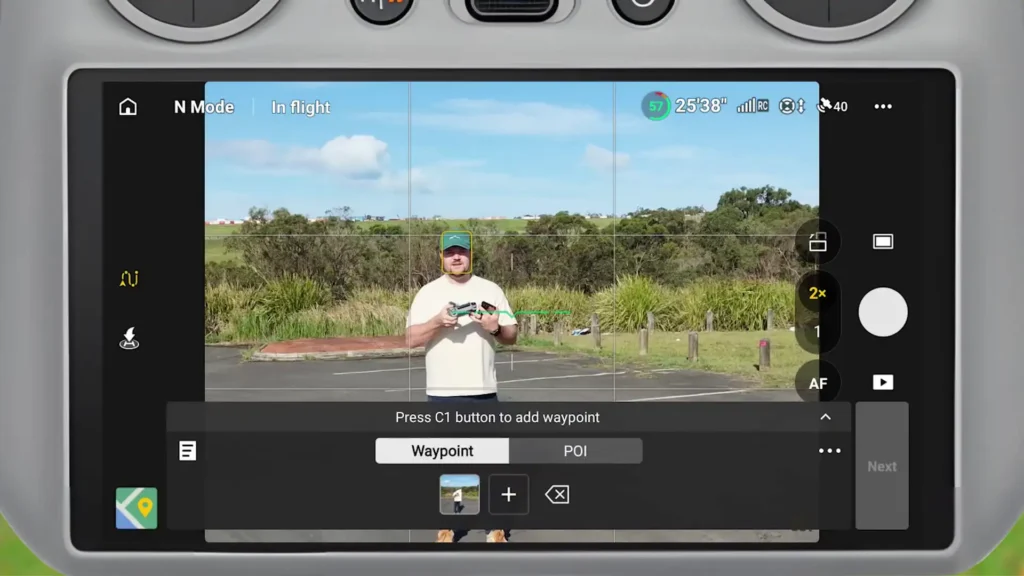
Now that becomes my waypoint mission, based on how the camera was looking and what it was going through. It tracks everything height, distance, and all that kind of stuff. I can then just press Start, and it’s going to run a very basic waypoint mission. It really is that simple to set up, just based on the framing.
I can also go into the map interface and customize those waypoints as well. And look at that just a simple little waypoint. From here, I can tap on the map icon to load up the map, and this is where I can add more waypoints by simply tapping on the screen. You’ve got full customization over each waypoint by tapping on it.

- Complete Light Control & Lens Protection: Includes ND16, ND32, ND64, ND256, ND512 & ND1000 to handle all lighting condit…
- Cinematic Precision: Perfect for controlling shutter speed, achieving natural motion blur, and creating professional-gra…
15. Focus Tracking
Moving on to tip number 15, this is focus tracking. Just below the waypoints, there’s that little square or rectangle icon more of a square with a small dot in the center. When I tap that, it goes into focus tracking mode. You can see there’s a little plus around me, so I can tap on that, and it automatically starts tracking me.
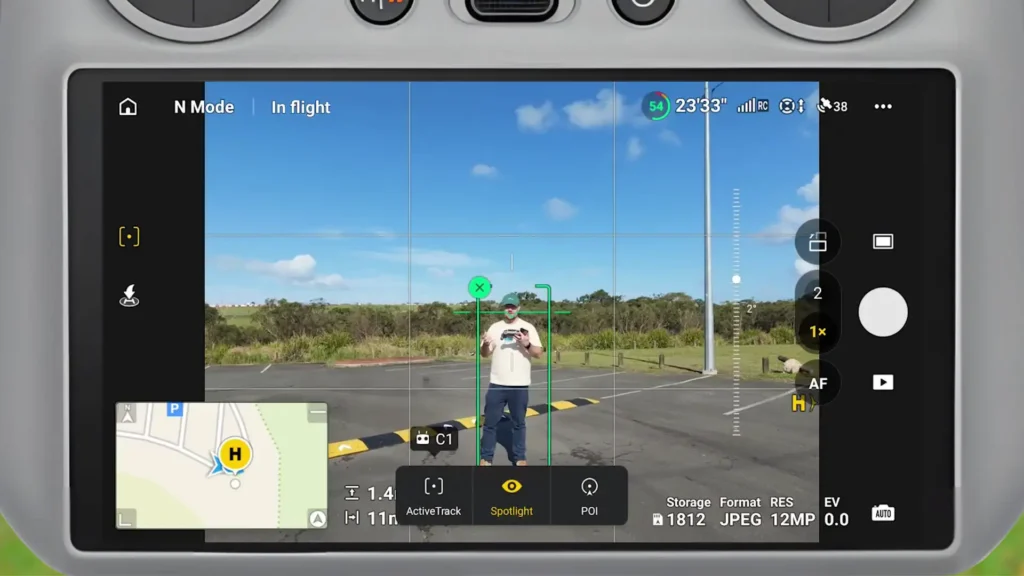
This is just in Spotlight mode, but if I tap that icon again, I can go straight into ActiveTrack. After the subject starts moving, the aircraft will fly in the set direction.” And here we go now it’s starting that ActiveTrack process. It’s in auto mode, and it really is that simple to jump straight into any tracking mode with the Mini 5 Pro.
On top of that, if I have focus tracking disabled for example, I just disabled it there, I can press and hold with my finger and then drag on the screen. It’s more of a dragging motion, where you tap and drag to draw a box around something. I’ve just dragged it around myself again, which is nice, simple, and easy to do.
16. Map
Moving on to tip number 16, this is the map interface, which I showed you briefly earlier with waypoints. By default, it looks like this. You just tap on the map icon in the bottom-left corner, and it brings up a slightly larger overlay, which is really handy to have. That’s typically how I like to have it set up.
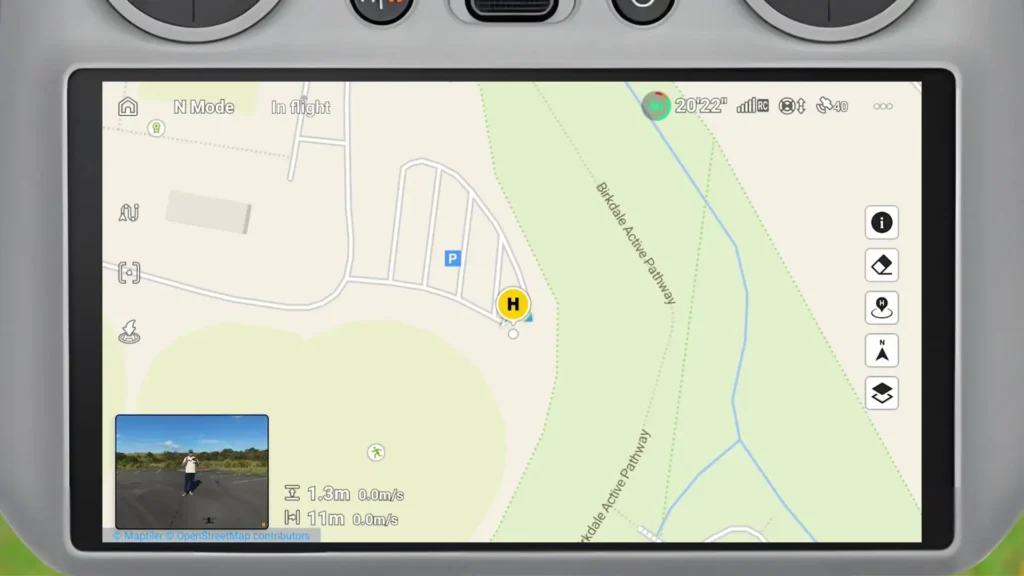
If you tap on the map again, it will shift the focus to the map and push the camera view into the bottom-left corner. This gives you a chance to clearly see the map and what’s going on around you. Maybe you just want to plan out part of a mission this interface is exactly what you’d use for that.
17. Attitude Indicator
And then for tip number 17, this is the attitude indicator. Now, everyone always says, “Are you sure it’s not the altitude indicator?” No, it’s definitely referred to as the attitude indicator. Don’t ask me what that means, but in the bottom-right corner of the map interface, you can tap on it and it will bring up this compass-looking display.
They call it the attitude indicator, but it also works as a compass. Depending on the orientation you want whether you’re focusing on the controller or the drone you can adjust that using the icon in the top-left corner. It gives you a different look and a slightly different interface, showing you which way you’re facing, which way the controller is facing, and where the home point is.
18. Vision Assist
Tip number 18 is the vision assist interface. In the bottom-right corner of the attitude indicator, I tap on that, and it brings up vision assist. This is the actual input from the obstacle avoidance sensors this is what’s happening around the drone.
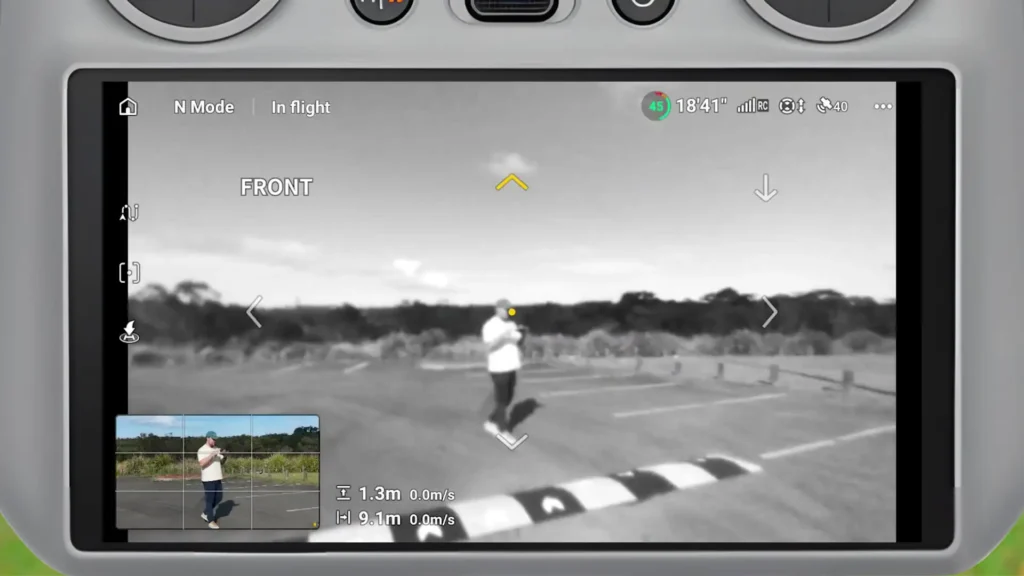
You can see that I now have the main camera feed in the bottom-left corner, while the vision assist view is displayed. I can tap on different directions to see behind the drone, off to the side, and all around it. It’s really easy to check what’s in front of you, behind you, to the left, to the right, and also below, using all of those obstacle avoidance sensors.
This is a really handy interface to have set up like this, with the main video feed and the vision assist visible at the same time. I can still tap and change the view as I go. It’s especially useful if you’re flying in a tight area with obstacle avoidance enabled, as it gives you clear visuals of what’s going on.
19. Pro Mode
Moving on to tip number 19, this is Pro mode. In the bottom-right corner—let me just move that one away you’ll see it says Auto. I can tap on Auto to switch it into Pro mode. This gives us more control and introduces a brand-new interface, which is always nice.
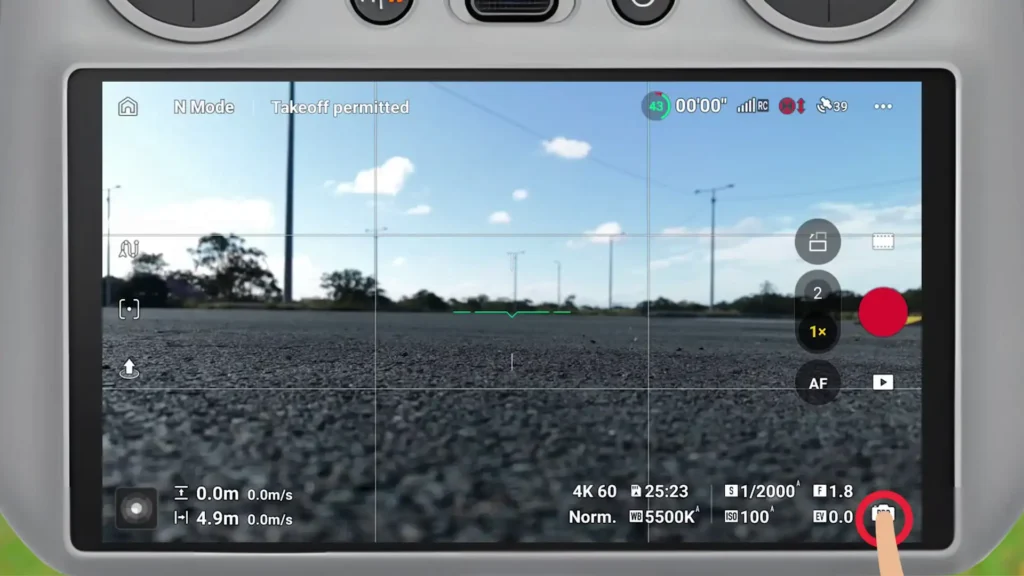
From here, I can adjust all sorts of settings. I can change the ISO, shutter speed, and EV. I can switch from auto to fully manual control if that’s something I want to do. I can also move across to another interface, where I can adjust white balance, resolution, frames per second, change color profiles, and do all sorts of other things.
That’s why it’s called Pro mode, it simply gives you much more control over your drone. Of course, you can switch it back to Auto mode, which gives you a very simple setup where you can quickly adjust settings like EV, resolution, FPS, and storage.

- Small but Mighty – The DJI Mic Mini Transmitter is small and ultralight, weighing only 10 g, [1] making it comfortable t…
- Detail-Rich Sound – Mic Mini supports omnidirectional recording. Capture rich audio, even in bustling outdoor environmen…
20. Auto and Manual Focus
Tip number 20 is the autofocus and manual focus settings. Now this isn’t for everyone. A lot of the time autofocus is really all you need because it’s a drone. A lot of the time it’s infinity focus so everything is in focus. But where it says AF, you can tap on that and turn it into MF, which is manual focus, and then tap it to go back into AF. But if you press and hold, you actually have some more control here.
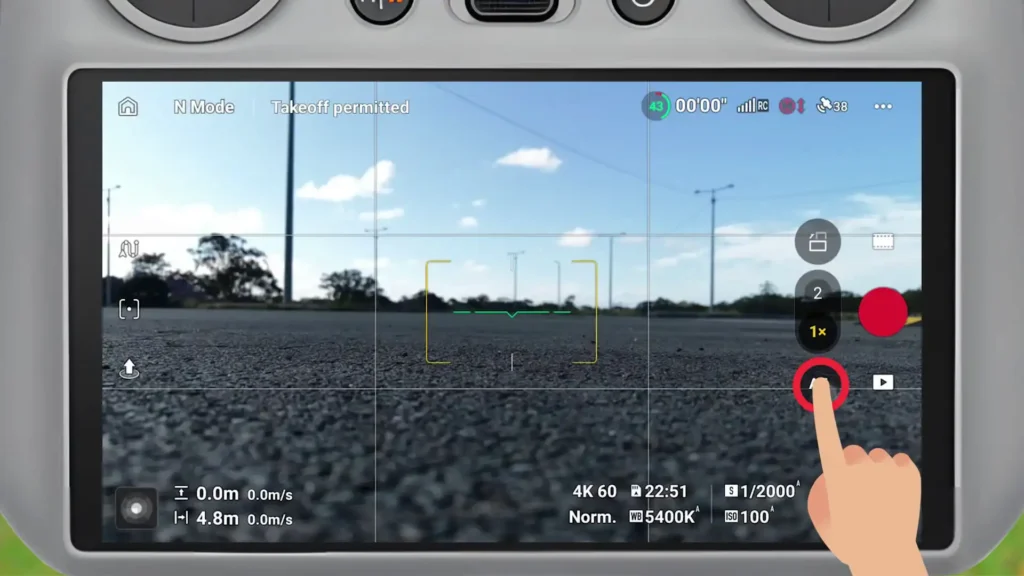
So I can pull that focus to the foreground there. You can see everything in the foreground is in focus. And I can push it away. And now it starts changing that focus point. So you do have some control over that if you really wanted to. This is a great example. You got something in the foreground. Maybe you just want to focus there and then drag that focus out. You do have that control on a drone which is really cool. A lot of the time though autofocus does the job and that’s really all you need but handy to have that control as well.

21. Digital Zoom
Now, for tip number 21, this is the digital zoom. So, by default, we’ve got the one times or that two times on the Mini 5 Pro. And that two times is the medium teller option that they refer to. It’s actually great. I do like this mode. It doesn’t crop too much, so the quality is still there. But what you can do is, let’s say, for example, we’re in one times. I can press and hold one times and I can now drag to go to two times or to go to three times.
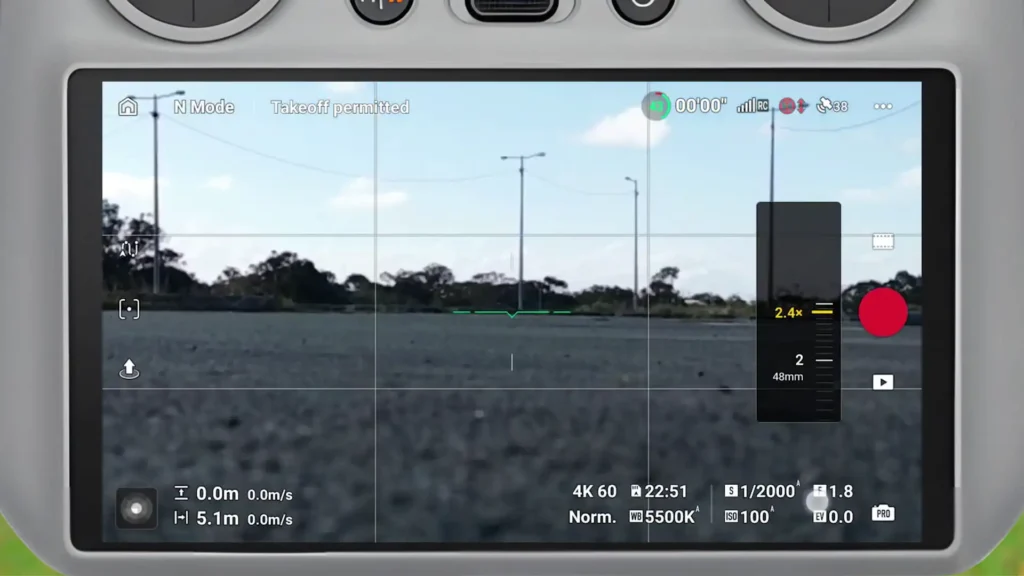
So, I’ve got even more control there. And you can see how seamless it is. It goes between the two. Even if I’m in two times, I can press and hold and drag to get those different focal lengths to go up to 72 mm, drag it down to the 24 mm wide. So, you got some control there by just pressing and holding just like I showed you with the manual focus and autofocus.
22. Vertical Shooting
Tip number 22 is the true vertical shooting. So, just above that zoom icon or the the two times, one and two times, you tap that button and it will turn it into true vertical shooting. So, if you’re wanting portrait videos or vertical videos for your social media, it’s that simple to do.
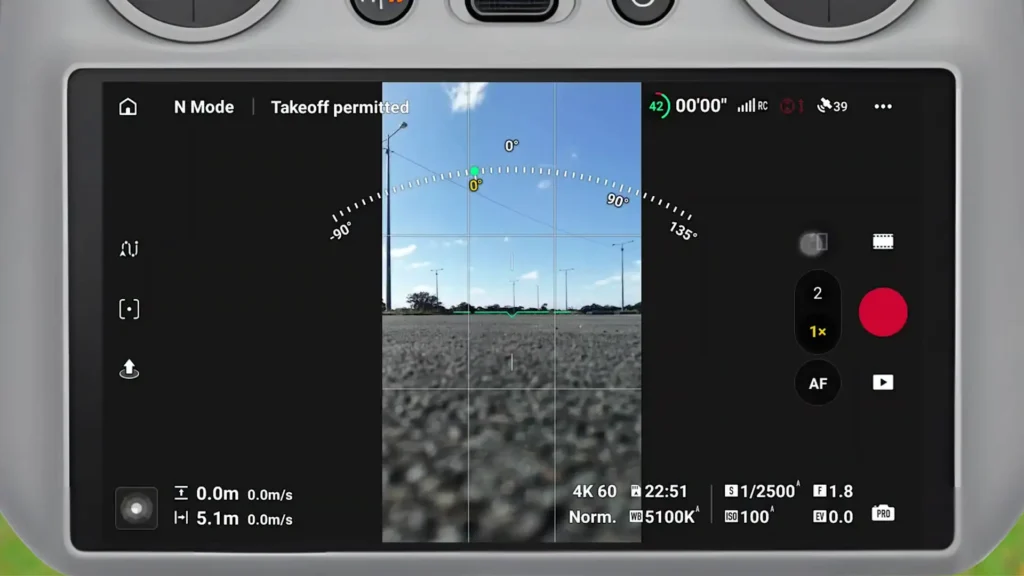
You can do this mid-flight. And if you’ve got the newer controller, you can also flip the screen to adjust it into vertical or horizontal shooting, which is awesome. But yeah, that’s how you access that true vertical is literally just by tapping that button and it will just chuck you straight into true vertical shooting.
23. Shooting Modes
Tip number 23 is how you change the different modes. So, just above the record button, you tap on that icon and it brings up the different modes. So, we’ve got photo, video, master shots, and then it breaks it down more, right? We’ve got quick shots, hyperlapse, and pano. And within each mode, there’s a few different settings or a few different options. So, in video, for example, we’ve got slow motion, and we’ve got normal, we’ve got master shots, uh, which the aircraft needs to be in flight.
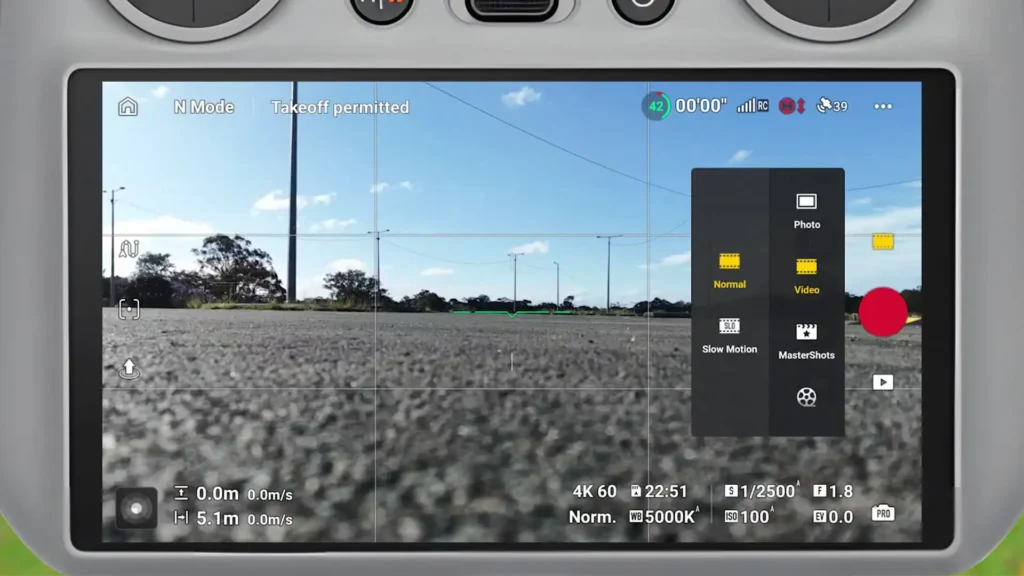
Quick shots, again, aircraft needs to be in flight. But depending on what you’re doing here, it will actually bring up more options to play around with. So in hyperapse we do have way points to get some really unique hyperapses and you can do all of that through this simple interface here.

- [App] A2 grade provides faster App loading performance for Smartphones & Tablets
- [Ultra HD] Read/Write up to 160/130 MB/s. Ultra HD video displaying/recording
Safety Menu
So let’s move on to the safety menu now. And to access this menu you press the three dots in the top right corner and you will see the safety menu comes up straight away. So this is it right here.
24. Obstacle Avoidance
Tip number 24. This is the obstacle avoidance and you do have a few options here. I showed you it before but you can turn it off. So it actually pops up with a prompt saying not recommended. So that’s no obstacle avoidance. None of those sensors will work. We’ve got break, so it will break if it sees an obstacle. And we’ve got bypass, so it will continue on its path, following something else and avoiding everything else in the environment. Within the bypass option, you do also have normal and nifty. I find that nifty is cool, but it’s a little bit more unstable or a little bit more kind of jarring in its movements.
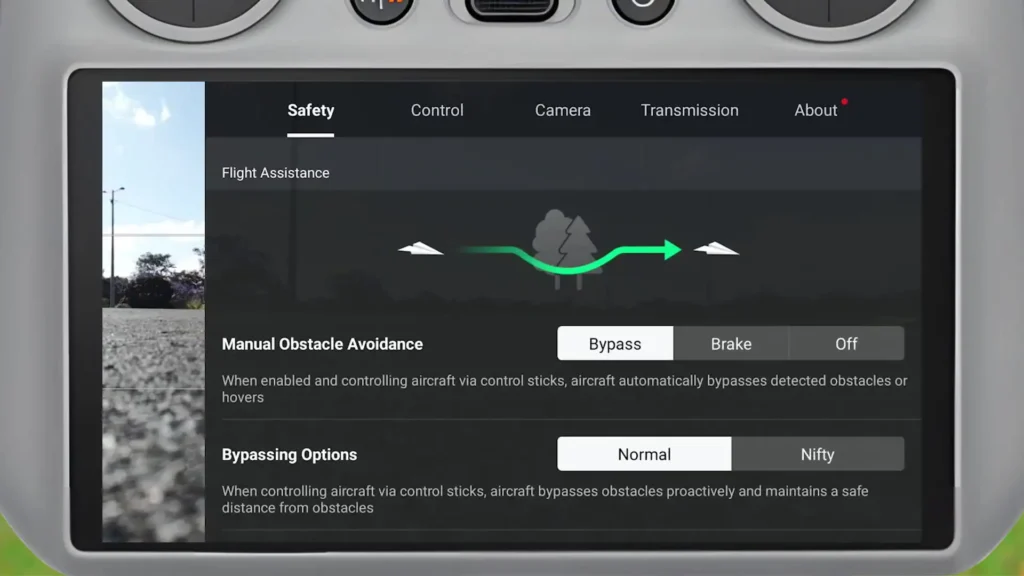
So, normal bypass is what I use most of the time, and it’s completely completely usable. So, I can stand right in front of the drone here, as you can see. See, I need to angle up so you can see me. But because I’ve disabled the radar map, the beeping stops right when I enable it, it’s going to give us that beeping and it’s going to give us the map.
You can see at the top there, we’ve got that red icon and as I move around, the obstacle avoidance picks up that I’m moving around and that I am an obstacle, right? And now as I move to the front, there I am again. But that beeping can be quite annoying. So you can disable that, but then it doesn’t actually let you know what it’s picking up on in terms of obstacles in the environment. So, it depends on your preference. Um, but that is an option as well.
25. Return to Home
For tip number 25, we have the advanced return to home. So, as you scroll down, we’ve got return to home and we’ve got preset or optimal. So, optimal will actually kind of override the preset option. So, a lot of the time I suggest people with auto return to home for the altitude to make that anywhere from 80 to 100 m, meaning the drone flies up to that height and then returns to home, making sure it avoids everything. But with optimal, it will actually return home to you and it will utilize all of its obstacle avoidance to avoid anything in its path. So it might not even increase to 100 m.
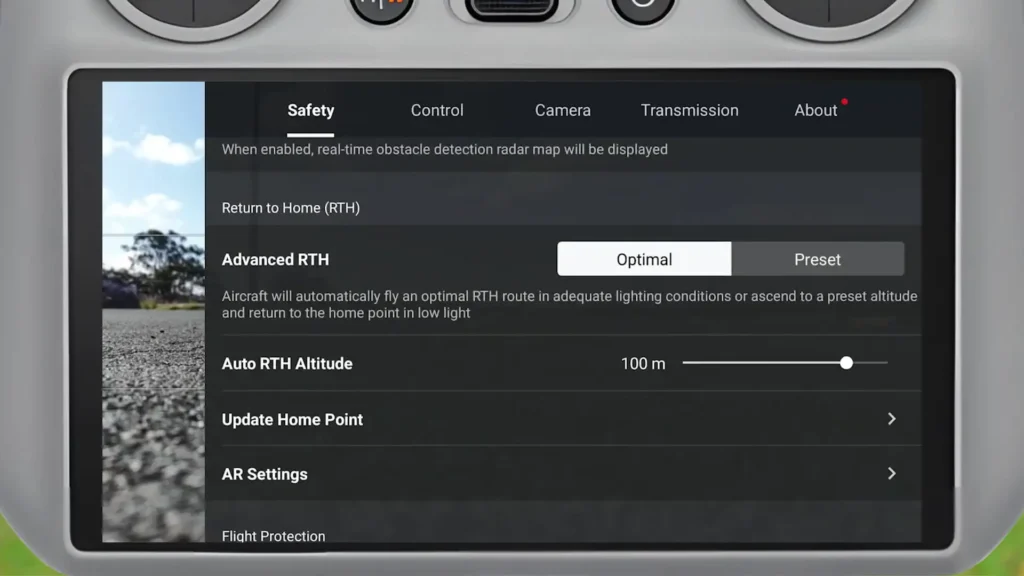
It might just come down and then continue to avoid obstacles. The preset is just going to lock it in at 100 m, for example. Optimal is the one to go with if you want to optimize your return to home experience because it’s probably going to be using, you know, less battery. it’s going to be able to avoid a lot lower altitudes and it’s just going to be able to come back a lot quicker. So, it’s up to you what you want to do here, but you got optimal or preset.
26. AR Settings
Tip number 26 is the AR features. This is a relatively newer kind of setting that I really like and we’ve got a few different options here. By default, they’re all turned on, but I just wanted to show you guys what that actually means. So, AR home point just shows the home point. It shows you where the home point is when you’re flying. So you can see in augmented reality where where you took off from. You’ve also got the return to home route which is very handy as well because straight when you press return to home it will show you the path that it’s going to return on.
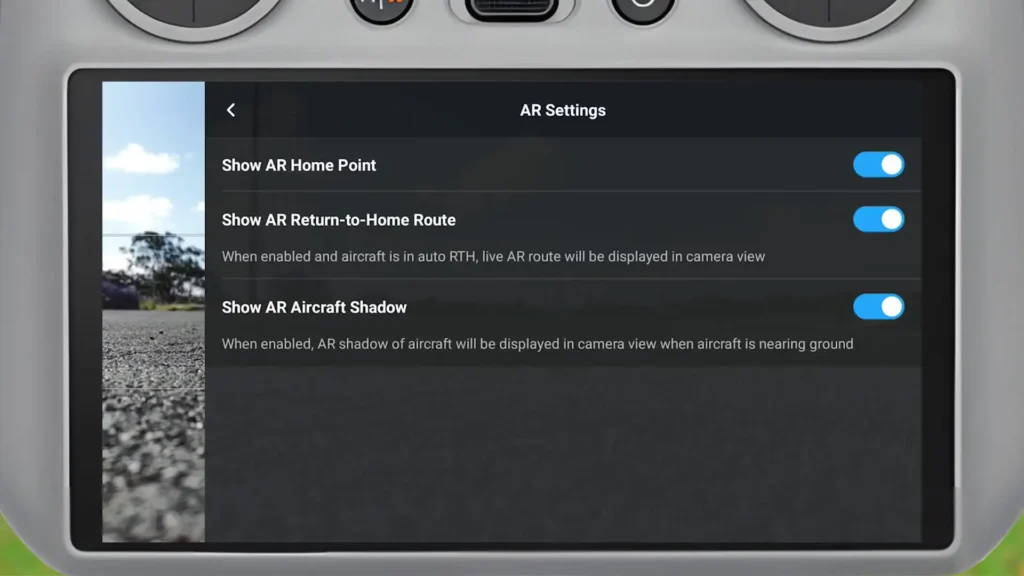
And this is cool to see when you have optimal setup because it will show you exactly what it’s going to do to avoid certain things in the environment to get back to you. And then the other one is the aircraft shadow. So, as the drone starts to come down, the camera will look down and it will actually show you a shadow of where the aircraft is roughly going to land so that you know what to expect. I’d recommend having all of these turned on, which I believe they are by default, but I just wanted to show you how that all works.
27. Calibrate Sensors
Tip number 27 is how you calibrate the sensors. And we’ve got the compass sensor as well as the IMU. So, you can literally just tap on it and it will give you the breakdown of how to calibrate the compass. And then I can do the same thing and I can calibrate the IMU as well. So that’s if you have any sort of warning there for me. You can see it says normal normal. So if it has any sort of warning, that’s where you come in to calibrate the sensors for the compass and then the IMU sensor as well.
28. Auto Power On/Off
Tip number 28 is the auto power on and off. I have both of these on by default, but this is how you turn them off. So when you unfold the arm of the drone, it will power it on. And then when you fold the arm of the drone, it will power it off after 8 seconds. So, you can turn both of these off if you don’t want them.
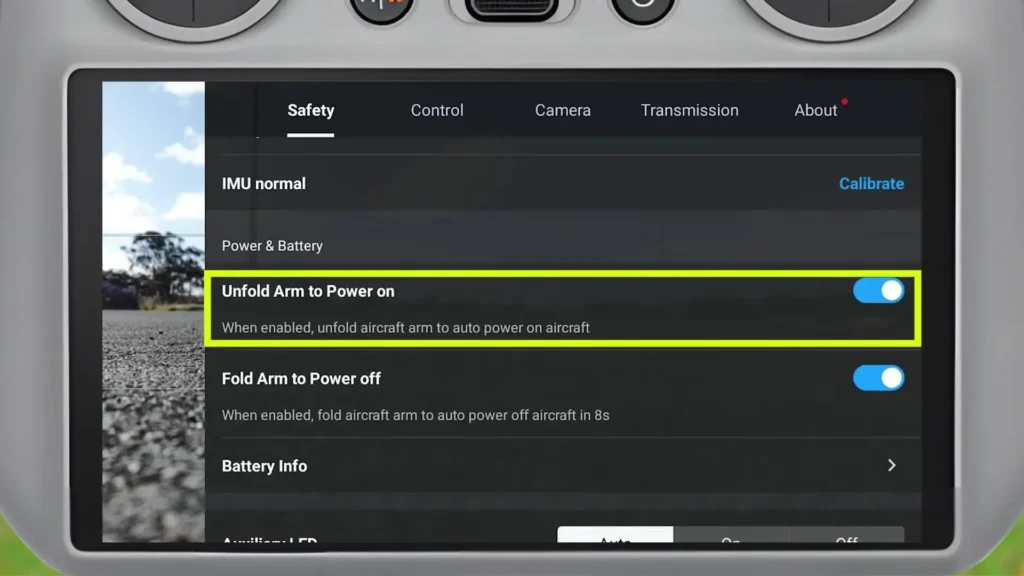
I’ve also found that when I insert a new battery, it will also just power on the drone, but the unfolding options are in here, right? So, you can turn them on or off. I like to have both of them off, especially the unfolding one. It just means that you can launch a lot quicker.
29. Battery Info
Tip number 29 is the battery info. Now, you come in here and this will tell you battery cycle count. It will tell you your serial number, and it will give you the cell status. So, it’ll let you know if there’s any damaged cells. uh it’ll tell you what the voltage is uh as well as the temperature of the battery as well. So, really handy stuff to come in here and just start to understand what’s a normal type of temperature and voltage that you’re getting from a brand new battery. Just so that over time if anything starts to play up for you, then you can come in here and see what’s going on.
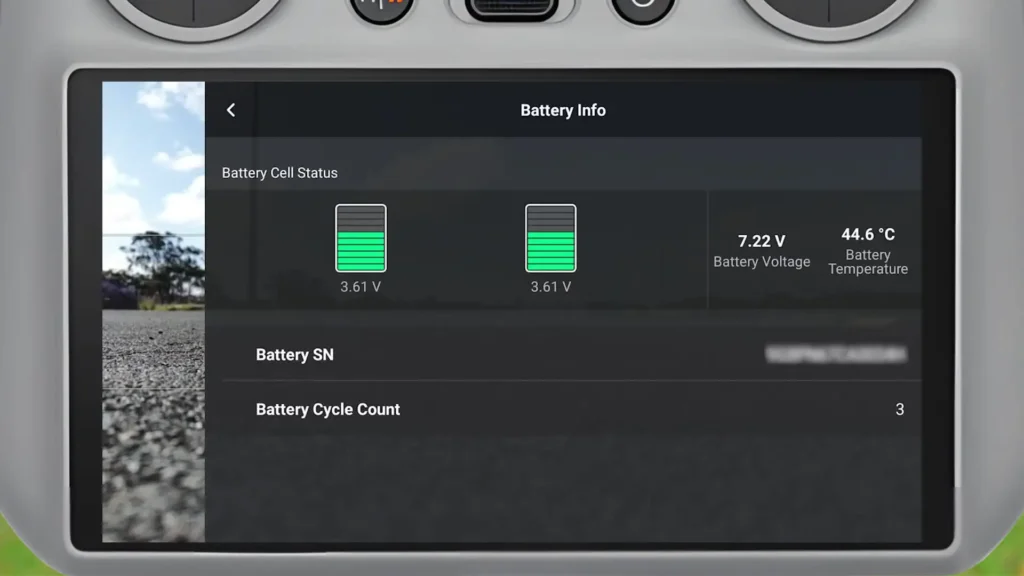
Especially with these cells here, you can see there’s two separate cells. if I see that one’s completely out of whack from the other one, that might tell me that I’m having some issues and I need to repair it or return it and get a brand new one. Now, there are a bunch of other settings in this menu, but I just wanted to show you one more, which is tip number 30, and it’s how you can turn off vision positioning and obstacle sensing.
30. Vision Positioning and Obstacle Sensing
So, if you come all the way down to advanced safety settings, and then you come down again, there’s an option right down here. It says vision positioning and obstacle sensing. So, if I turn that off, uh, aircraft relies only on GNSS to hover. Omniirectional obstacle avoidance is unavailable, and aircraft will not automatically decelerate during descent. close to ground. So, what this actually means is that you can fly really low to the ground because by default when you pull the drone down, there’s a certain point that it stops and then if you keep holding down on the stick, the drone will then initiate a landing process.
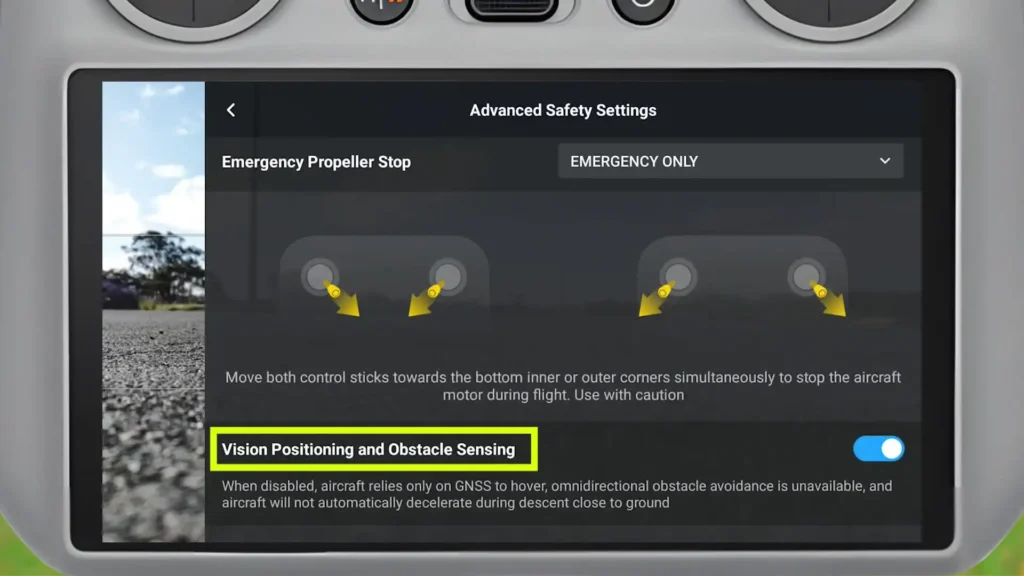
But this means that I can get even lower to the ground and it also means that it’s not picking up on the ground, right? So, it’s can be dangerous and you can crash the drone. So, just be careful. but this is how you do it if you want super low shots and something a little bit more unique. This is where you actually access that and it’s right tucked away in that advanced safety settings and it’s tucked right away in the advanced safety settings. So just check this out and play around with it in a safe environment and get used to it if you are going to use it.

- Durable Waterproof Material: Crafted from high-quality waterproof PU PVC, this drone landing pad offers double-sided dur…
- Universal Pad for Major Drones: Designed for DJI Neo/Mini 4 Pro/Mini 4K/Mini 5 pro/Flip/Avata 2/Mini 3/3pro /Mini 2 and …
Control Menu
Now let’s move on to the control menu. So it’s just right next to the safety menu and it gives us a bunch of new settings and tips and tricks and all sorts of things that we can access through the control menu.
31. Gain and Expo tuning
So for tip number 31, this is probably one of the more powerful settings that you can access. It’s called gain and expo tuning. So in here we’ve got three different options for cine, normal, and sport. So on the controller, you’ll see it will say C, N, and S. So depending on what mode you’re in will depend on what settings will apply uh to the mode that you’re in. But this gives you control over the horizontal speed, the ascent speed, descent speed, all sorts of stuff. Your smoothness, which is how the drone turns left and right.
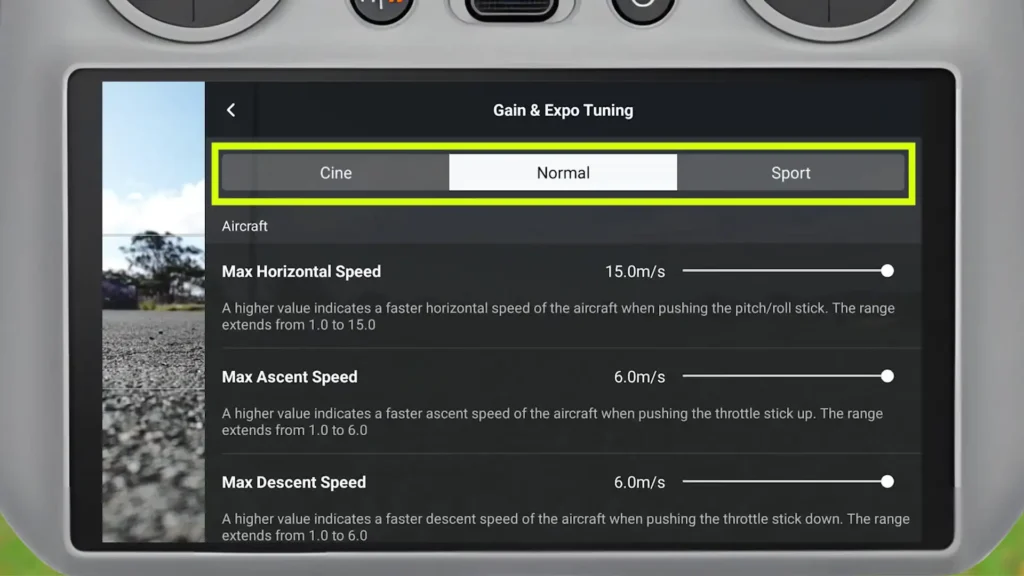
You can then adjust the expo. You can adjust gimbal control. There’s just so much control here. And the gimbal controls are very very nice to get used to, right? Because in the background, you’ll see as I’m scrolling up and down, it’s a slow movement. You can just see on the far left hand side there.
But let’s say for example, I increase that speed. You can see I’ve got crazy control over the speed of the tilt. And now smoothness, I can adjust that. So that means that it’s just slowly and gradually going to taper off and it’s going to look a lot smoother, but there’s kind of a trailing effect there. and it’s a little bit more challenging to manage yourself. On top of that, you can adjust the roll speed settings as well. So, you can see in the background I’m rolling. That’s 100%. So, let me just get out of this. So, this is what you can expect for tilting.
32. Focus Track Settings
Tip number 32 is the focus track settings. And this is another really handy menu to get used to. A bunch of different settings in here for how the drone is going to track you. So you got the outer circle and the inner circle, which is the new active track 360°. But you can actually change the inner radius, the outer radius, you can change the height, the outer height. You got a bunch of control here for standard as well as for cycling.
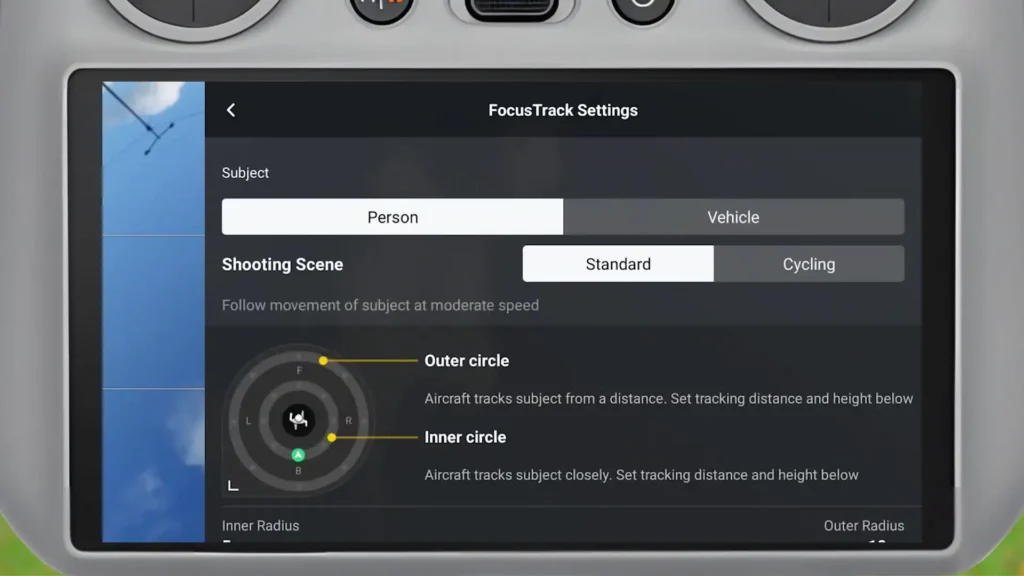
So you can really play around with this and get a custom experience for yourself. And then you can do the same thing for vehicle as well. You got some control here for vehicle, which is really nice. And you can just move these and adjust these as you see fit. It’s very responsive. And again, at any point you just reset it if you’re not happy with it, and it will go back to default. So, really handy to come in here, get used to this, especially if you’re using focus track a fair bit.
33. FPV mode
For tip number 33, we’ve got FPV mode. So, it’s right under that gimbal mode option. You tap on FPV. So, now what this will mean is as I start to fly the drone, it gets a little bit of a banking effect to it. So, it literally looks more like an FPV drone, just in the way that the drone moves. It’s actually the gimbal. It’s the drone doesn’t move any differently.
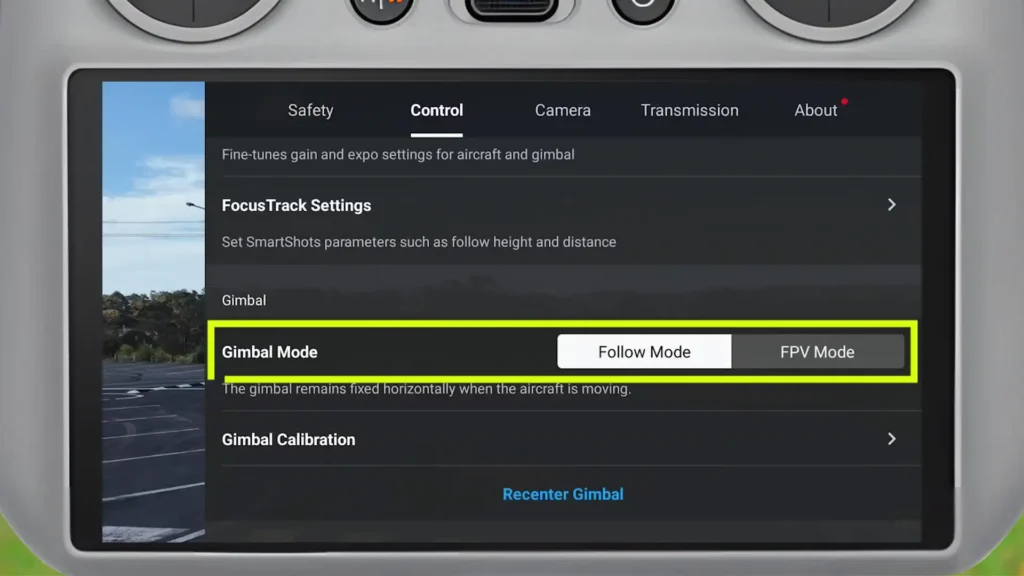
It’s the way that the gimbal moves to input. So, by default, it’s following, meaning that it’s accounting for any sort of movement and wind and keeping everything nice and stable. But in FPV mode, you get this really unique banking effect, which might be the desired look that you have for a project. So, this is very handy stuff. Super easy to do and nice and easy to turn on and off.
34. Gimbal Calibration
Tip number 34 is the gimbal calibration. And this should only be used if you’re having issues with the gimbal. But you access it right there. So, three dots, control, and then you scroll down until you see gimbal calibration. Tap on that, and then it’ll walk you through the process.
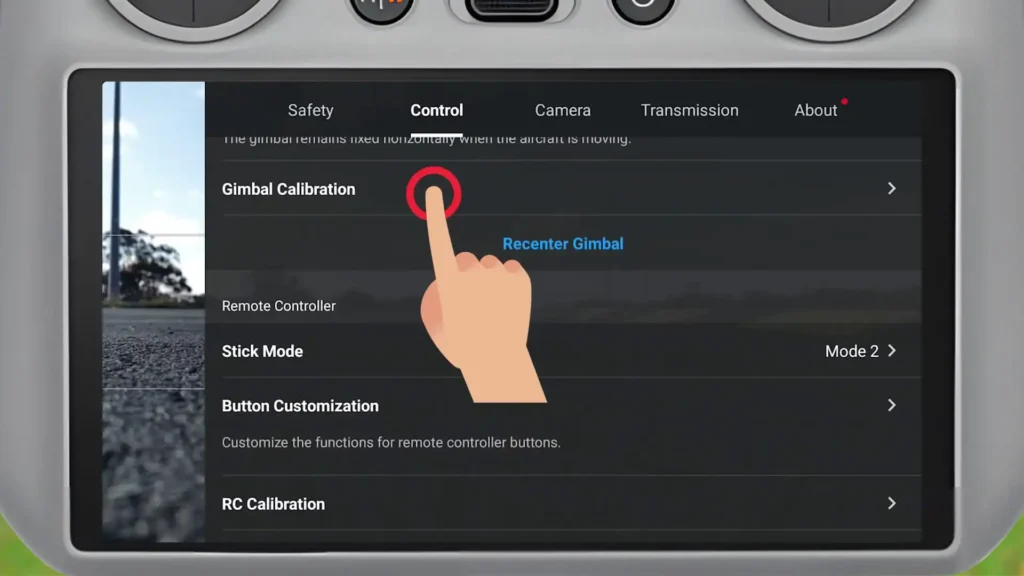
35. Button Customization
Tip number 35 is customization. One of my favorite settings to dive into. This gives you a bunch of control with the C1 button, the C2 button, the scrolling wheel, as well as pressing um and holding C1 and the right dial, and pressing and holding C2 and the right dial. So, a bunch of control. You can tap on it and play around with control, camera, and other. And you can go through and just see what is available for you.
You can turn on the light, you can turn on cruise control, vision assist, all sorts of very, very handy stuff in here. And you got a lot of control through these different menus here. So definitely have a look and see which one uh works for you cuz there’s, like I said, a lot of different options you have in here. By default, I’ve got it. So C1 just looks down and then looks back up. It just recenters the gimbal. And C2 turns it into that portrait mode as well. So that’s the true vertical. So instead of tapping that button on the screen, you can just press the C2 button which I’ve programmed here.
36. Gimbal Roll
For tip number 36, this is the gimbal roll setting. So by default, I don’t think the right dial has that set up. I think you actually have to press and hold. Here we go. C1 and right dial to do the gimbal roll. But I just made it so it’s the right dial. So you literally tap on one of them. So we’ll go right dial enabled gimbal roll. So that means now with the right dial, I can have full control over that gimbal roll. And uh this is something that you can access through the quickshot mode with the standalone rotate feature.
But right now I’m showing you the manual control. And with that gain and expo, you can then increase the speed as well if this is too slow for you with that gimbal roll. And at any point I can press C1 if you’ve got it programmed right. And it will just reset the uh camera the gimbal back to the center point. So really simple stuff here. Regardless of which way I’m turning, I can just reset with that C1. And for tip number 37, this is the cruise control option.
37. Cruise Control
one of my favorite features that’s tucked away. Really cool feature here. So, let’s just go with the C2 button for example. We’ll go into control and we’ll scroll down to cruise control. So, you’ll see it right now on the screen what it looks like.
But basically, whatever inputs you’re putting into the drone, you might be flying forward, looking in a certain direction, moving around, to the left, whatever, you can press that cruise control button with the C2 in my example, and then it will just continue on the path regardless of the input you’re putting in. It’s just going to continue like it would in a vehicle when you put in cruise control. Very handy stuff though. I really like using cruise control a lot.
38. RC calibration
Tip number 38 is the RC calibration. So, if we go back and scroll down, you’ll see RC calibration. Again, this is how you find it. You power off the aircraft and calibrate the remote controller. So, the aircraft has to be powered off. And then you tap that and it will guide you through the calibration process.
Camera Menu
Now, we’re moving on to the camera menu, which is right next to the control menu. And again, we’ve got a bunch a bunch of different settings in this one as well.
39. Color Profiles
So for tip number 39, we’ve got the color profiles, which I showed you earlier on, but this is another way to access them. So we’re in normal right now, but we can adjust it into HLG, or we can go to DLOG M as well. And when we go to DLOG M, you see it opens up that color assist. So if I turn that off, it’s a very flat, dull image. But if I turn the assist on, brings a bit of color in. just so then later on when you’re at home, you’ve got a bit more control over the post-production processing of of the image, right? And customizing the color and whatever else.
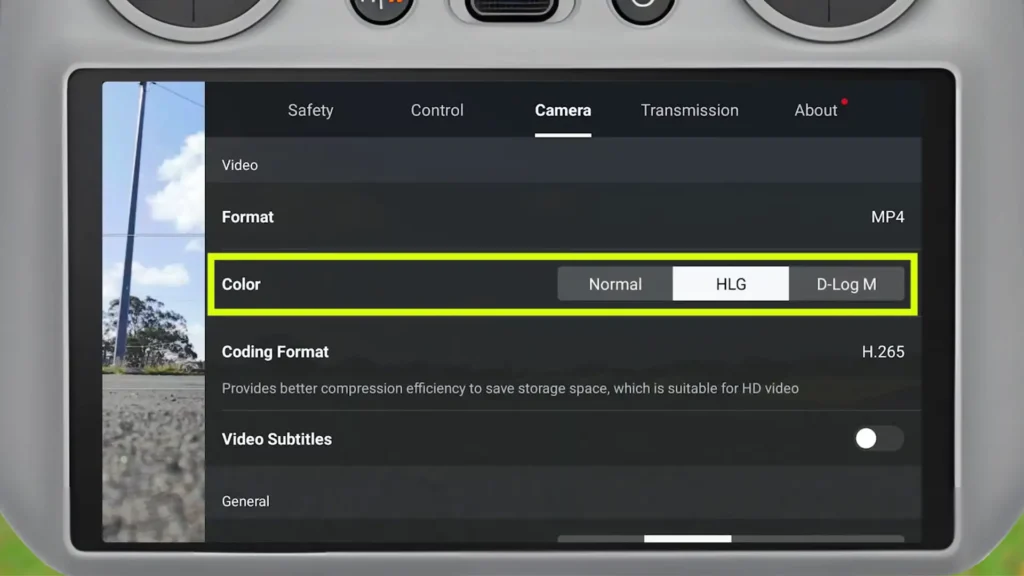
40. Histogram
Tip number 40 is the histogram. So, as you scroll down, you can enable histogram and you can now see it here. I can drag it into whatever position I want it to be in the top right, let’s say. And this will now just adjust depending on, you know, what you’re doing. So, for example, if I come in here and maybe I just completely blow the ISO out, you can see the graph starts to adjust in real time to let me know, wow, this is way too overexposed. And if it goes the other way, it’s underexposed.
You can really, really play around and adjust all sorts of things here. You can see as I adjust EV, it just blows it out. And that’s overexposed. And if I go the other direction, it should be relatively dark now. It’s not too bad, but you can see how simple that is to do. And then you can just yeah adjust it back to zero as well. But that histogram is very handy especially to get used to you know how to actually get that image that you’re looking for. Making sure that it’s not overexposed or underexposed but it’s at that nice point where you can then edit it again later.
41. Peaking level
Tip number 41 is the peaking level. So as we scroll down we will see we’ve got off, low, normal, and high. So if we just go with high just for this example here, this is when you’re in the manual focus. So, straight when I tap on manual focus, you’ll see, oh, look at that. We’ve got some little indicators, some little red areas that are telling us that’s in focus.
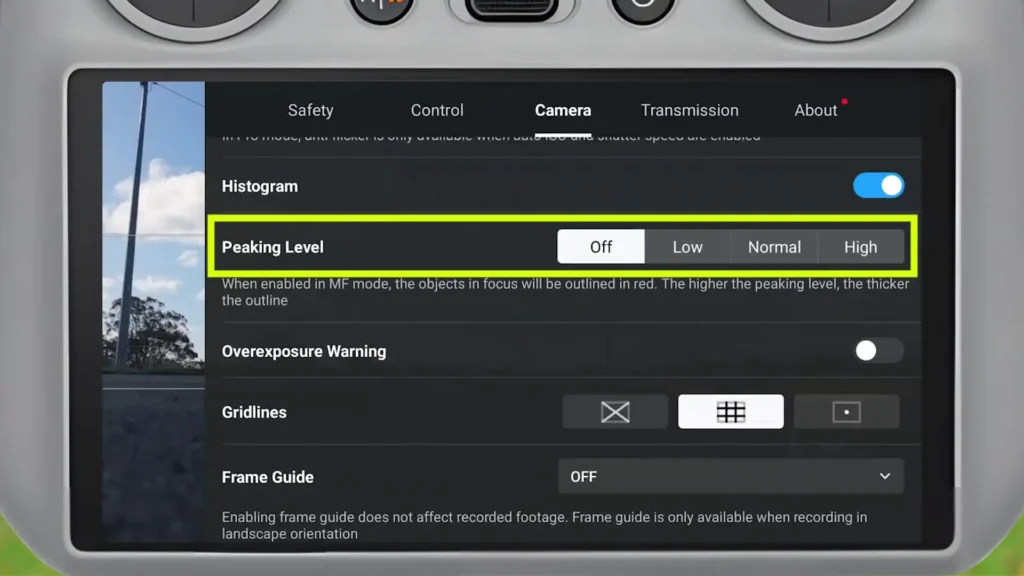
So, I can press and hold and I can drag and you will see it will start pulling it in to the foreground. So, we can see in the gravel there, it’s starting to show little red dots, little specks to tell me that’s the focus area. And if I just keep pushing it back, we’ll see it now goes to all the poles in the distance. So, that’s if you’re using manual focus. You can then enable the peaking level through the camera settings.
42. Overexposure Warning
Tip number 42 is the overexposure warning. So if we scroll down, we can enable overexposure. And we’ll now see that we’ve got some patterns in the distance. So as I start to adjust ISO, for example, you’ll see, oh, wa, look at that. We’ve got all these patterns now. So this is telling us that it’s completely overexposed. So, the combination of this and the histogram will just start to help you out with, you know, what it is that you’re looking for out of your footage.
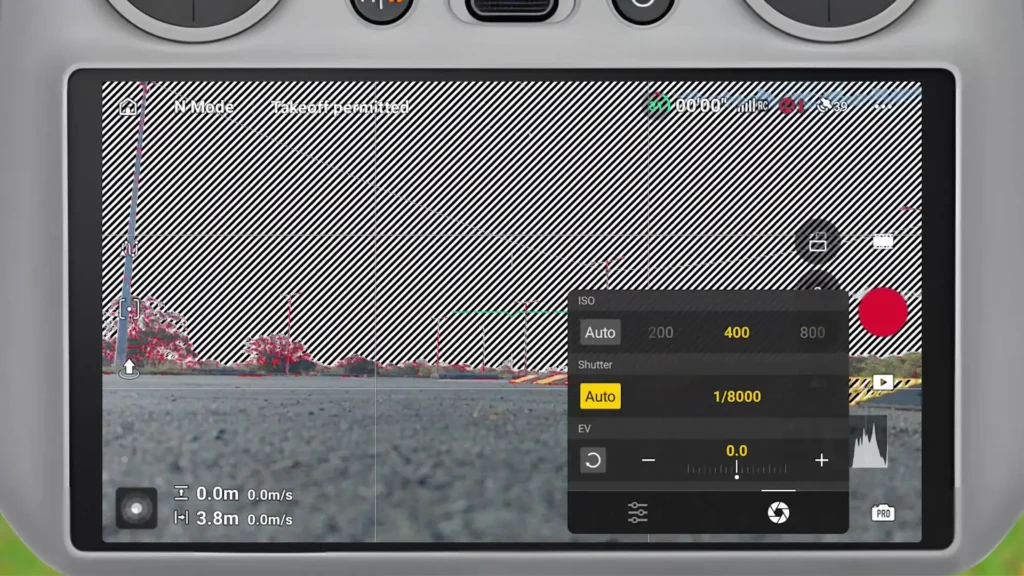
So, right there, that’s not ideal, right? It’s way too overexposed in the distance. And the histogram is telling us, but also the overexposure warning is telling us that as well. If I press auto, you’ll see that’s what it should look like. And this is also just an easy rule of thumb. If you go straight into auto mode, it’s most likely going to set it up in the best possible way. And you can start to learn how to actually uh set things up for yourself just by using that auto mode.
43. Grid Lines
Tip number 43 is the grid lines. And by default, I have the rule of thirds on, but you can also have this diagonal one and the dot. So, you can really go all in on this one. And you can adjust it that you’ve got all sorts of lines to frame up your videos and photos and whatever else. But for me, I just disable those two and I just have the rule of thirds just so I know how to frame it a little bit uh for myself if that’s what I’m looking for. Otherwise, you can just disable them all and just have a very clean interface.
44. Frame Guide
Tip number 44 is the frame guide. So, it’s just below. I can tap that and it will give me a bunch of different options. So, if I go the vertical format, which is most social media content nowadays, and I go back, you’ll see it just shows me a guide. So, it’s actually going to record everything there. It’s going to capture it by default the entire thing, right?
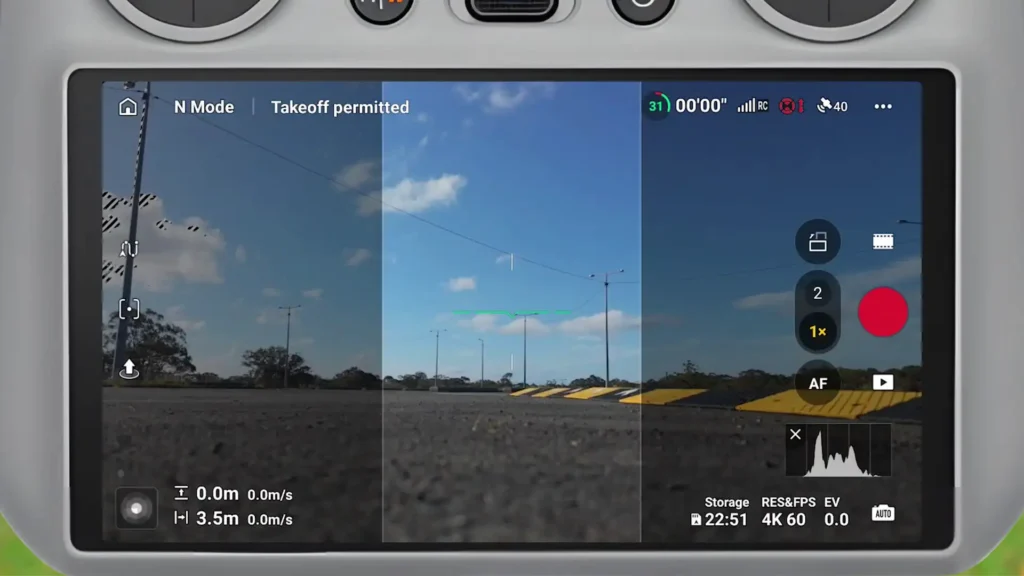
The horizontal video, not that vertical option. But, this is just giving us a frame guide. So I know that that midpoint is what’s going to be captured for my vertical content. So this is very handy as well as you would imagine. You can use this in all sorts of ways. And I can come in and just get like a one by one square for example. And again this is the framing of it. But it does film everything. It captures the entire image here. But that’s just the the guide right to show you what is a one by one and what is a 9 by6 as well.

- Anti-Glare Design: Made of 9H tempered glass with a frosted design to filter strong light and protect your eyes while fl…
- Specially Designed for DJI Mini 4 Pro: Protects the screen of your DJI RC controller from damage and scratches.
45. Style Options
Tip number 45 is the style option. And again just a little bit more customization here. You can tap to drop that down. And you can adjust the sharpness up to plus two or down to minus 2. By default, they’re both on zero. And noise reduction, you can go to minus 2 or plus one.
And a few people have commented telling me that they don’t love the sharpness of their drone. So sometimes they’ll actually reduce the sharpness cuz they think it’s overly sharp, right? It’s like processed in a sharp way. So they bring it down so that later on in post-production they can put the sharpness on. So by default 00 is fine for most people. But good to know that you can customize this if you really want to. And then tip number 46 in the camera menu is the storage and how you can format your storage.
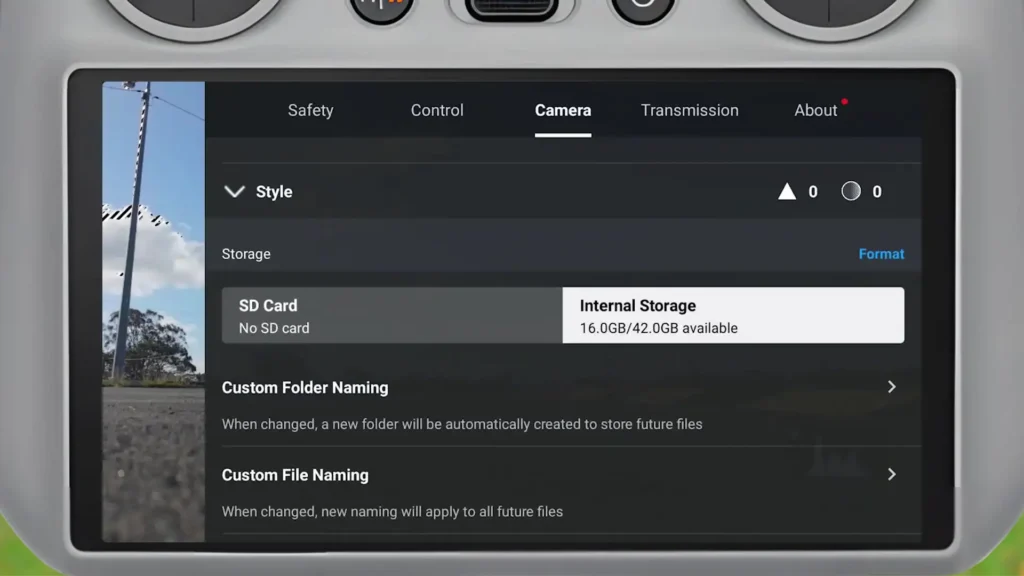
46. Storage
So you can probably see there I’m utilizing the internal storage. I can just tap on SD card and if I had one there, it would go across to SD. but I also have the option to press on format and it will pop up with a prompt to uh let me format either SD card or internal storage. And it’s really simple to do through the camera menu. Moving on to the transmission menu and we’re nearly at the end of this video here, guys.
Transmission Menu
47. Live Stream
This is tip number 47 and this is how you live stream. So this is something that I don’t actually do much of myself. So you can see you got the live streaming platforms at the top there. If you tap on that, it’s actually not letting me do it cuz I am screen recording right now.
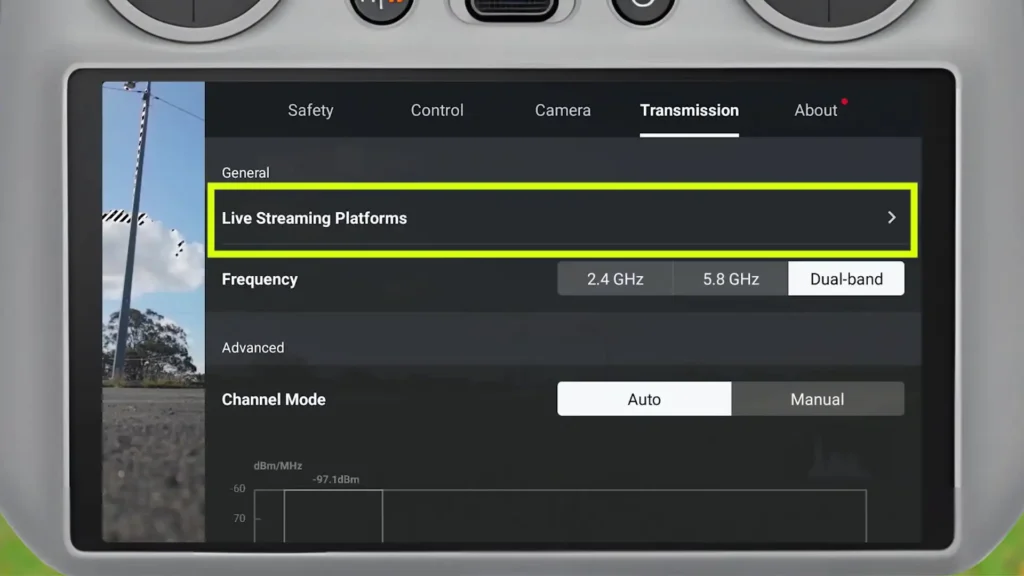
But typically it just pops up and says RTMP. And if you know how to do that, that’s an easy way of live streaming. But for me it’s something I haven’t even bothered looking into. I wish there were a few more options to live stream directly to certain platforms. but it still is a workaround that a lot of people have figured out how to do if they’re wanting to live stream with their drone.
48. View Interference
Tip number 48 is how you view the interference and also change channels. So, by default, everything’s fine. Leave it on dual band and auto, but this is how you view the interference. You just scroll down and it will show you this little graph here. It’ll show you the little peaks as interference pops in. Uh, depending on where you are. If you’re in a suburb and there’s a lot of Wi-Fi networks, you might notice way more interference here. Um, but what you can do is you can change the channel if you really want.
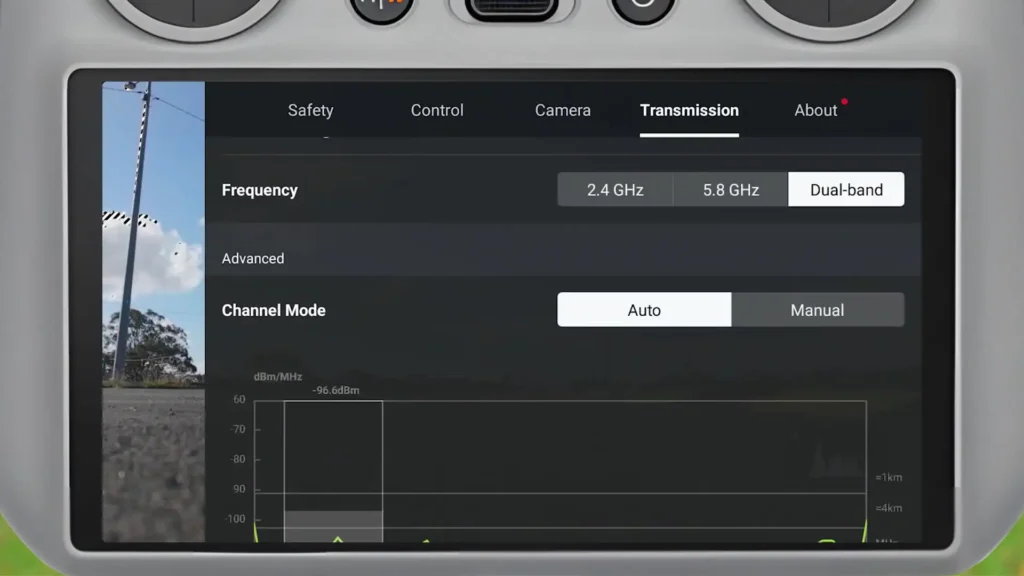
So, you can go into manual and I can go 5.8 GHz or 2.4 GHz. And you can see there’s some huge peaks at certain points and I can just drag my finger across to change the channel depending on if one is particularly out of whack. But with these newer drones, honestly, like just leave it on auto and leave it on the dual band. That is the optimal one cuz it’s just going to switch between frequencies and find you the better better channel.
About Menu
49. Check for Update
Tip number 49 is how you manually update your drone. So, in this little interface here, you can see there’s the option to update. And there actually is an update available right now. So, I can tap on it and it will take me through, check the version, and it will tell me what the update is all about.
So, I can update it directly through there. And you can also manually search as well if there isn’t an update that’s prompted. That’s how you can view it. You can also click on the drop down for the fly safe data and do the same thing. You can check for an update there. And right now it’s everything’s up to date.
50. Reset all settings + Clear Data
And for tip number 50, the final tip for the Mini 5 Pro, it’s how you can reset all the settings and clear the data. So I’ve combined both of these. Resetting all settings is if you’ve like adjusted, you know, the gimbal controls, the focus track, you’ve changed all sorts of things, you can just come in here and just reset it all back to default. That’s really easy. But then the clear all data option.
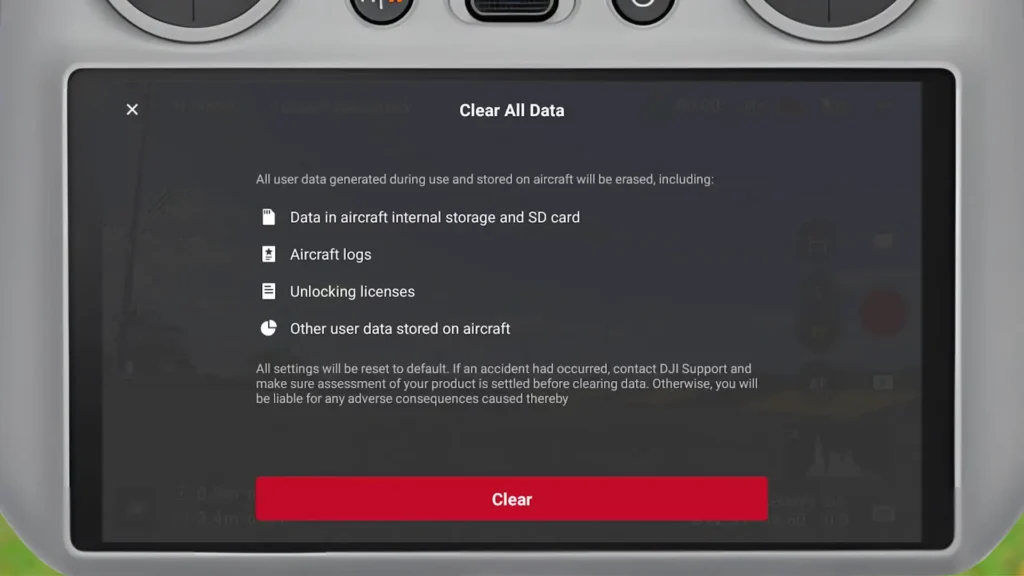
This is if you want to sell the drone, right? So it’s going to clear all the details like all the internal storage, aircraft logs, unlocking licenses and other user data stored on the aircraft. You then want to unbind as well, which you can do through the profile menu, um, which I showed you right at the beginning, that profile menu. And when you click on the drone, there’s the option to unbind it. But this is how you actually clear all that data as well, which is just a final step I would suggest before you were to sell the drone or if you wanted to clear that data for whatever reason.
Table of Contents
Article Summary
In this guide, we’ve covered 50 essential tips and settings for the Mini 5 Pro, designed to help both new and experienced drone users get the most out of their device. From basic controls and quick access icons to advanced features like Pro mode, focus tracking, waypoints, and the vision assist interface, each tip is aimed at improving your flying experience and capturing high-quality footage.
Read More: K&F CONCEPT ND Filter Selection Guide for DJI Mini 5 Pro