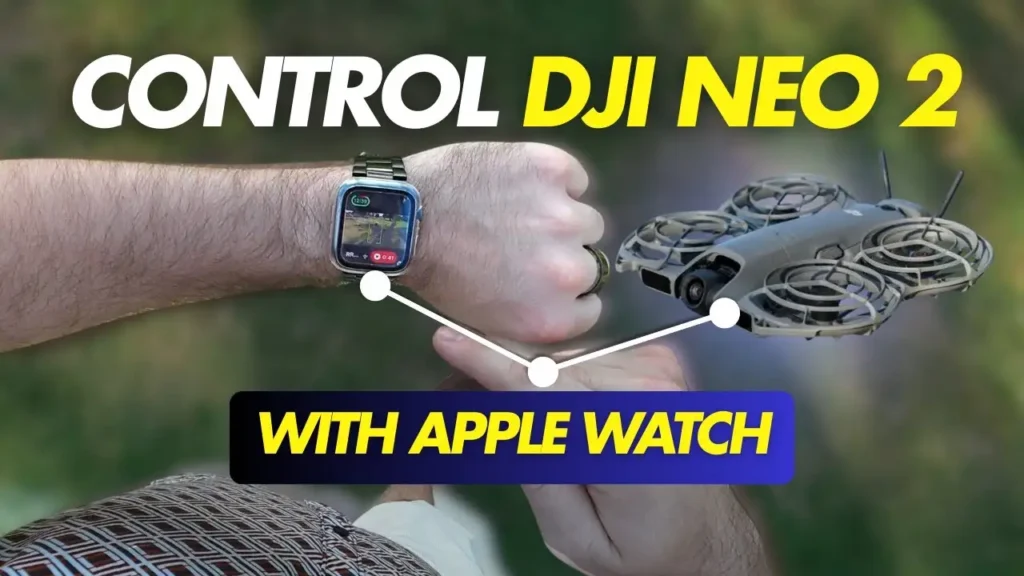
Did you know that you could control the DJI Neo 2 entirely with your Apple Watch? That’s exactly what this article is all about — and once you see how seamless the experience is, you’ll wonder why you ever needed a traditional controller in the first place.
Whether you’re cycling through trails, skiing down a mountain, or simply jogging through the park, controlling a drone while keeping your hands free has always been a challenge. The combination of the DJI Neo 2 and Apple Watch changes that entirely. Let’s walk through everything you need to know to set it up and get flying.
What You Need to Get Started
The process to control DJI Neo 2 with your Apple Watch is surprisingly straightforward. You don’t need your physical controller or anything complicated. All you need is the DJI Neo 2 drone itself, your smartphone with the DJI Fly application installed, and a compatible Apple Watch with the DJI Fly app loaded up as well.
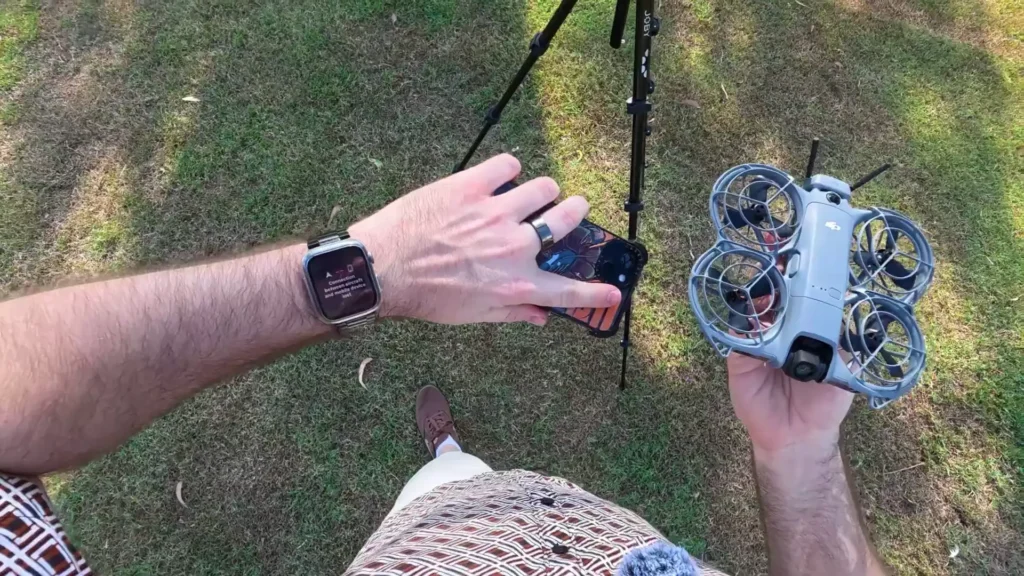
Once you power on the drone, the DJI Fly app will pop up with a prompt to connect to the Neo 2. You simply go through that connection process, and within moments, you’re getting a live video feed straight from the drone directly to your smartphone. Once that’s confirmed and everything is set up correctly, that same video feed becomes available directly on your Apple Watch as well.
Turning Off Your Phone Screen and Flying from Your Watch
Here’s where things get genuinely exciting. Once the connection is established, you can turn off your phone screen entirely and still maintain that live video feed directly on your Apple Watch. Your phone doesn’t need to be actively in use — it simply runs the DJI Fly application in the background, and the watch takes over as your primary interface.
This setup is incredibly practical for situations where you don’t have your hands available for your phone. Imagine you’re on a push bike, out skiing, jogging through a park, or doing any kind of activity where pulling out your phone just isn’t convenient. With this setup, all you have to do is glance down at your wrist.
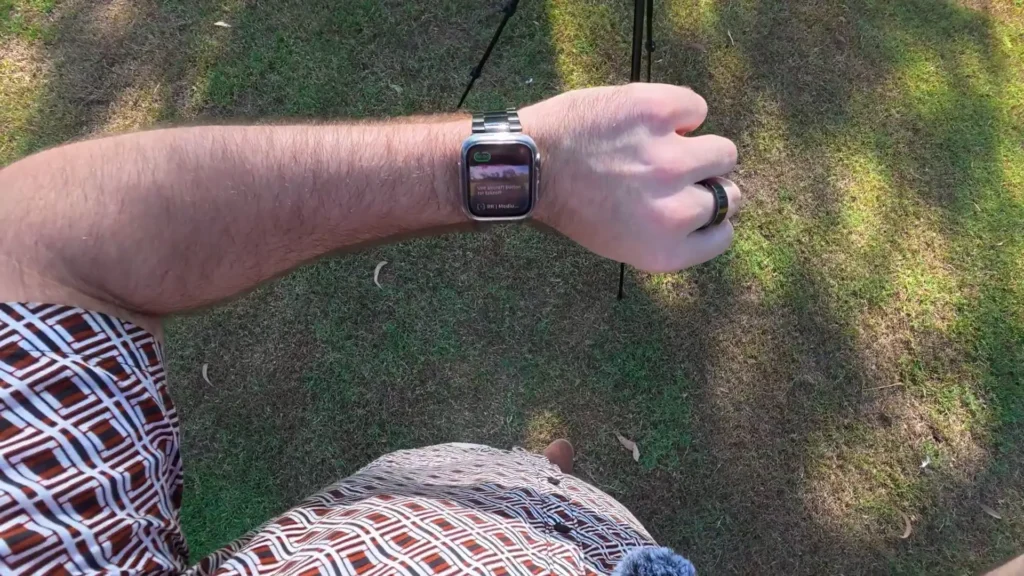
There’s a slight delay occasionally, as is common with some Apple Watch integrations when the watch is communicating with the phone, but for the most part, the experience is reliable and responsive.
The live feed appears the moment you lift your wrist, and alongside the video, you get some really useful pieces of information displayed on the watch face. You can see the recording length ticking away, battery life displayed in the top left corner with a color-coded indicator — green means you’ve got around nine minutes remaining, and when it shifts to orange or red, the drone will begin signaling that it’s time to land or return home. You also get a microphone icon in the top right, letting you know that audio is actively being recorded.
Gesture Controls in Action
One of the standout features of the DJI Neo 2 when paired with the Apple Watch is the ability to use gesture controls to physically direct the drone without touching anything at all. While you’re getting the video feed on your watch, you can swing your arms, bring your hands together, or make specific gestures to control the drone’s movement and behavior.
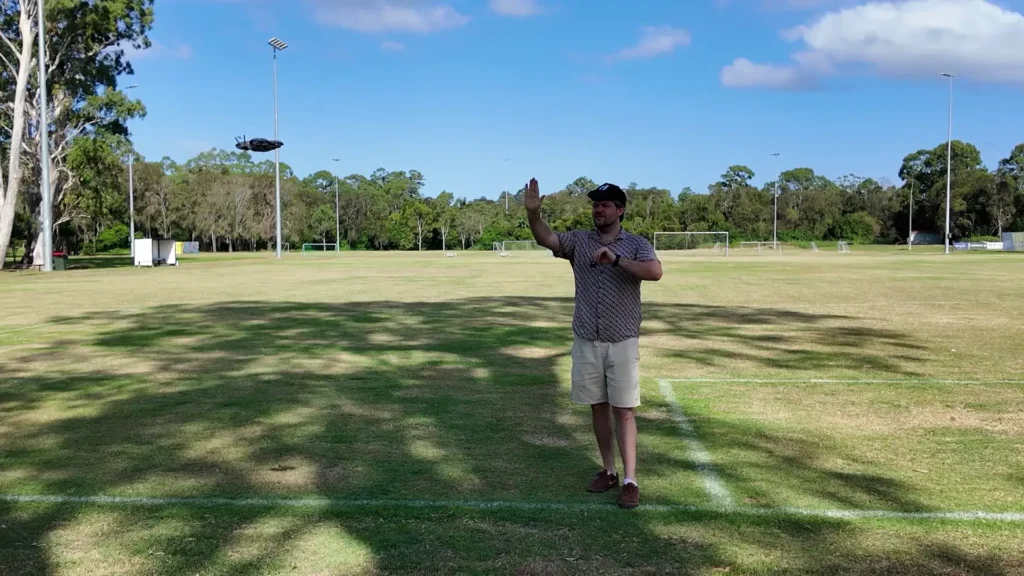
For example, bringing your hands close together signals the drone to return to you. Closing your fist can stop a particular action. These gesture controls work seamlessly alongside the Apple Watch interface, meaning at any given moment you can combine a quick glance at your wrist with a hand gesture to reposition the drone exactly where you want it.
This is particularly useful when you want to set up the drone in a specific location before triggering one of its automated flight modes. You can physically walk toward the drone, gesture it into position, and then tap through the watch interface to launch a mode. The entire process takes just a matter of seconds.
Read More: DJI Neo 2 Gesture Controls Test
Exploring the Different Flight Modes from Your Watch
One of the most impressive aspects of controlling the DJI Neo 2 with your Apple Watch is how easily you can switch between the drone’s various creative flight modes — all from that small screen on your wrist.
Follow Mode
Follow mode is where most people will spend the majority of their time with this setup. The moment you launch the drone from your Apple Watch, it immediately jumps into follow mode and begins tracking you. Since this is fundamentally a selfie-style following drone, this is its bread and butter. What makes it especially powerful from the Apple Watch interface is that you can fine-tune exactly how it follows you — directly from your wrist.
For instance, by tapping into the follow mode settings from the bottom left of the watch screen, you can change the following direction. Want it to follow from the front rather than behind? Done. Want it to maintain a greater distance? No problem. Want it flying low to the ground for a dramatic angle?
You can set that too. In just a few taps, you can go from rear, close, and mid-height to front, far, and low — a completely different perspective — and then tap go to send the drone immediately into that new configuration.

Dolly Zoom
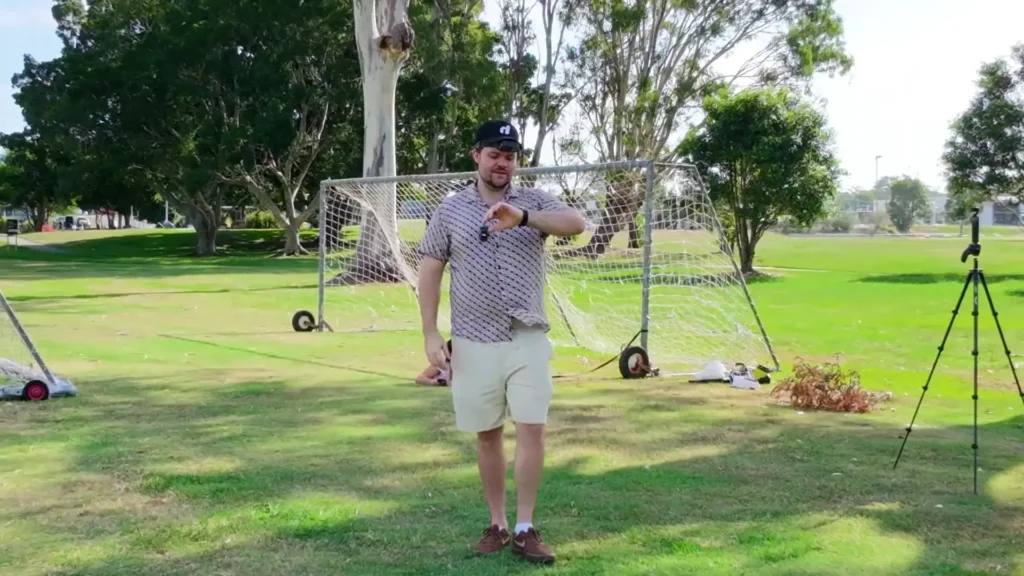
The dolly zoom mode produces that iconic cinematic compression effect that filmmakers have used for decades. From the Apple Watch, you simply select the mode, press go, and the drone executes the effect while you watch it unfold in real time on your wrist. It works beautifully even in environments with visual depth — like shooting toward a net or fence — where the compression effect becomes especially visible and dramatic.
Helix
The Helix mode sends the drone spiraling upward in a helix pattern around the subject. Selecting it from the Apple Watch is just as simple as any other mode — tap, press go, and the drone does its thing. The watch displays your progress in the bottom right corner, showing how far along the flight path the drone has traveled. Once the mode completes, the drone returns to follow mode and continues tracking you automatically.

Circle
Circle mode is exactly what it sounds like — the drone orbits around you in a smooth, consistent circle. When using this mode from the Apple Watch, it helps to walk out a little to give the drone the space it needs and to position yourself exactly where you want to be at the center of that orbit. From there, you tap into the mode, press go, and the drone sweeps around you in a perfect arc. Switching between modes in real time is effortless — in a matter of seconds you can jump from circle to follow to helix without ever reaching for your phone.
Droney
Droney mode is designed to pull the drone back and upward to reveal the surrounding environment. If you want a rising shot rather than a flat pullback, you can adjust the settings to specify the rise direction and set a target altitude — say, six meters. The drone then ascends directly upward to that height, capturing the scene from above.
It’s worth noting that when using the Apple Watch or smartphone to fly, there are some range limitations built in for safety reasons. You can’t send the drone hundreds of meters away, but for everyday capturing of moments with friends, family, or during activities, the range is more than sufficient.
Read More: Best 8 Piece Propellers for DJI NEO 2 Drone
Selfie Shot Mode
The selfie shot mode is a newer addition and one of the more delightful features for casual use. In this mode, the drone automatically positions itself and captures a series of photos of you without any further input needed. You select the mode, leave it on the default profile settings, and the drone takes over — swooping in and firing off shots while giving you both an audio cue from the drone itself and a visual notification on your watch. It’s genuinely effortless content creation.
Voice Controls Through Your Apple Watch
Perhaps the most impressive discovery in this entire experience is the ability to use voice prompts through the Apple Watch to control the DJI Neo 2. This isn’t something that was immediately obvious — it was discovered by reasoning that since voice prompts work on the smartphone version of the DJI Fly app, they should work on the watch version too. And they absolutely do.

By simply raising your wrist and using the wake phrase followed by a command, you can switch the drone into any mode you want without touching the screen at all. Say the command for follow mode, and the drone immediately begins following you. Say the command for circle, and it transitions into a smooth orbital flight. Say the word for stop, and the drone halts and hovers. Say land, and it begins its landing sequence right away.
The responsiveness is remarkable. In a live demonstration, the drone was commanded to take off using a voice prompt, and it counted down and lifted off on cue. It was then directed into a circle, then a following mode — all purely through voice, all through the Apple Watch. No hands on a controller, no eyes on a phone screen, just a natural, conversational interaction with a piece of technology flying overhead.
This voice control capability transforms the Apple Watch from a convenient secondary display into a genuinely powerful command interface. For anyone doing activities where both hands are occupied or where reaching for a device simply isn’t practical, this changes everything.
The Practical Reality
Throughout an extended real-world test session, the experience of controlling the DJI Neo 2 with an Apple Watch proved to be far more capable than many might expect from such a compact interface. The phone was kept in a pocket on airplane mode the entire time, with only the DJI Fly app running silently in the background. The Apple Watch handled everything else.
Swapping between modes was seamless. The video feed was consistent. The gesture controls responded accurately. Battery information was always visible at a glance. The drone never went out of control, and at no point did the setup feel limiting or frustrating. Even when operating near obstacles like tripods and nets, the drone’s built-in obstacle avoidance sensors provided an additional layer of safety and confidence.
![Apple Watch Series 11 [GPS 46mm] Smartwatch...](https://m.media-amazon.com/images/I/312K597M2uL._SL500_.jpg "Control DJI Neo 2 with Your Apple Watch?")
The slight delay in the video feed is worth acknowledging — it does exist, and it’s a known characteristic of how Apple Watch apps communicate with connected devices. However, in practical use, this delay is minor enough that it doesn’t meaningfully affect your ability to monitor the drone’s flight or make decisions about switching modes.
What’s particularly impressive is how little you actually need to interact with the watch during flight. Once a mode is set and running, the drone handles itself. You can drop your wrist, move naturally, and only raise it again when you want to check the feed or change what the drone is doing. This is the kind of intuitive, low-friction experience that makes technology genuinely enjoyable to use.
Who Is This Setup Best For?
Controlling the DJI Neo 2 with your Apple Watch isn’t just a novelty feature — it opens up genuinely new possibilities for specific types of users.
For active individuals and content creators who are regularly on the move — runners, cyclists, skiers, hikers, or anyone doing physical activities — the ability to manage a drone without stopping to pull out a phone is a real-world advantage. You stay in motion, the drone stays in follow, and you glance at your wrist when needed.
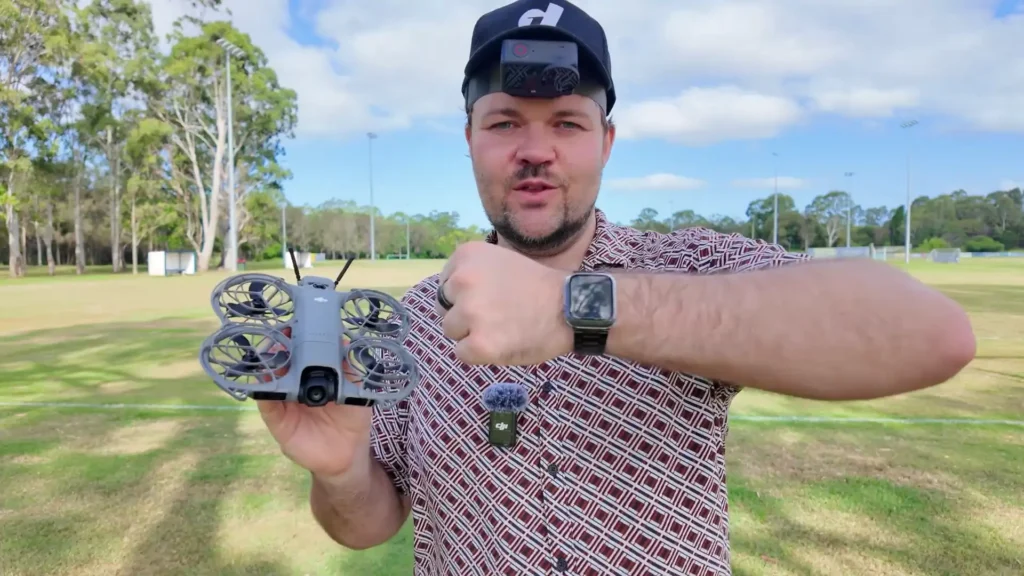
For casual users who just want to capture spontaneous moments with friends and family, the simplicity of the Apple Watch interface makes the drone feel far less intimidating. You don’t need to master a full controller or navigate a complex app. You tap a few options, press go, and the drone does the rest. The voice control feature takes that accessibility even further — you barely need to look at anything at all.
For drone enthusiasts who already own a compatible Apple Watch and the DJI Neo 2, this is an exciting extension of what the drone can already do. It doesn’t replace the full smartphone or controller experience for complex, precision flying, but as a supplementary control method for creative and active shooting scenarios, it’s genuinely excellent.
Table of Contents
Final Thoughts on Controlling the DJI Neo 2 with Your Apple Watch
The ability to control the DJI Neo 2 with your Apple Watch is one of those features that sounds impressive on paper but becomes truly exciting when you experience it in practice. The setup is simple, the interface is intuitive, the drone performs just as capably as it would with a full controller, and the addition of voice control through the watch takes the experience to an entirely different level.
Being able to power down your phone screen, slip it into your pocket, and have full creative control of a drone from your wrist — switching modes, adjusting perspectives, monitoring battery life, watching the live feed, and issuing voice commands — is a genuinely remarkable thing. It never felt unmanageable. It never felt unsafe. It felt like exactly the kind of seamless, modern integration that makes you excited about where this technology is headed.
If you own a compatible Apple Watch and a DJI Neo 2, this is absolutely worth exploring. The combination of gesture controls, touch interface, and voice commands makes for one of the most accessible and enjoyable drone flying experiences available today. Give it a try — you might be surprised by just how much you can do from your wrist.
Read More: Antigravity A1 In Action On A Tropical Island