Getting smooth drone shots consistently is something every drone pilot wants to master. Today I’m going to show you exactly how to do it every single time. Unlike other Article that just talk about settings, which is only part of the problem, these three methods will take you from shaky footage all the way to cinematic shots. Let’s get into it.
Method 1: Using Spotlight Mode the Right Way
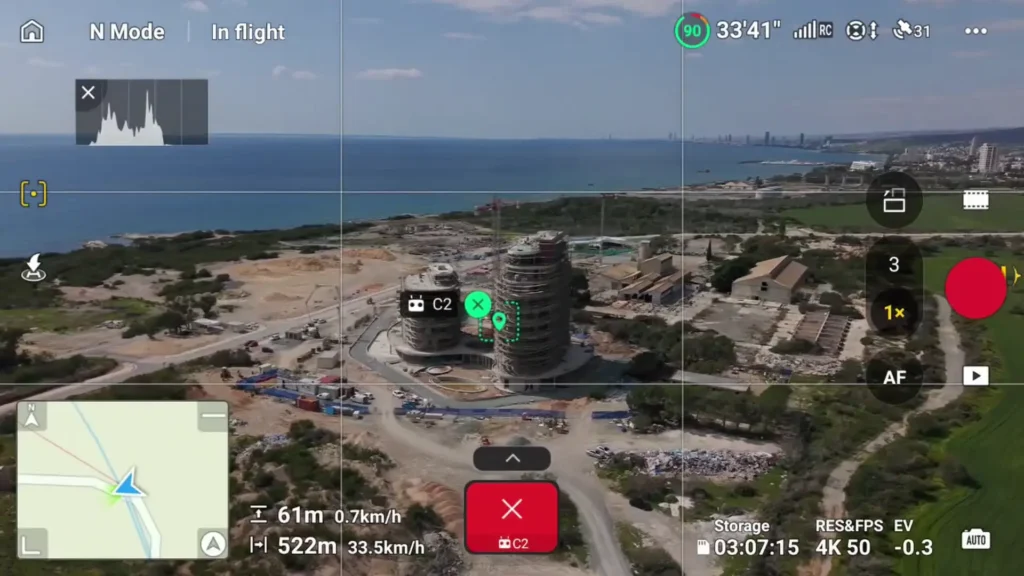
The first method for getting smooth drone shots is Spotlight Mode, and most pilots are using it incorrectly without even realizing it. Let’s say you have a subject you want to capture and you want a smooth drone shot of it. You select it with the box in the DJI Fly app. Now, what most people do at this point is simply press record and start recording. But here is the problem.
As soon as you do that, the DJI Fly app will recompose your shot, and it will not be composed the way you intended. So you will want to reenter your framing, and then people make the second mistake of immediately moving the stick and hitting record. What happens next is jerky, unstable footage because the lock was not properly set before recording began.
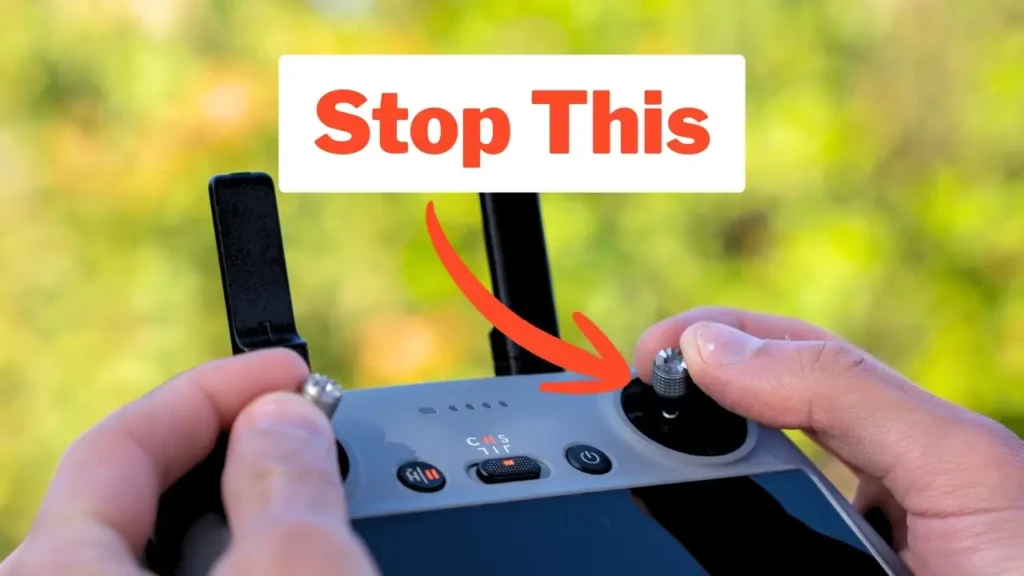
Here is the correct approach to getting smooth drone shots with Spotlight Mode. First, select your subject and make sure it is centered in the frame. Then compose your shot with the gimbal the way you want it. After that, move your stick left, right, up, or down to lock the subject in.
Once it is locked in, then and only then do you hit record and perform your maneuver. The result is a smooth, stable shot with your point of interest locked into the center of the frame throughout the entire move.
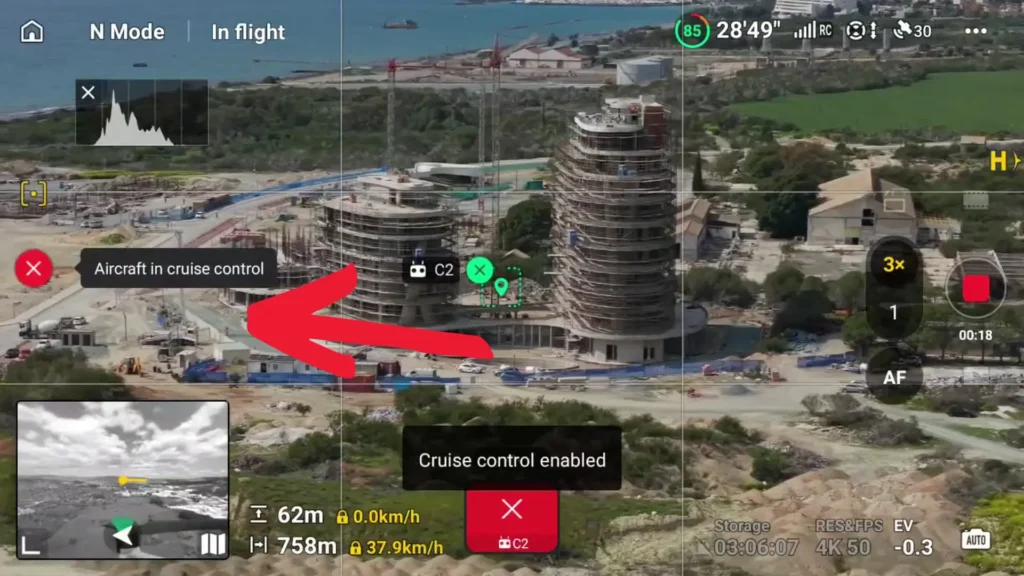
If you want to add an extra layer of stability and automation on top of that, I would highly suggest using one of your customizable buttons. I personally use C1 and assign it to cruise control, because C2 is already taken in my setup. When you press C1 with cruise control assigned, the drone takes over and does the flying for you automatically, giving you smooth and stable footage without you having to manage stick input constantly.
The beauty of Spotlight Mode is that it is not limited to side to side movement either. You can use it for a push in shot as well. All you have to do is hit record, push forward on the stick, and the drone handles everything else. You will get a smooth push in shot using Spotlight Mode with no glitches and no sudden movements because the subject is already locked in before you start recording.
Spotlight Mode is excellent for simple and repeatable moves, but when the environment gets more complex and you need a higher level of precision, there is a better option.
Method 2: Waypoints
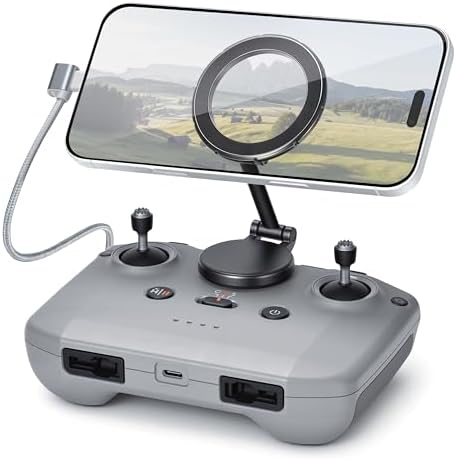
The second method requires a little bit of setup but it is absolutely worth it, and it is one of the most underutilized features available to drone pilots today. That feature is Waypoints, and once you start using it properly, you will wonder how you ever flew without it.
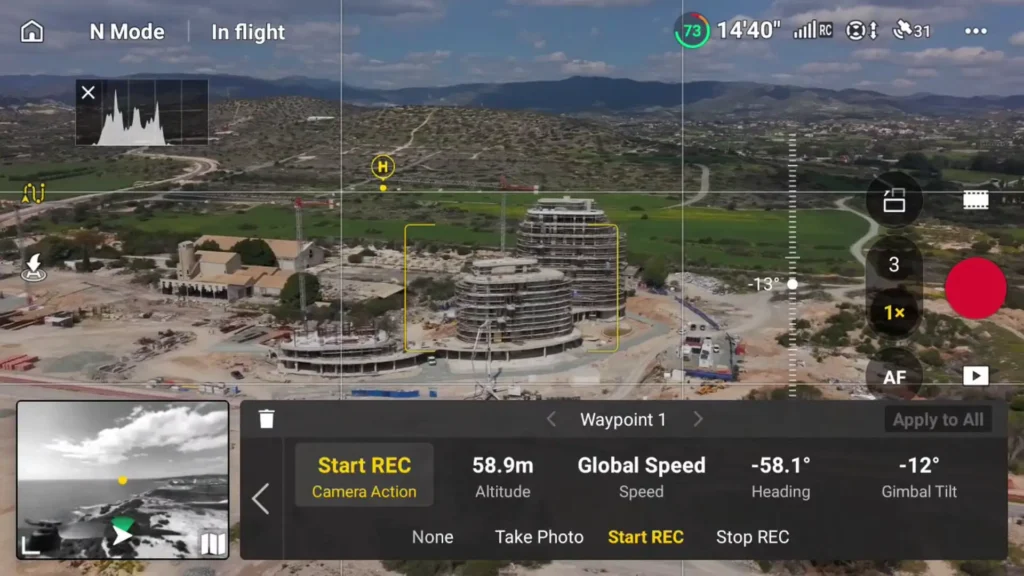
To get started, click the Waypoints button on the left hand side of the DJI Fly app. The concept is simple. You define a start point and an end point, and the drone flies between them automatically.
To set it up, choose where you want your start point to be, set a point of interest there, and tell it to start recording at that point. Then move the drone to where you want the end point to be. Once you are happy with the framing at that second location, set the second point and tell it to stop recording there.
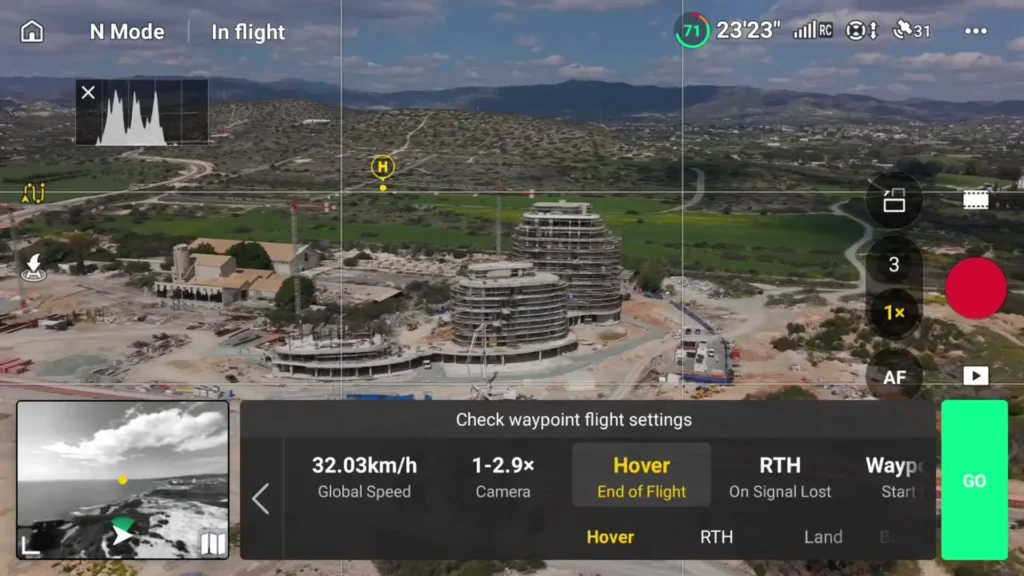
After setting both points, you move to the parameters. You tell the drone how fast you want it to travel between point A and point B. I typically set it to around 30 km/h. You also set what you want it to do at the end of the flight.
I recommend having it hover and, in case of signal loss, return to home, which is the safest option. Before hitting go, also make sure your video settings are dialed in properly. Once everything is confirmed, click go and let the drone do the work.
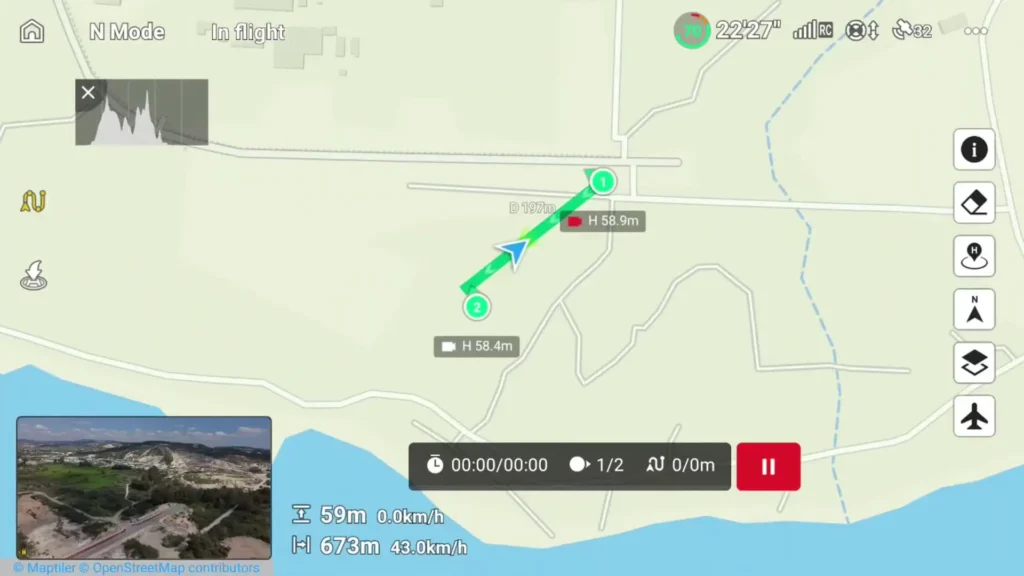
If you pull up the map and zoom out, you can actually watch the path the drone is going to take. It may look like a straight line at first glance, but if you look closely at the drone orientation indicators at each point, you will see that it was facing the subject from one angle at point one and facing a completely different direction at point two.
Because of this, the drone will naturally fly in a curved pattern between the two points, which gives you that organic, cinematic look rather than a rigid mechanical movement.
The drone keeps your subject locked in frame throughout the entire flight and even tells you how long the mission will take to complete and how many meters are left. You can also pause the mission at any time if needed. Once it finishes, you will have a clean, consistent clip ready to go, and you can even save the mission for future use.
I used this exact approach when filming the Toronto Distillery Winter Village. Once the mission is dialed in, the consistency is incredibly hard to beat. You can use it for repeatable missions and even across different seasons, creating stunning transitions from day to night or summer to winter. Once you see how much cleaner your footage becomes using Waypoints, it genuinely changes the way you approach flying altogether.
Method 3: Manual Mode Done Right
The third method is manual mode. I know I mentioned earlier that manual flying can result in jerky footage, but there are specific things you can do to smooth it out significantly. With the right approach, manual flying can produce cinematic smooth drone shots that rival automated methods.

Dialing In Your Settings Before the Shoot
Before you head out to your actual shoot location, go to an open field first and spend time honing in how your drone flies and how your gimbal responds. This is a step that most pilots skip, and it is one of the main reasons their footage looks inconsistent.
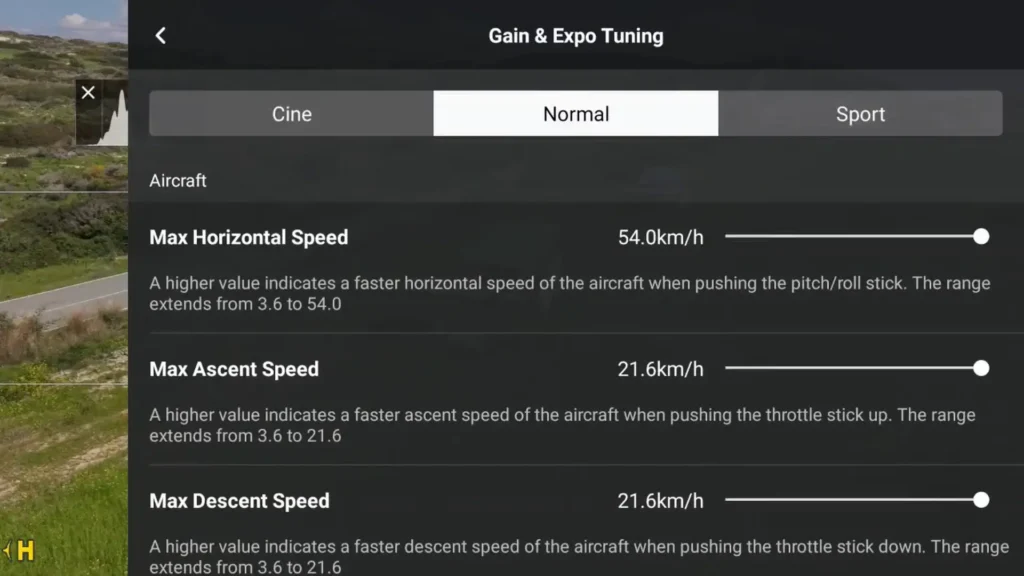
In the DJI Fly app, go to Control and look for the section called Gain and Expo. From there, for each mode including Cine, Normal, and Sport, fly the drone in a direction and then let go of the stick. The key question is how the drone responds when you release the stick. Does it stop suddenly with a jolt, or does it roll to a smooth stop? Your goal is a smooth, gradual deceleration.
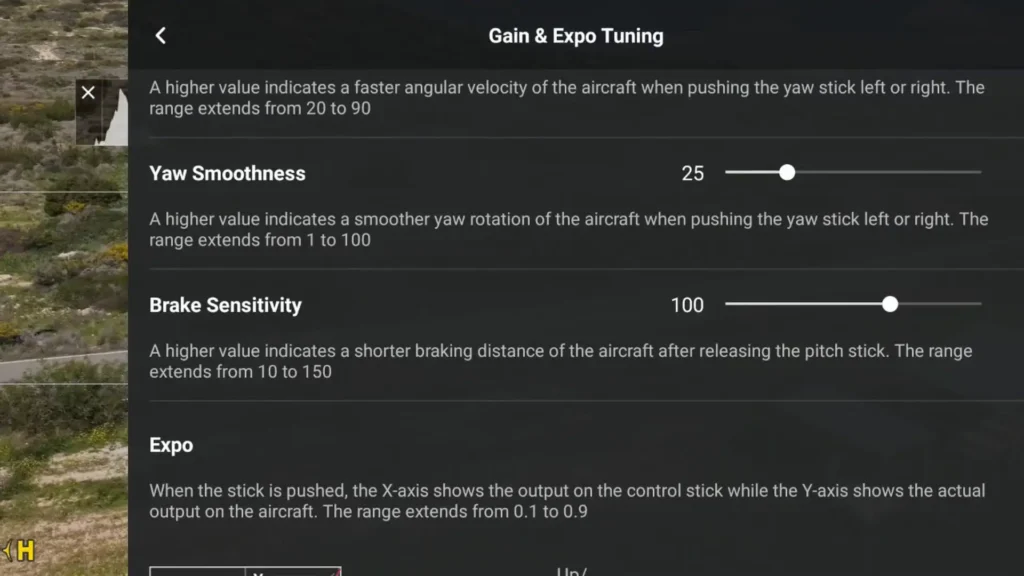
I prefer shooting in Normal mode most of the time because it gives me a good balance of speed and control. Cine mode can feel a little too slow, but even in Cine mode, you want the gimbal movement to be slow and deliberate as well.
To illustrate the impact of these settings, here is what I found during my own testing. If your smoothness is set at 25 and you drop it all the way down to 1, the stick response becomes extremely quick and jerky. It looks horrible on footage. On the other end, if you push it all the way to 100, there is too much of a delayed roll when you release the stick and you may miss the shot entirely.
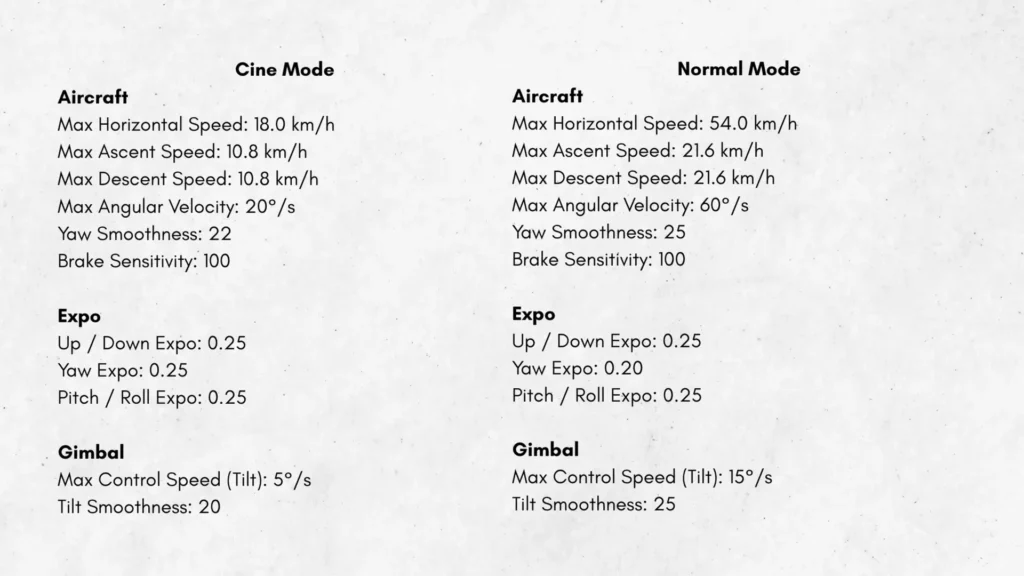
For me personally, I found 25 to be the sweet spot. I will put my full settings on screen for reference, but keep in mind that what works for me may not work for you. This is why testing in an open field before your real shoot is so important.
The same logic applies to the gimbal settings. I rotate the gimbal down and then let go to see how it settles. At a tilt smoothness setting of zero, the gimbal just stops dead the moment you release. It looks terrible. At 30, it is probably a little too slow when you release. Again, I found 25 to be the right number.
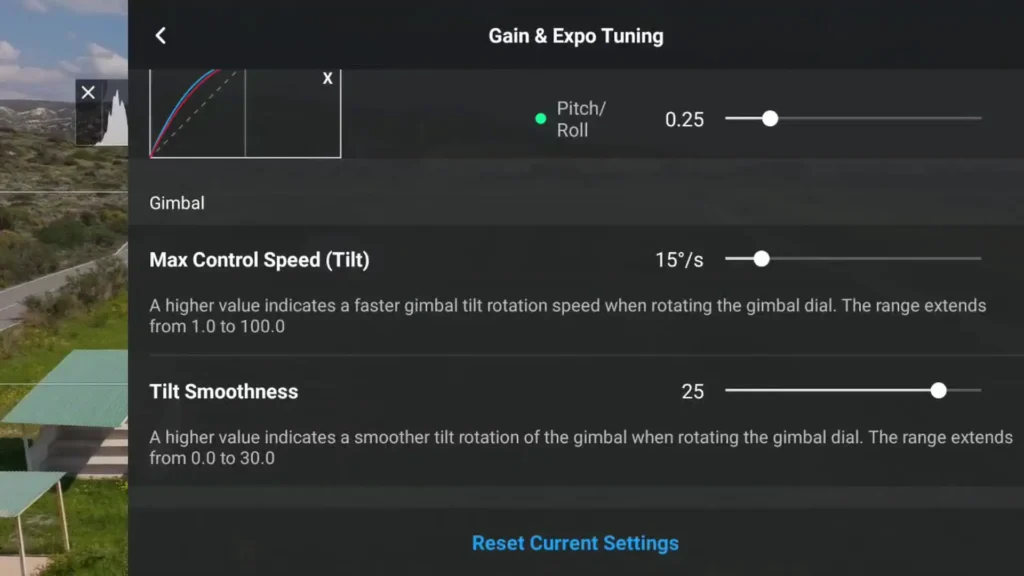
For max control speed on the tilt, I found that pushing it too high, like all the way to 100, makes the gimbal move way too fast. Keeping it at a moderate level gives you the control you need for smooth panning and tilting without overshooting your intended framing.
Do this calibration process for each flight mode, Cine, Normal, and Sport, and write down your settings so you do not forget them. Having the right settings baked in before you fly makes a massive difference in the smoothness of your footage.
Practicing Your Stick Control
Once your settings are dialed in, the next element is stick control, and this comes through practice. As an example, I will try to orbit a subject manually without using Spotlight Mode. This is a great exercise because it forces you to coordinate multiple stick inputs simultaneously while keeping your subject in frame. It is not easy at first, but the more you practice, the better you get.
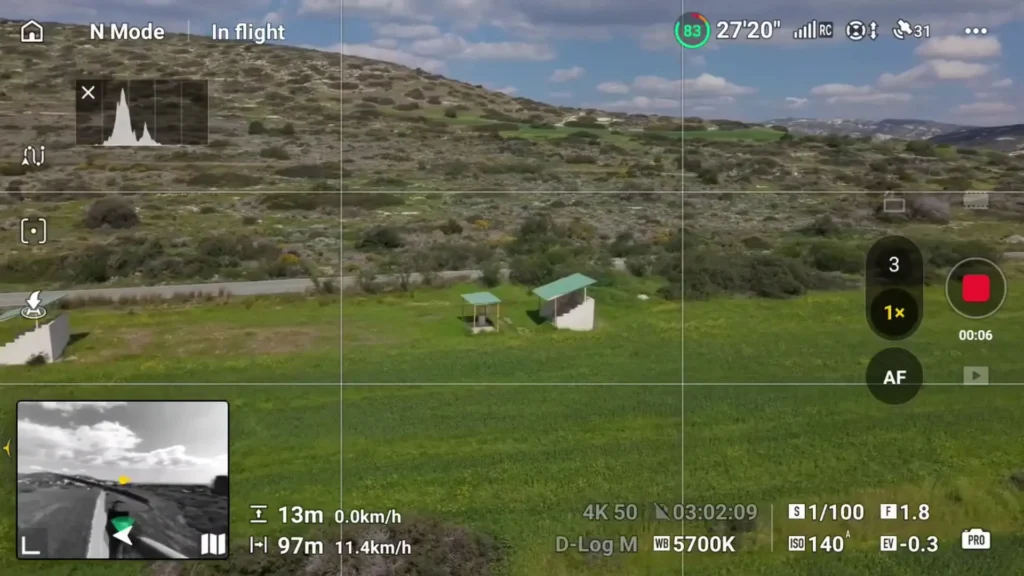
One thing to note is that orbiting manually is easier and smoother when you are further away from the subject. Up close, small stick movements have a bigger impact on the frame, so being further out gives you more margin for error.
Once you have a movement you are happy with, here is where that cruise control button I mentioned earlier becomes extremely useful again. While I am manually orbiting the subject, I hit C1 to engage cruise control.
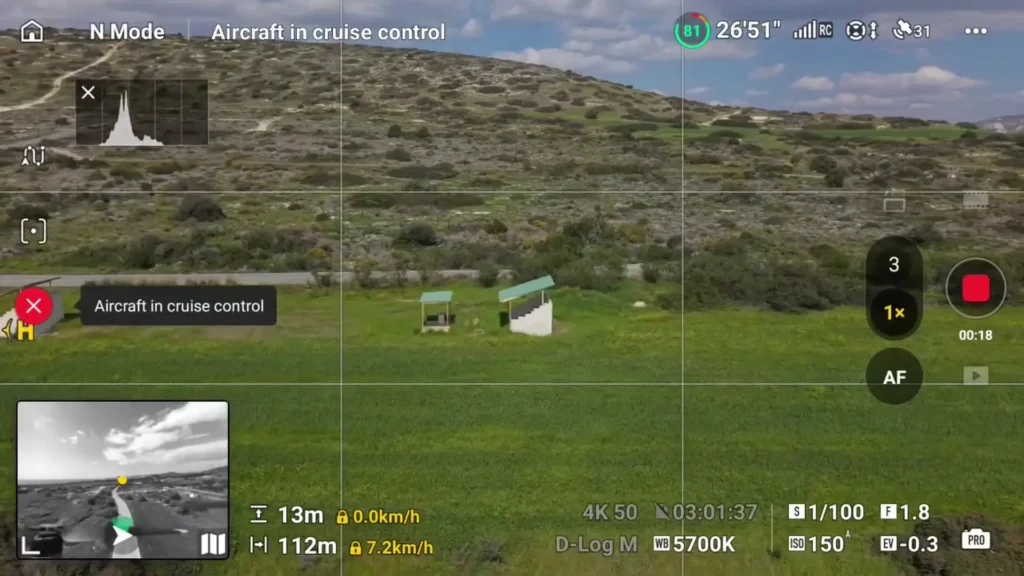
The drone then memorizes my stick input and continues the movement automatically, maintaining a consistent speed and trajectory without any of the micro adjustments or speed variations that come from holding a stick manually. I can now keep my eye on the drone to make sure everything looks right, and when I am done, I simply cancel cruise control and stop recording.
That is the third way to get smooth drone shots. Manual flying with dialed in settings, practiced stick control, and cruise control to lock in your movement once you have it right gives you a powerful and flexible approach that works in a wide range of shooting scenarios.

Bonus Tips for Even Smoother Drone Footage
For those of you who fly FPV drones, the same principles apply. You want to have as little stick movement as possible rather than making aggressive micro corrections constantly. This is especially important when you are following leading lines such as roads, paths, or edges that naturally guide the eye through the frame.
If you want an out of the box solution for stabilized footage, Rock Steady does a really good job. I use it regularly because I do not want to spend extra time post processing everything after a shoot. However, if you do prefer to stabilize your footage in post, turn Rock Steady off and use GyroFlow instead, which is free and also does an excellent job.
And remember, practice makes perfect. You have enough battery life to fly laps over and over again. The more you practice, the smoother you become. Once you can fly this way consistently, getting smooth drone shots is no longer a challenge. It becomes your baseline standard.
Shoot with Intention and Turn Your Footage Into Income
Here is a bonus tip that most people do not think about. Shoot with intention. Do not just go out and capture generic scenery. Focus on locations that have real resell value, such as stadiums, landmarks, and recognizable destinations. Once you have that footage, you can sell it through stock sites, through your own website, or even through YouTube. I have sold footage in the past simply because people discovered it on YouTube and reached out directly to license it. Those inquiries still come in to this day.
Table of Contents
Article Summary
With the three methods I have walked you through in this Article, from Spotlight Mode to Waypoints to Manual Mode with proper settings and stick control, you have everything you need to go out and capture footage that is not only smooth and cinematic but also potentially valuable. There are no excuses now. Go out, apply these techniques, capture great footage, and hopefully pay off your drone in the process. Clouds make drone shots so much better, so pick a good day, get out there, and start flying.
Read More: BETAFPV Pavo Pico 2 Review