
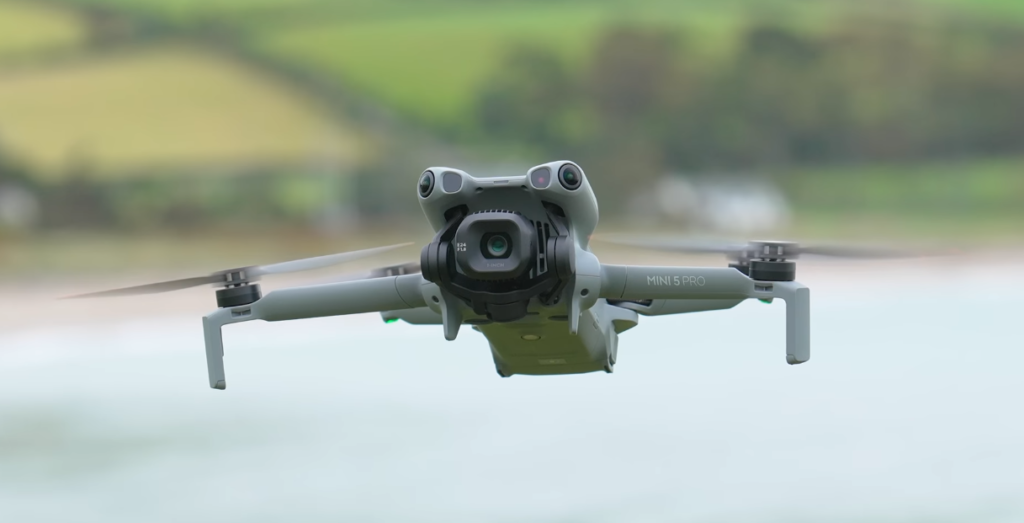
The DJI Mini 5 Pro is one of the most capable compact drones available, but its default settings don’t always provide the best results. Whether you’re a beginner taking your first flight or an experienced pilot wanting to improve your process, adjusting the right settings can greatly enhance the quality of your footage.
In this guide, we explain the exact camera, safety, and control settings that work best for cinematic aerial photography. This way, you can spend less time adjusting menus and more time capturing stunning shots.
These settings are tested in real-world flying conditions, including open landscapes, wooded areas, and winter scenes. They are not strict rules; consider them a solid starting point that you can adjust to suit your style and shooting environment.
Table of Contents
Camera Settings
The Mini 5 Pro’s camera performs impressively even in auto mode, but a few targeted adjustments can elevate your footage from good to great.
Resolution & Frame Rate
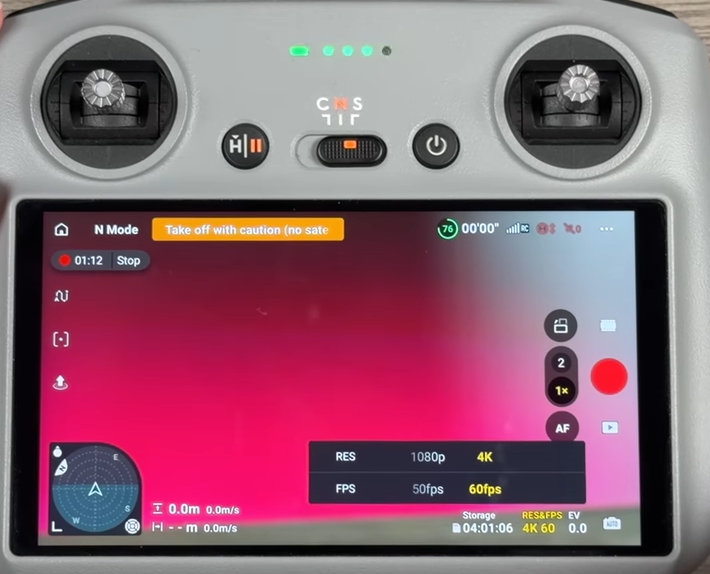
Filming at 4K 60fps is highly recommended as your default setting. The higher frame rate gives your footage a crisp, fluid look, and crucially, it allows you to slow your clips down by 50% in post-production without any quality loss.
This is especially valuable for cinematic drone shots where smooth, slow-motion movements can transform an ordinary scene into something visually striking. If the movement in a shot looks slightly too fast on playback, halving the speed in editing can make it look polished and professional.

Grid Lines & Center Point
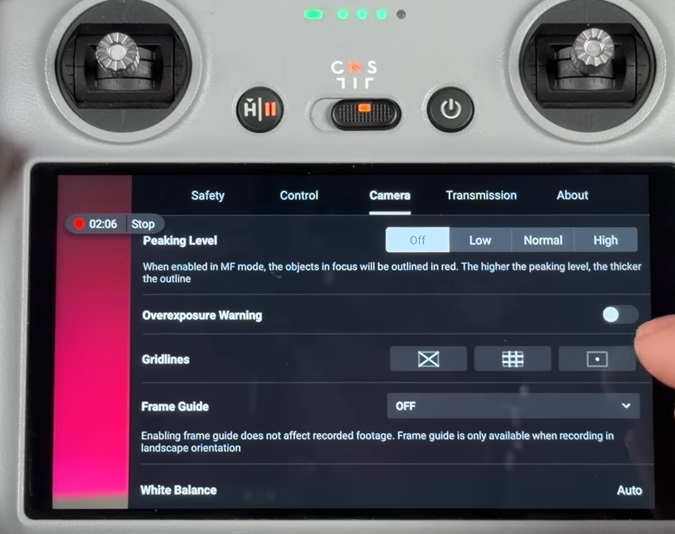
Enabling grid lines is a simple but powerful composition tool. In your camera settings, you can choose between an X overlay (which pinpoints the exact center of the frame) or a standard grid (ideal for rule-of-thirds framing). A balanced approach is to use grid lines only, no X combined with the center point marker. This keeps the screen clean and distraction-free while still giving you reference guides for levelling the horizon and placing subjects precisely within the frame.
Exposure (EV Adjustment)
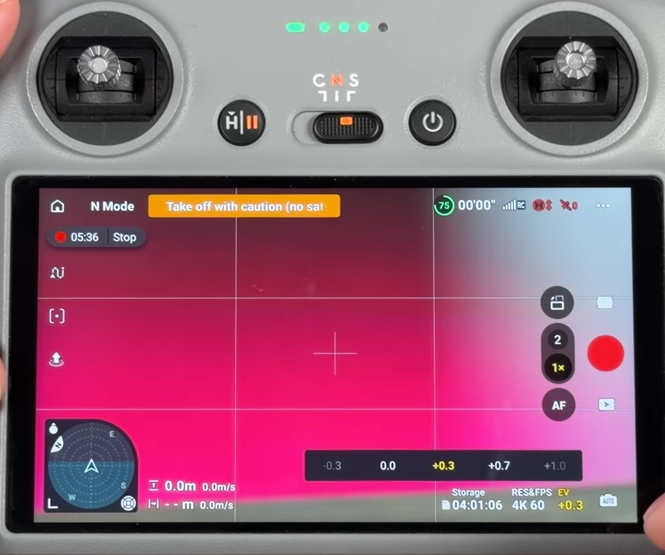
The Mini 5 Pro can sometimes overexpose footage in bright outdoor conditions. Setting the EV (Exposure Value) to -0.3 is a good starting point. It creates more natural-looking footage with improved highlight detail. However, this can vary based on the environment.
On cloudy days or in shaded areas, you might want to increase the exposure a bit. Consider the EV setting as a quick, easy way to fine-tune rather than a strict value.
White Balance
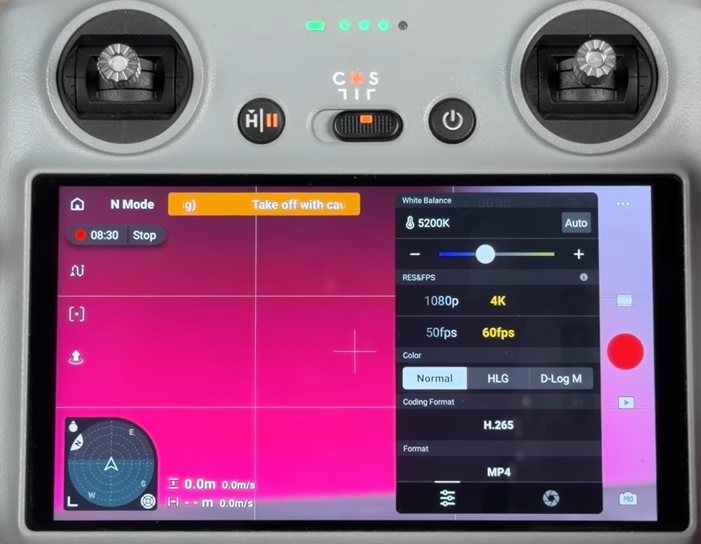
Leaving white balance on auto can cause noticeable colour shifts mid-flight. Switch to Pro Mode and lock it manually for consistent results. Use 5500–5600K for most daytime scenes, around 5000K for snowy or overcast conditions, and 6000K+ to enhance warm sunset tones. Avoid extreme settings for natural, balanced footage.
Sharpness & Noise Reduction
Leave noise reduction at zero. The Mini 5 Pro manages noise well, and over-processing can spoil fine details. For sharpness, try dropping to -1 or -2. The default setting can appear slightly over-processed on large screens. It’s much easier to add sharpness in the edit than to fix oversharpening artifacts.
For those wanting maximum flexibility in colour grading, D-Log M offers the most options in post-production. However, it requires extra editing steps and is best explored once you’re comfortable with the basics. The standard colour profile already produces excellent footage, so D-Log M is an improvement, not a requirement.
Safety Settings
Obstacle Avoidance
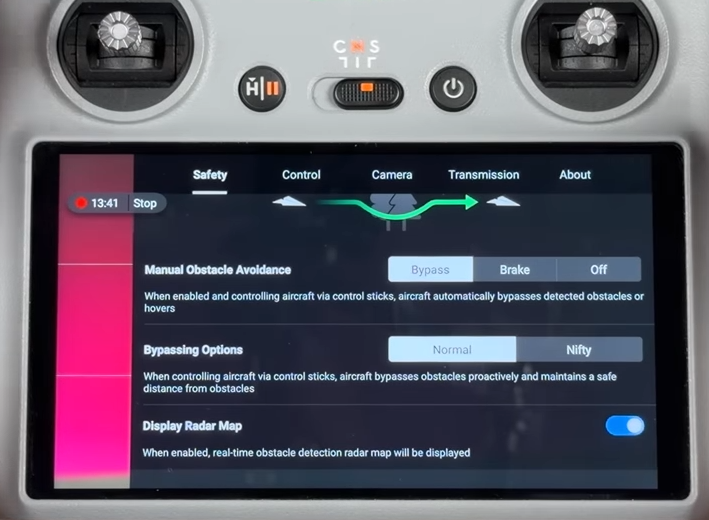
The Mini 5 Pro’s obstacle avoidance is very effective. Bypass mode is the best choice for most situations. The drone automatically finds a safe path around obstacles, keeping flights smooth and protecting your aircraft.
Brake mode stops the drone when it detects an obstacle, which is useful in tight spaces. Turning avoidance off entirely is only for specific close-proximity shots where sensors interfere, but be careful, it’s easy to forget it’s disabled.
Within Bypass mode, Normal is the safest sub-setting. Nifty allows the drone to fly closer to obstacles with more confidence, but carries more risk and is better suited to experienced pilots in familiar environments.
Return to Home (RTH): Optimal vs. Preset
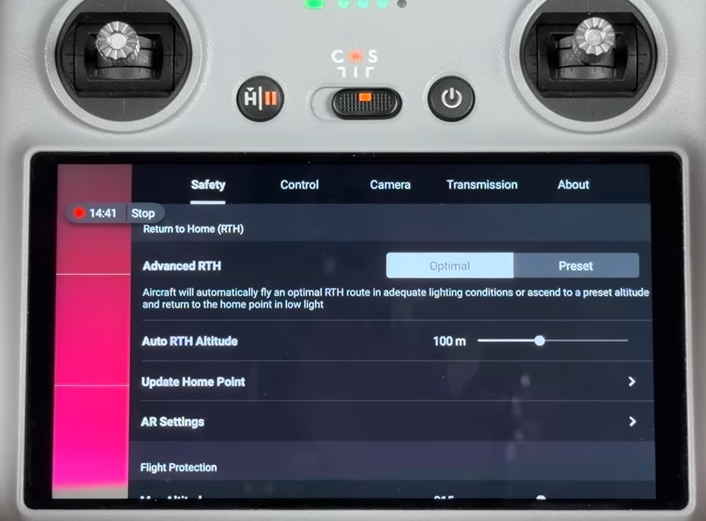
The Mini 5 Pro offers two Return to Home modes, and choosing the right one for your environment is an important safety decision:
- Optimal RTH: The drone intelligently navigates back to the home point, potentially flying under obstacles and taking complex routes. It works brilliantly in open areas with large, easily detectable obstacles.
- Preset RTH: The drone climbs straight up to a predetermined altitude, flies directly back, then descends. This is the safer choice in environments with thin branches, wires, or other obstacles that the sensors may struggle to detect.
When using Preset RTH, always set your return altitude manually. The default of 100m is quite high for most situations; 60m is often more than sufficient to clear trees and structures. Keep in mind that during a low-battery emergency RTH, the drone will still climb to the preset altitude first, which can consume critical battery power. Choose your altitude with this trade-off in mind.
Control Settings for Cinematic Shots
How the drone responds to your stick inputs has a huge impact on how cinematic your footage looks. These settings are particularly important to configure in Cine Mode.
Gain & Expo Tuning
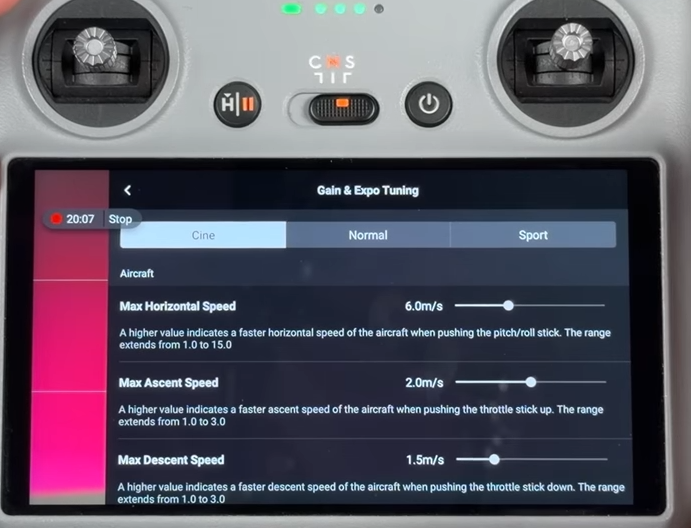
Found under Settings > Control > Gain & Expo Tuning, these settings control how the drone responds to stick movements. Default settings work well for Normal and Sport modes, but in Cine Mode, some adjustments can significantly improve shot quality.
Reducing horizontal speed from 6 m/s to around 3 m/s gives much finer control during slow, deliberate movements. For orbits and rotations, lowering max angular velocity from 30° to 20–25° prevents the drone from spinning too quickly, making smooth pans easier to execute.
The Expo setting controls stick sensitivity – lowering it creates a softer response zone around center, so the drone reacts more gradually as you push the stick. For ultra-smooth movements, this is one of the most effective adjustments you can make. Experiment with different values and watch the response curve on screen.
Gimbal Speed & Smoothness
For cinematic filming, slowing the gimbal tilt speed to around 11 to 12 keeps camera movements controlled and graceful. Tilt smoothness is best left at the default of 8, which provides natural deceleration.
The Mini 5 Pro also features camera roll, a unique addition for this class of drone, though most pilots will find the default roll settings perfectly adequate.
Cruise Control & Button Customization
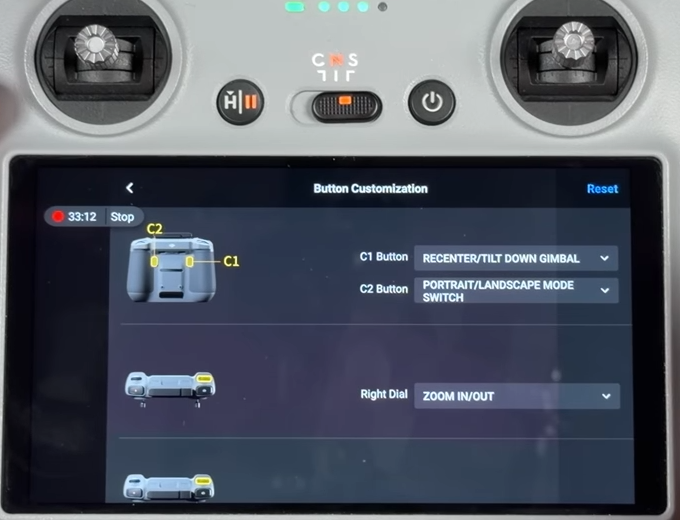
Cruise control is a useful feature for smooth, hands-free flying. Once you turn it on, the drone locks into a set speed and direction, allowing you to concentrate on taking the shot.
You can assign it to a controller button through Settings > Control > Button Customization. C2 is a good choice because you can still access the default portrait/landscape toggle on the screen.
Then just start moving with the sticks, press C2, and the drone will maintain its course automatically.
Final Thoughts
The DJI Mini 5 Pro is a great drone right out of the box, but taking some time to personalize your settings makes a big difference every time you fly. From setting the right white balance to adjusting your Cine Mode expo settings, each change helps create footage that looks intentional, polished, and professional.
Feel free to experiment. None of the settings discussed here will make the drone act unpredictably. If you ever think you’ve messed up the gain and expo settings, just tap Reset Current Settings, and everything will go back to factory defaults immediately.
Start with these suggestions, see how they work on your next flight, and adjust as needed. The best drone settings are the ones that match your flying style, and the only way to discover those is to get out and fly.
Read More: DJI Mini 5 Pro Review