
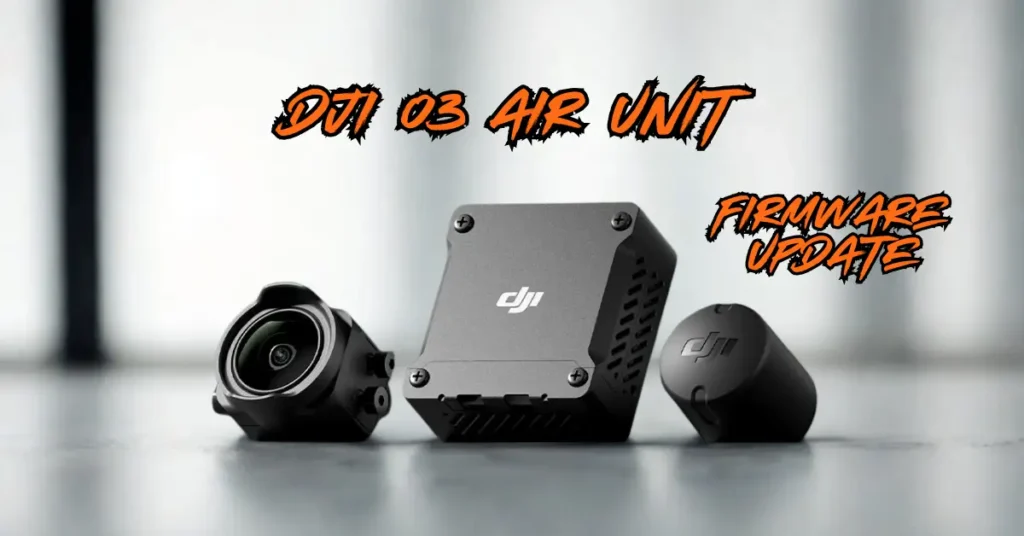
If you’re looking to how to check DJI O3 Air unit firmware, the process is straightforward once you know the steps. This guide walks you through everything from downloading the required software to completing the update.
Step 1: Install the DJI Assistant 2 Software
The first thing you need to do is download the DJI Assistant 2 software from the DJI website. There are two different versions of DJI Assistant 2, the Consumer Drones Series and the FPV Series. Make sure you select the Consumer Drones Series, as that’s the one required for this update.
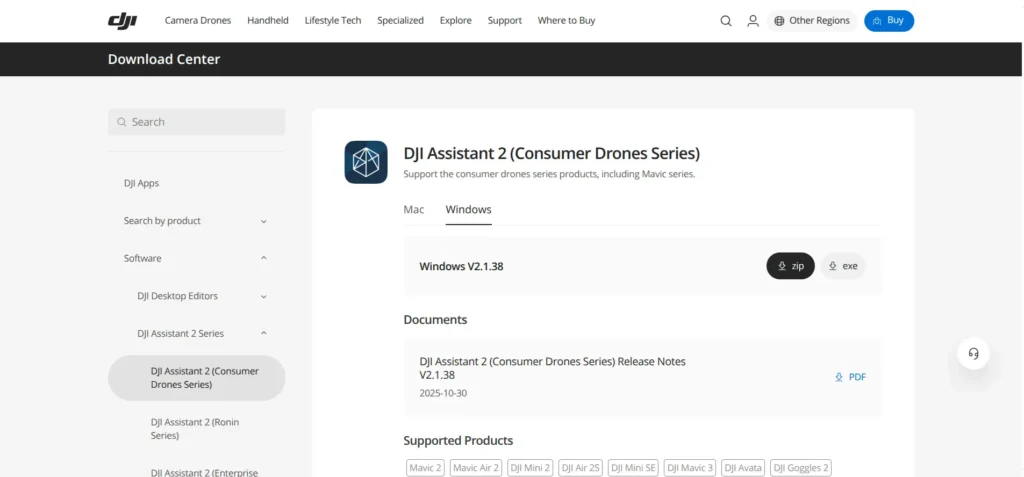
Download the appropriate installer depending on whether you’re on a Mac or Windows PC. On Windows, download the EXE file and run it once it’s finished. Click Yes to Install DJI Assistant 2 to your computer, then click OK to select your language. Accept the agreement, hit Next, choose an installation location on your hard drive, and keep clicking Next through the remaining options before clicking Install. Once the installation is complete, click Finish.
Step 2: Open DJI Assistant 2 Software
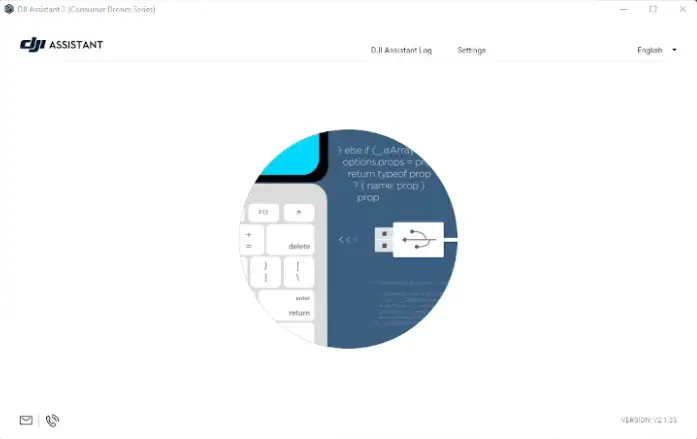
After installation, DJI Assistant 2 should launch automatically, and a desktop icon will be created for future use. Click Agree through the options, then click Next. You’ll also be given the option to join their improvement program, you can choose to do so or skip it for now.
Step 3: Connect the O3 Air Unit to Your Computer
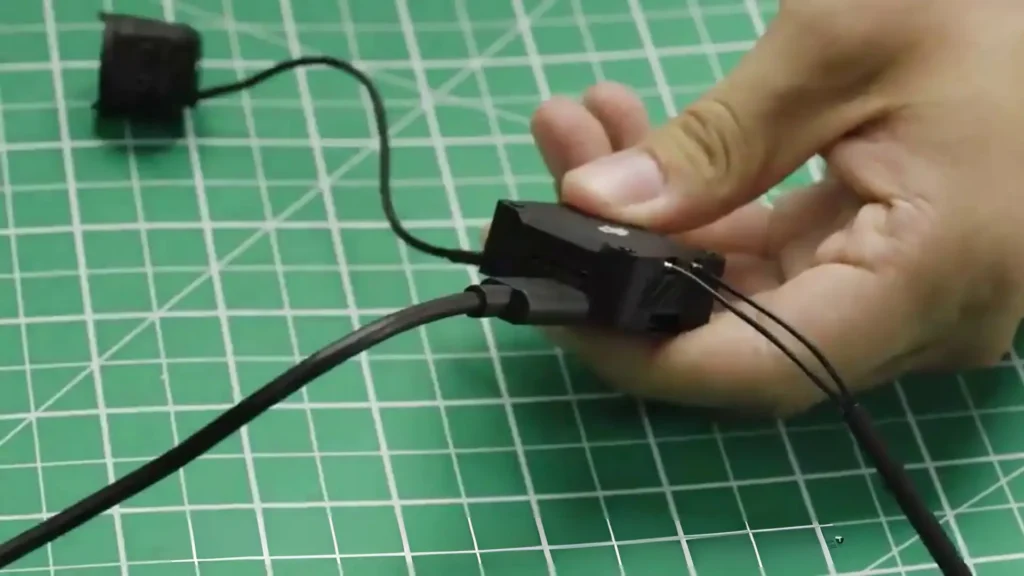
With DJI Assistant 2 open, take a USB-C cable and plug one end into your computer and the other end into the side of the DJI O3 Air Unit. You should hear multiple connection and disconnection sounds as the system recognizes the device.
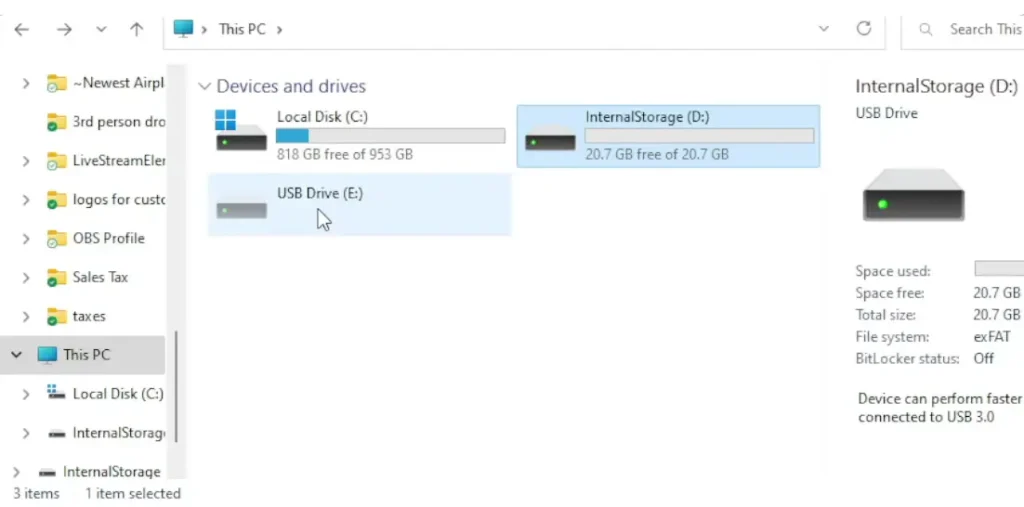
Once connected, two drives will appear in File Explorer alongside the DJI O3 Air Unit showing up in the Assistant.

- Wide Compatibility – Seamlessly pair with Goggles …
- Enhanced Imaging – Capture ultra-high-definition 4…
- Ultra-Wide Field of View – Enjoy immersive FPV fli…
Internal Storage and SD Card Overview
If you previously recorded video files to the internal storage of the O3 Air Unit, you can access and download them by double-clicking on the internal storage drive that appears. The other drive (typically listed as Drive E) represents your SD card. However, if you recorded files to the SD card, it’s much faster to remove the SD card from the air unit and plug it directly into your computer rather than downloading through the USB cable.
Step 4: Activate and Update Your DJI O3 Air Unit
Click on the DJI O3 Air Unit within the DJI Assistant 2 interface. The first thing it will prompt you to do is activate the unit. Click Start Activation, then Allow Access. If you already have a DJI account, enter your credentials and sign in. If you don’t have one, click Sign Up and follow the steps to create an account, then sign in.
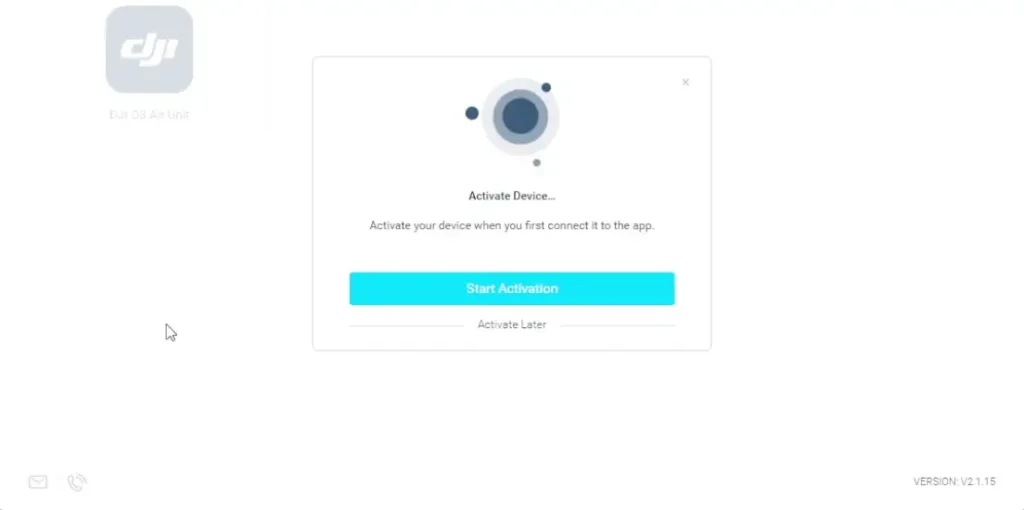
Once signed in, click Start Activation one more time. When you see the Activation Success message, click Complete. The Assistant will then display the current firmware version installed on your device.
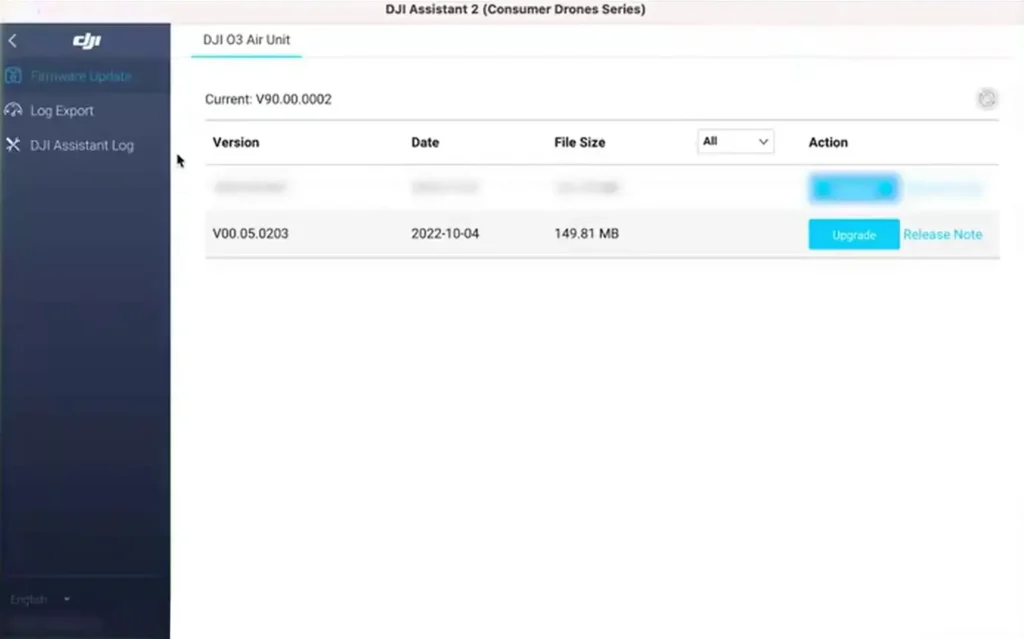
To update, find the latest version listed at the top and click Upgrade, then click Start Update. This process takes a while, so be patient. The good news is that the DJI O3 Air Unit does not need to be connected to the drone or powered by a battery during the update, which means it won’t overheat — a common issue with older DJI systems.
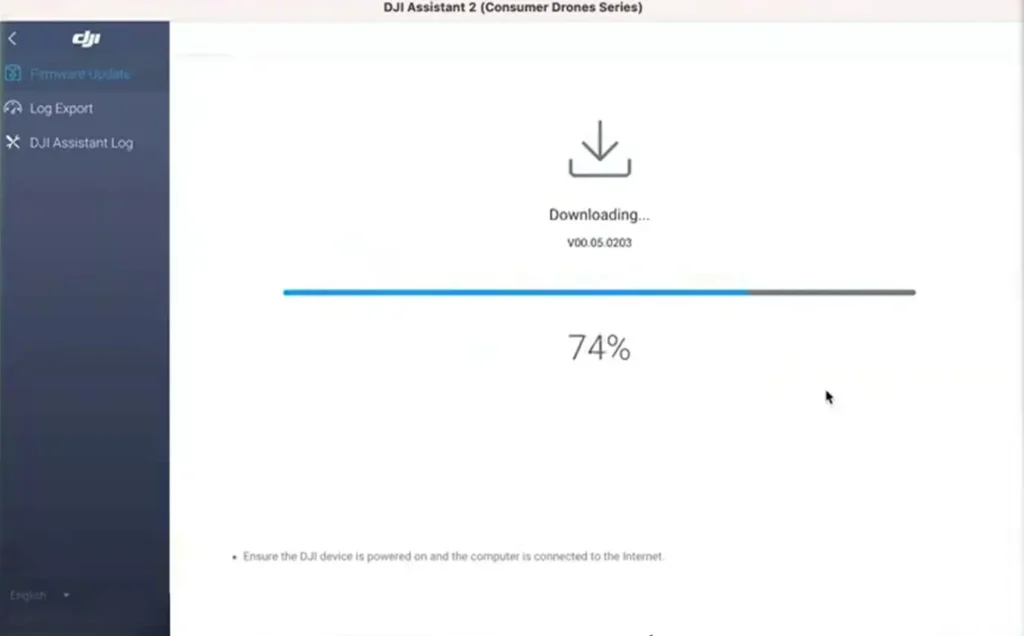
If your O3 Air Unit is already mounted to the drone, you can still follow the same procedure — just make sure you do not connect the battery to the drone during the update to avoid overheating. During the update, you may hear the device disconnect and reconnect from Windows several times. This is completely normal.
- Wide Compatibility – Seamlessly pair with Goggles …
- Enhanced Imaging – Capture ultra-high-definition 4…
- Ultra-Wide Field of View – Enjoy immersive FPV fli…
Step 5: Remove the USB Cable
Once the update reads 100% Update Complete, the firmware update is finished. Simply unplug the USB cable from the device and restart the device, you’re all set. The process is simple, and with the newer system not requiring battery power during updates, it’s smoother and safer than ever before.
Table of Contents
Article Summary
So this is a step-by-step guide on how to update the firmware on the DJI O3 Air Unit. The process begins by downloading and installing the DJI Assistant 2 Consumer Drones Series software from the DJI website. Once installed, you connect the O3 Air Unit to your computer via a USB-C cable, the Assistant displays your current firmware version, and from there you can select the latest version and begin the update. The entire process is straightforward, though the update itself can take some time to complete. Once it hits 100%, you’re done.
Read More: DJI Mavic 4 Pro Firmware Update V01.00.0100