
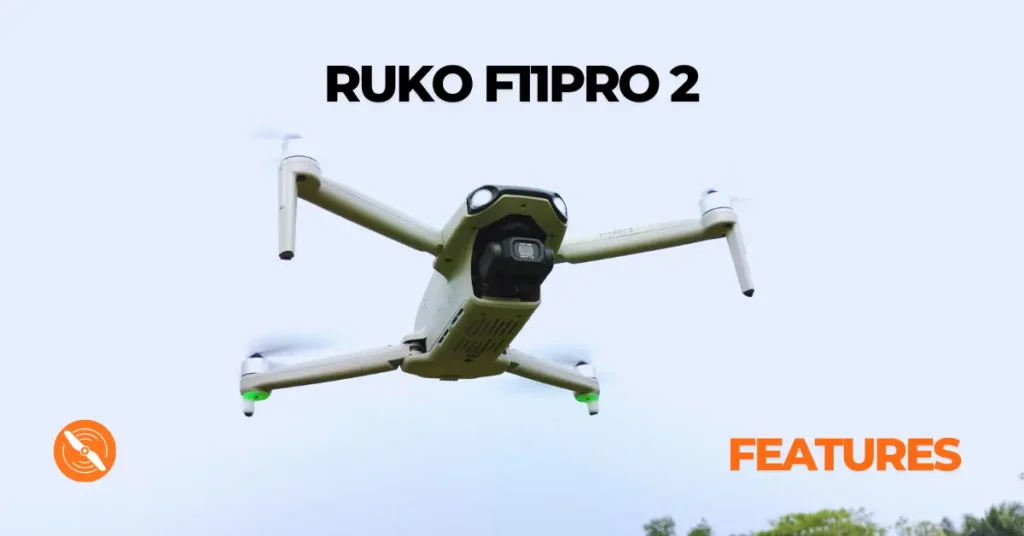
The Ruko F11Pro 2 is a feature-packed drone designed to deliver a reliable and capable flying experience without breaking the bank. From intelligent return-to-home functions to a smart battery system, this drone brings a surprising number of advanced features to the consumer market. In this article, we’ll walk through Ruko F11Pro 2 Top Features has to offer and how each feature performs in the real world.
Table of Contents
GPS Mode and Signal Strength
The Ruko F11Pro 2 features a built-in GPS module that receives signals from multiple satellites to accurately triangulate its position. This GPS capability powers several key functions, including automated flight paths, stable photography flight, and safety features like Return to Home.
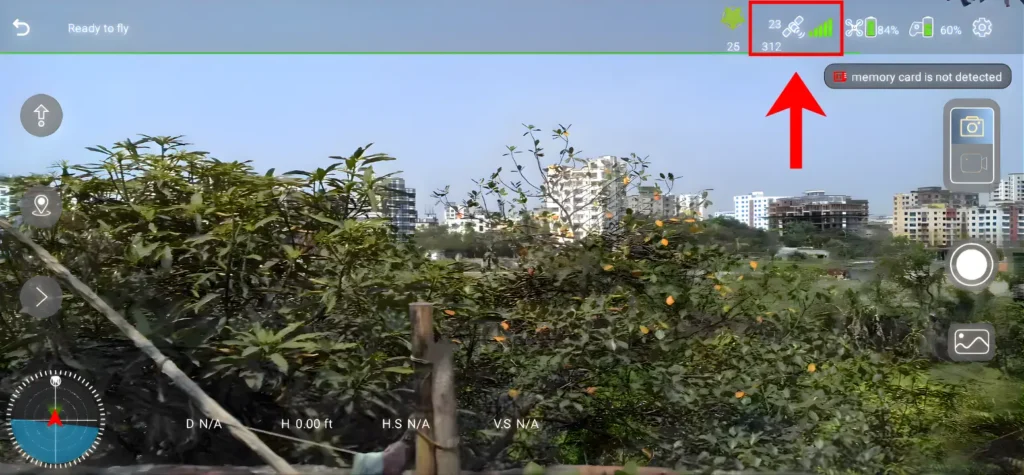
The GPS status is clearly visible in the control interface, displayed as a signal strength indicator. A reading of 3 to 5 bars indicates a strong signal sufficient for flight. If the indicator shows only 1 or 2 bars, the GPS signal is too weak, and you should move to a different takeoff location before flying.
Read More: Ruko F11PRO 2 Review
Smart Return to Home (RTH)
The Ruko F11Pro 2 includes a Return to Home feature that activates in GPS Mode when a strong GPS signal is present. When the GPS icon first displays 3 or more bars, the takeoff location is automatically recorded as the Return to Home point. During flight, you also have the option to update the landing point to a new location directly from the map in the app using the Smart RTH button.
There are three types of RTH available: Smart RTH, Low Battery RTH, and Lost Signal RTH. The Smart RTH feature stands out because it allows you to set a custom return altitude anywhere between 20 meters and 120 meters.
When the drone begins its return journey, it will first climb to your specified altitude before heading back — which is especially useful when flying in areas with trees or tall obstacles. It is always recommended to set the return altitude higher than any surrounding obstacles to avoid potential collisions.

RTH Accuracy
While the Return to Home feature works very reliably, it is worth noting that the accuracy is approximately 90 percent rather than a perfect 100 percent.
In practice, the drone typically lands within about 8 feet of the original takeoff position. For most recreational use cases, this level of precision is more than acceptable, and the overall RTH performance is genuinely impressive for a drone at this price point.
Offline Map
The F11Pro 2 includes an Offline Map feature accessible directly from the control interface. Using the onboard GPS, the map displays your current location and allows you to browse other areas as well. Within the map, you can perform route planning, set your Return to Home location, and scout locations visually before flying.
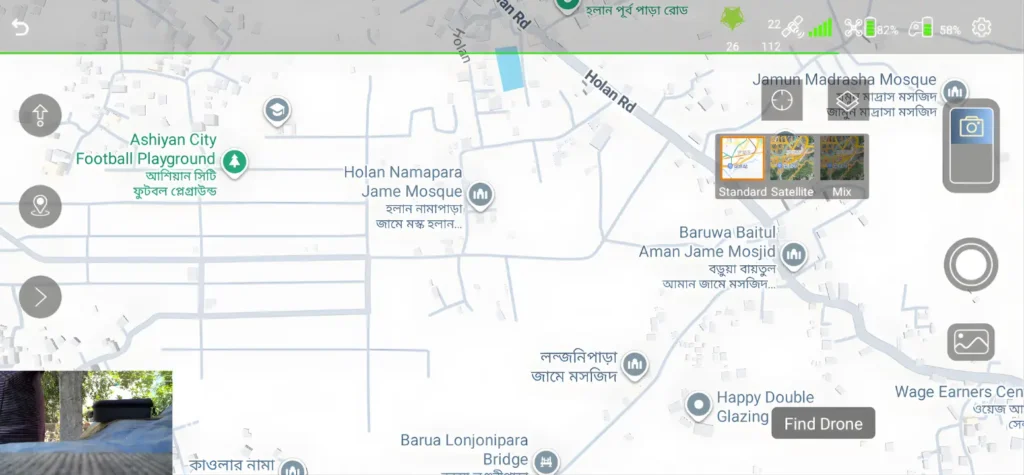
The map offers three layer options — Standard, Satellite, and Mix — so you can choose the view that works best for your needs. This is particularly helpful when you want to identify the best spots for aerial shots before taking off.
Smart Battery System
The F11Pro 2 is powered by a 3200mAh smart flight battery rated at 7.7 volts. Flight time ranges from approximately 31 to 33 minutes, which is an excellent amount of airtime for a consumer drone in this category. After around 19 minutes of flight, a low battery warning sound activates as a safety measure.
Flight Time and Low Battery Warning
At this point, the LED indicator turns red and begins blinking. You can continue flying after the warning, but certain Smart Flight features — including Route Planning, GPS Follow, Fly Around, and Cruise Control — will be automatically disabled.
Battery Protection Features
The F11Pro 2 smart battery includes several built-in protection mechanisms. Balance Protection automatically equalizes the voltage across the internal battery cells to preserve battery health. Overcharge Protection prevents the battery from being overcharged, which can cause serious damage, though it is still recommended to unplug the charger promptly once charging is complete.
Over-Discharge Protection guards against the battery being drained too low, while Short Circuit Protection detects any short circuit and immediately cuts off the output to keep both the drone and battery safe.
Backup Battery System
One particularly impressive feature is the Backup Battery System. When the main battery drains to 1 percent, the drone automatically switches to a backup battery, providing an additional 2 to 3 minutes of flight time. During this phase, the warning sound activates continuously.
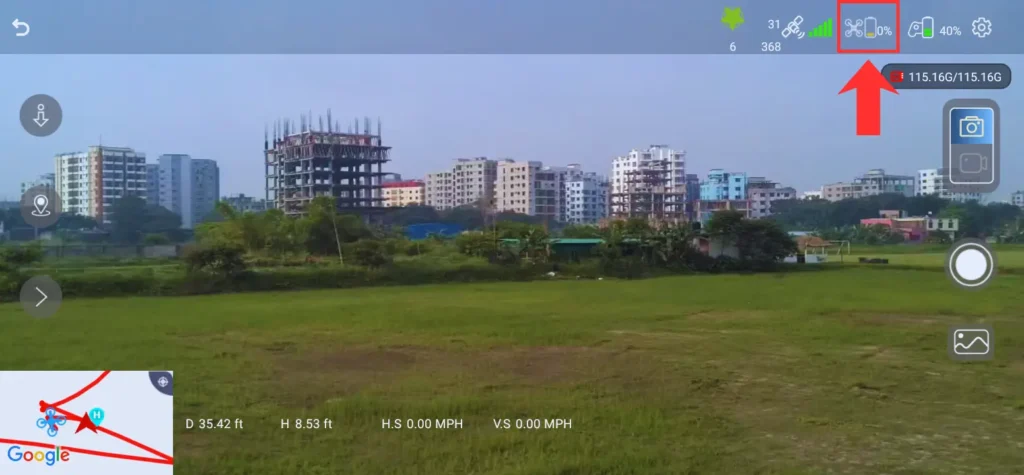
You can monitor the backup battery status in the Aircraft Battery Level section of the control interface when the display switches from a percentage to a three-digit number (such as 180%), that number represents the remaining backup time in seconds. Once it counts down to zero, the drone will automatically begin descending to the ground.
Aircraft Status Indicator Light
The F11Pro 2 features a status indicator light located above the front landing gear. This light communicates the drone’s current state at a glance. A solid green light indicates the drone is in GPS Mode and flying normally.
A slow red flash signals a low battery. A fast green flash indicates a weak GPS signal. Beyond providing useful flight information, the indicator light is also a practical tool for locating your drone during nighttime flights.
GPS Follow
GPS Follow is one of the standout features of the F11Pro 2 and it performs surprisingly well for a drone at this price point. To activate it, ensure the drone is within a horizontal distance of 50 meters, then tap the GPS Follow icon in the app. Once activated, the drone will follow the remote controller, adjusting its speed to match your pace — moving faster when you run and slower when you walk.
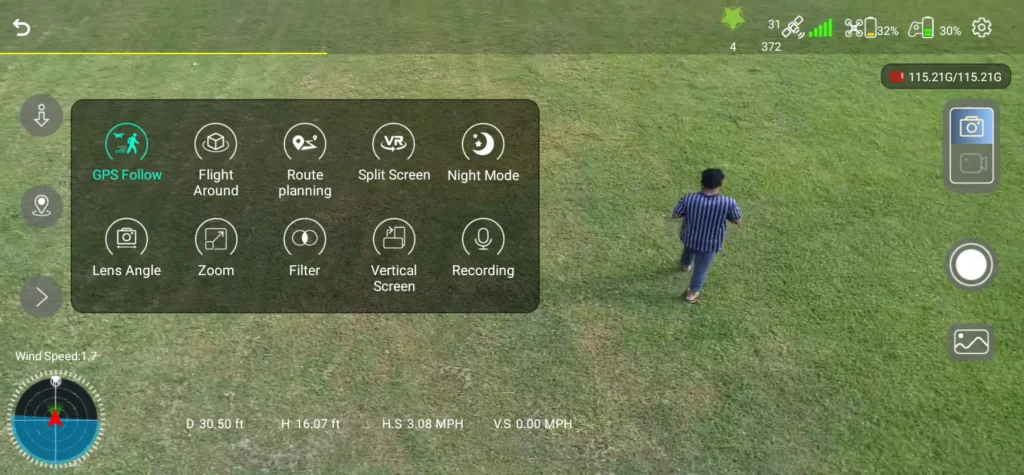
Since the F11Pro 2 does not have obstacle avoidance, it is essential to use this feature in open, unobstructed areas. A strong GPS signal on your controller is also required for GPS Follow to function correctly.
Route Planning
Unlike many drones in its class, the Ruko F11Pro 2 includes a Route Planning feature that allows you to pre-define a flight path for the drone to follow automatically. You must be flying at an altitude of at least 49 feet (15 meters) before initiating route planning, and you can set up to 10 waypoints along your desired path.
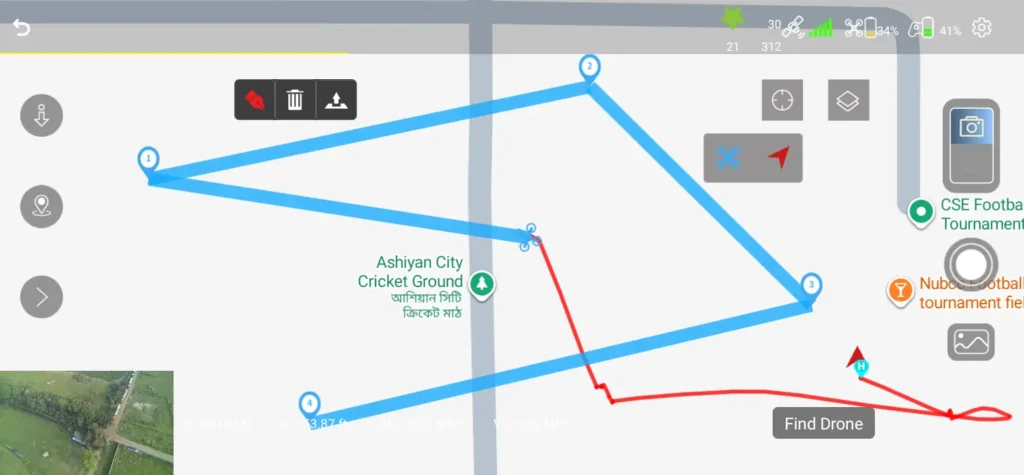
However, it is worth being transparent here: the route planning feature does not currently work as expected. After setting waypoints, the drone tends to fly in a southeast direction (approximately 135 degrees) rather than following the defined route. This appears to be a software issue, and hopefully a future firmware update from Ruko will resolve it.
Flight Around (Orbit Mode)
The Flight Around feature, also known as Orbit Mode, allows the drone to fly in a circle around a center point at a set radius. It is an excellent tool for capturing cinematic aerial footage and is particularly well-suited for wedding videography or creative landscape shots. When the feature is initiated, the drone moves backward to a default orbit radius of 16 feet (5 meters).
During the orbit, you can adjust the radius using the joystick, ranging from 16 feet (5 meters) up to 328 feet (100 meters), and you can also change the direction of the orbit using the joystick. The feature requires a small amount of initial setup to center the drone on your desired subject, but once configured, it delivers smooth and visually compelling results.
Speed Control
The F11Pro 2 offers two speed modes: Stable Mode and Sport Mode. Stable Mode is the default setting and offers a top speed of approximately 13.20 MPH, which is well-suited for controlled, smooth flight and photography.
Sport Mode increases the maximum speed to 18.04 MPH and is recommended when flying in higher wind conditions, as the additional speed improves the drone’s wind resistance and overall stability.
Smart Zoom
The F11Pro 2 includes a digital zoom feature that allows you to zoom in up to 5x. As with most digital zoom implementations, image clarity does decrease at higher zoom levels, so it is best used for quick framing assistance rather than detailed photography.
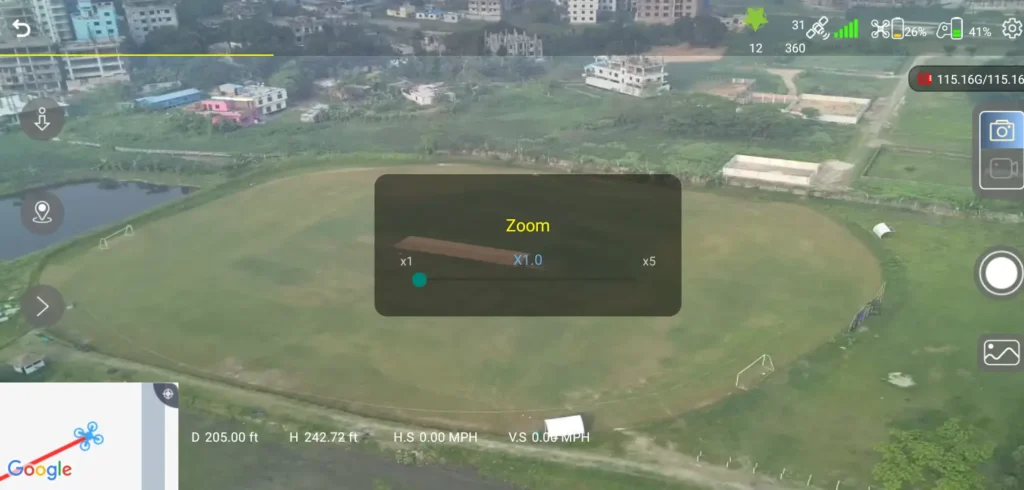
The zoom control can be found in the More Features section of the app, where you can use a slider to zoom in or out.
Find Drone
Similar to features found on higher-end drones, the Ruko F11Pro 2 includes a Find Drone function. This uses the built-in GPS to record the last known location of the drone if it loses video transmission. It starts beeping, then you press the ‘Find Drone’ option, which helps you if your drone has crashed.
You can access this feature through the app settings and open the map to see exactly where the aircraft disconnected. This is a genuinely useful safety feature that provides peace of mind, especially when flying in unfamiliar areas.
Article Summary
The Ruko F11Pro 2 delivers an impressive array of features for its price point. The smart battery system, backup battery, GPS Follow, and Return to Home functionality are particularly well-executed and make for a reliable and enjoyable flying experience. While the Route Planning feature has some issues that need to be addressed through a future firmware update, the overall package is strong.
Whether you’re a beginner looking for a capable starter drone or an enthusiast wanting solid performance without a premium price tag, the Ruko F11Pro 2 is well worth considering.
Read More: Ruko F11Pro 2 Beginners Guide