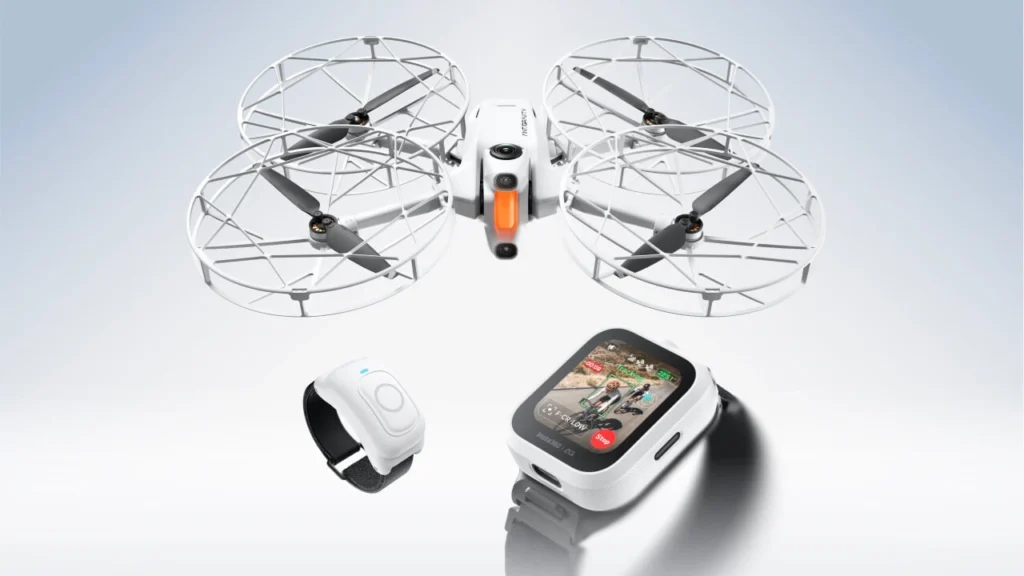

Most drones still hand you two sticks and ask you to learn what each one does before you ever leave the ground. The Antigravity Grip Motion Controller throws that entire learning curve out. It’s the one-handed, motion-based controller that ships with every Antigravity A1, the 8K 360 drone built to be flown while wearing goggles rather than staring down at a screen, and it replaces dual-stick inputs with pointing, tilting, and a trigger.
This Antigravity Grip Motion Controller review breaks down exactly how it works, what its 11 control inputs actually do, how it compares to a traditional transmitter, and whether its beginner-friendly design is a genuine upgrade or a real limitation depending on who’s holding it. It’s built on the manufacturer’s own published specifications and hands-on impressions from multiple independent reviewers who’ve flown it extensively.
Quick Verdict
The Antigravity Grip Motion Controller is a one-handed, motion-sensing flight controller that lets you steer the Antigravity A1 by pointing where you want to go, tilting to bank, and squeezing a rear trigger for forward motion, no joysticks required. It’s genuinely intuitive for beginners, several reviewers describe picking it up and flying competently within minutes, and it integrates tightly with the A1’s VR-style goggles, letting you navigate on-screen menus with the same motion-based cursor control you’d find in a Meta Quest headset.
The tradeoff is real: there’s no stick input at all, which means no acro mode and a noticeably steeper adjustment period for experienced FPV pilots used to fine, precise stick control. If you’re new to drone flying or you want the lowest possible barrier to entry, the Antigravity Grip Motion Controller delivers exactly what it promises. If you’re an experienced pilot who relies on manual stick precision, it’s going to feel restrictive, at least until you adapt to it.
Antigravity Grip Motion Controller: Official Specifications
| Specification | Detail |
| Model | SRCSE001 |
| Dimensions | 143 x 45 x 72.5mm (L x W x H) |
| Weight | Approximately 115g |
| Control inputs | 11 total |
| Operating frequency | 2.400-2.4835 GHz |
| Transmitter power (EIRP) | Under 10 dBm |
| Max link distance (controller to goggles) | Approximately 10m (32.8 ft) |
| Battery capacity | 2300mAh, 3.6V nominal |
| Battery life | Approximately 4 hours |
| Charging port | USB-C, 5V/2A |
| Charging time | Under 2.5 hours |
| Operating temperature | -10°C to 40°C (14°F to 104°F) |
| Included with | Antigravity A1 drone (all bundle tiers); not sold as a standalone accessory |
One important distinction worth flagging up front: the Grip’s own link range to the goggles is only about 10 meters, that’s the direct wireless connection between controller and headset. This is completely separate from the A1 drone’s actual video transmission range, which is rated up to 10km. Don’t confuse the two figures; they measure very different things.
Design and Ergonomics
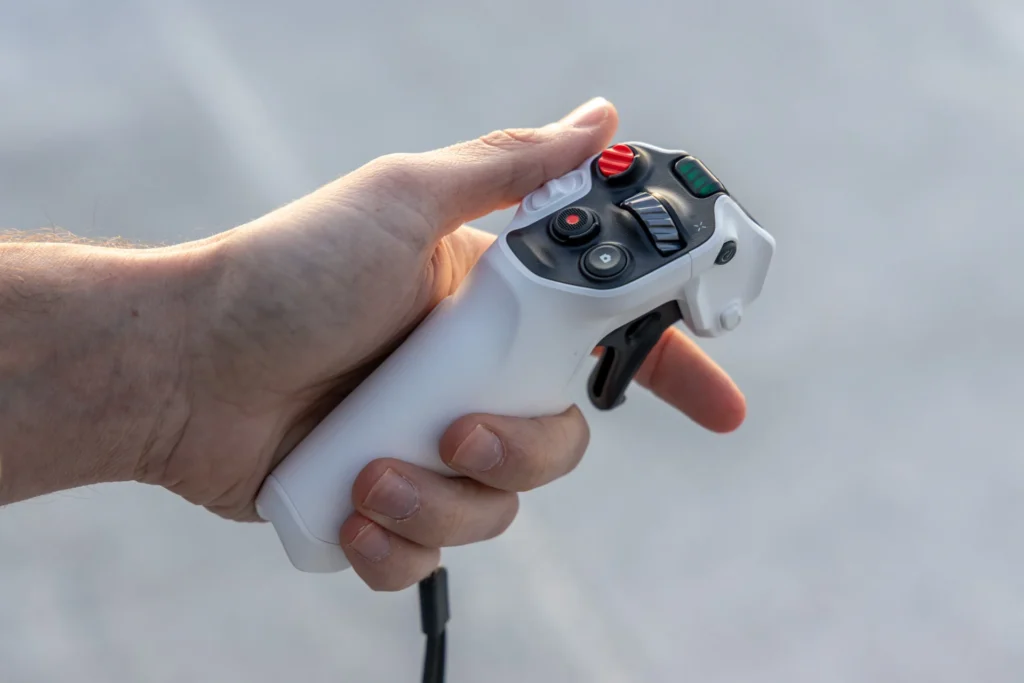
The Antigravity Grip Motion Controller has a compact, white plastic shell with a mix of buttons, a dial, and color-coded icon cues that hint at each control’s function without requiring you to memorize a diagram first. At roughly 115 grams and sized to sit comfortably in one hand, it’s noticeably lighter and smaller than a traditional dual-stick transmitter, which makes sense given it’s designed to be held and gestured with for extended periods while you can’t actually see it, since you’re wearing goggles the entire time you fly.
That last point matters more than it sounds. Several reviewers specifically noted that the controller is clearly designed for right-handed use, and that while you can’t see the buttons while flying, the layout becomes distinguishable by feel with enough practice. One reviewer who tested it in near-freezing temperatures found that cold fingers made it genuinely harder to feel button placement accurately, worth knowing if you plan to fly in cold conditions.
The 11 Control Inputs, Explained
The Antigravity Grip Motion Controller packs a surprising number of inputs into its small frame. Based on hands-on breakdowns from independent reviewers, the layout is as follows:
Front face: a yaw wheel for precise rotation, an emergency brake button (positioned where your thumb naturally rests, for an immediate full stop), a takeoff/landing button, a video record button, and a photo shutter button.
Left side: a 3-position mode selector that toggles between Cine, Normal, and Sport flight modes, plus two customizable buttons (labeled C1 and C2) that can be mapped to other functions.
Right side: a power button and a settings button.
Back: a forward trigger, often described as functioning like a gas pedal, that controls forward thrust.
This is a genuinely dense control scheme for a single-hand device, and it’s part of why multiple reviewers describe the menus and settings as surprisingly deep despite the controller’s simple outward appearance.
How FreeMotion Mode Actually Works
The core of the Antigravity Grip Motion Controller’s appeal is its FreeMotion flight mode: you point the controller in the direction you want the drone to travel, tilt your wrist to bank and turn, and squeeze the rear trigger to move forward. Built-in gyro sensors in both the controller and the Vision Goggles track your movements and translate them directly into flight inputs, effectively replacing the abstraction of stick inputs with something closer to pointing a flashlight.
Reviewers consistently describe this as remarkably intuitive for newcomers, several specifically noted feeling comfortable within their first flight, a dramatically shorter learning curve than traditional dual-stick drones typically require. One reviewer with over 15 years of stick-based flying experience admitted being skeptical going in, but found the motion-based control clicked almost immediately once airborne.
Menu Navigation: A VR-Style Cursor
Beyond flight control, the Antigravity Grip Motion Controller doubles as the input device for navigating the A1’s on-screen menus while wearing the Vision Goggles. Rather than using physical screen taps or a separate remote, you move an on-screen cursor using the same motion sensing that controls flight, functioning almost identically to how you’d navigate menus in a Meta Quest or similar VR headset.
It’s a sensible design choice given the goggles-first nature of the whole system, though it does mean every interaction with the drone, flying and menu navigation alike, flows through this one controller.
Flight Modes and Automated Maneuvers
The 3-position mode selector on the controller’s left side switches between three distinct flight characters: Cine mode, which flies slower and smoother for cinematic shots, Normal mode for everyday flying, and Sport mode for faster, more dynamic flight. This gives the Grip controller a meaningful range despite its simplified input scheme, you’re not locked into one flight feel regardless of what you’re trying to capture.
The controller also supports automated 360-degree camera moves, including Orbit, Spiral, and Comet maneuvers, triggered with a single tap rather than manual piloting. This is a notable advantage for solo creators: shots that would traditionally require a second person operating camera movement can be executed single-handedly through the Grip controller’s automated modes.
The Learning Curve: Beginners vs. Experienced Pilots
This is where opinions genuinely diverge across the reviews. For beginners or anyone without prior drone experience, the consensus is overwhelmingly positive: the Antigravity Grip Motion Controller lowers the barrier to flight dramatically. One manufacturer-adjacent description puts it simply, if you can point a flashlight, you can fly it.
For experienced FPV pilots, the story is more mixed. Multiple reviewers who came from traditional stick-based transmitters described an adjustment period, having to retrain years of muscle memory to trust motion-based inputs instead of precise stick movements. The most significant limitation called out repeatedly is the complete absence of a joystick or stick option, which means there’s no acro mode, the freestyle flight mode that lets experienced FPV pilots perform tight, fast, technical maneuvers. If acro-style freestyle flying matters to you, the Grip controller’s motion-only design is a genuine ceiling, not just an adjustment period.
Several reviewers also noted missing a small secondary joystick for fine position adjustments, particularly for slow, precise cinematic framing or delicate landings, something a hybrid design might have addressed.
Battery Life and Charging
The Grip controller runs on a built-in 2300mAh, 3.6V battery, officially rated for approximately 4 hours of operating time when connected to the Vision Goggles. It charges via USB-C at 5V/2A, reaching full charge in under 2.5 hours. For a controller this size and this feature-dense, that battery life comfortably covers a full session of flying without needing a mid-day top-up for most users.
How It Compares to Traditional Transmitters
The most useful comparison several reviewers reached for was a flight-simulator center stick or an airplane yoke, rather than a conventional dual-stick drone transmitter or even DJI’s own RC Motion controllers, which the Grip conceptually resembles but diverges from in its trigger-based forward input and denser button layout. Where a traditional transmitter asks you to coordinate two thumbs independently, the Antigravity Grip Motion Controller asks you to coordinate a single hand’s position, tilt, and grip, a fundamentally different mental model that some pilots describe as feeling more like a natural extension of intent than a piece of equipment you’re operating.
Who the Antigravity Grip Motion Controller Is Best For
- Newcomers to drone flying who want the lowest possible barrier to entry
- Solo content creators who want to execute cinematic camera moves without a second operator
- Anyone drawn to the A1’s VR-style, headset-first flying experience
- Pilots who prioritize intuitive, natural control over granular manual precision
Who Should Think Twice
- Experienced FPV freestyle pilots who rely on acro mode and stick-based precision
- Anyone wanting a dedicated secondary joystick for fine cinematic adjustments
- Left-handed users, given the controller’s right-hand-focused design
- Buyers hoping to purchase the Grip controller as a standalone accessory for another drone
FAQ
Can the Antigravity Grip Motion Controller be bought separately from the A1 drone?
No. Based on current availability, the Grip controller ships exclusively as part of the Antigravity A1’s bundles and isn’t sold as a standalone accessory.
Does the Antigravity Grip Motion Controller support acro mode for freestyle flying?
No. Since it has no stick input at all, there’s no acro mode available. Acro mode requires the precise, independent stick control that motion-based input can’t replicate.
How long does the Antigravity Grip Motion Controller’s battery last?
The manufacturer’s official specification lists approximately 4 hours of operating time when connected to the Vision Goggles, with a full recharge taking under 2.5 hours via USB-C.
Is the Antigravity Grip Motion Controller hard to learn?
For beginners, most reviewers describe a very short learning curve, often comfortable within the first flight. Experienced stick-based pilots typically need more time to adjust, since the control scheme requires unlearning years of different muscle memory.
Is the Antigravity Grip Motion Controller only for right-handed users?
Based on its design and multiple reviewer observations, yes, it’s built specifically for right-handed use, with no apparent left-handed configuration currently offered.
Final Thoughts
The Antigravity Grip Motion Controller succeeds at exactly what it set out to do: make flying a drone feel less like operating machinery and more like pointing and gesturing your way through the sky. For the beginner-to-intermediate audience the Antigravity A1 is clearly built for, it’s a genuinely well-executed, thoughtfully laid-out piece of hardware that removes the single biggest barrier most new pilots face.
The honest caveat is that this simplicity is also a real constraint for anyone coming from serious stick-based FPV flying, there’s no acro mode, no secondary joystick, and a real retraining period if your reflexes are built around traditional dual-stick inputs. Go in knowing which type of pilot you are, and the Antigravity Grip Motion Controller will either feel like the easiest way you’ve ever learned to fly, or a deliberate trade-off you’re making for the sake of a fundamentally different flying experience.
Read More: What Drones Work With the DJI Smart Controller? Full Compatibility Guide