
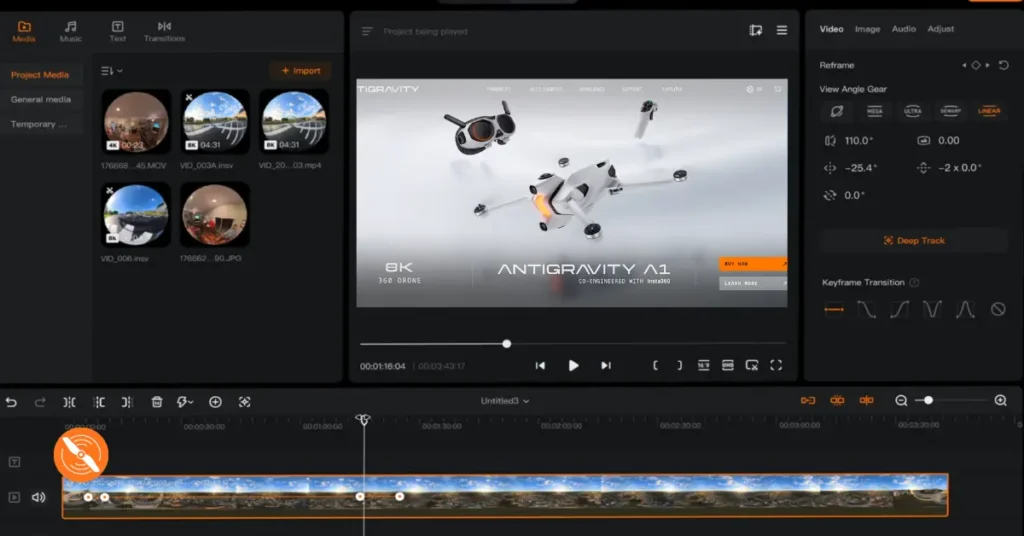
If you’re new to 360 editing, it can feel incredibly intimidating. Compared to normal video editing, when I first started doing it, it kind of felt like trying to solve a Rubik’s cube. But it doesn’t have to be that way. In this guide, I’m going to break the entire Antigravity Studio process down super simply from start to finish.
I’ll be covering the desktop editor first, and then switching over to editing on your phone. We’ll go through tracking, reframing, editing multiple clips, best export settings, and mobile app editing. Let’s do it.
Getting Started
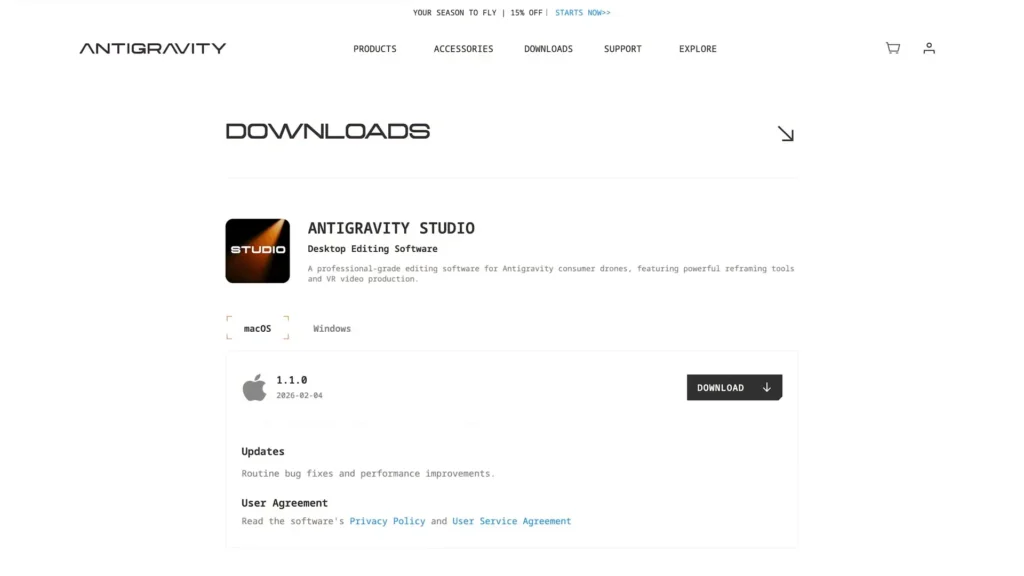
The first thing you’re going to need to do is download Antigravity Studio. You can find it on their website for either Mac or PC. Once that’s done, you need to get your footage into the editor.
You can plug in your SD card and edit directly off of it, but what I do and what I 100% recommend is getting an external storage device like an SSD or a hard drive. If all your footage is on one SD card and you’re taking it out for flights all the time, crashing and losing it would be a huge bummer.
So after I go out on a shoot, I take the SD card, plug it into my computer, and transfer everything onto my Glyph SSD. SSDs are a little more secure than hard drives, so I’d recommend using one, but hard drives are a little bit cheaper and do work just fine.

Creating a New Project in Antigravity Studio
When you first open up Antigravity Studio, you’re going to get a panel where you’ll want to hit “New Project.” When creating a new project, just pick a name. The next option is the path, which is simply where the project file is stored.
You can change it, but it automatically stores to a movie folder and doesn’t take up a lot of space. The actual footage stays stored on your hard drive or SD card, so I just keep mine in the Antigravity Studio folder.
The ratio setting controls how your video will be displayed. You can choose vertical or horizontal depending on whether you’re editing for social media or something like YouTube. There are also options like 3/4 and 1:1 square formats.
For frame rate, I usually just go with auto match. Basically, if your shot was recorded at 30 frames per second, putting it into the timeline will automatically set the timeline to 30 frames per second as well.
Now, about proxies. If you start editing your footage and your computer sounds like it wants to die, you can create a proxy file, which is a much lower resolution version of the actual file that you can edit off of. When you export, you’ll still export the full resolution version. Since my computer handles the footage fine, I just hit “No Proxy” and move on.
Understanding the Antigravity Studio Interface
Once your project is created, it’s time to import your footage. Hit import, find your clips on your computer, select them, and open them. Now let me give you a brief walkthrough of how everything is set up.
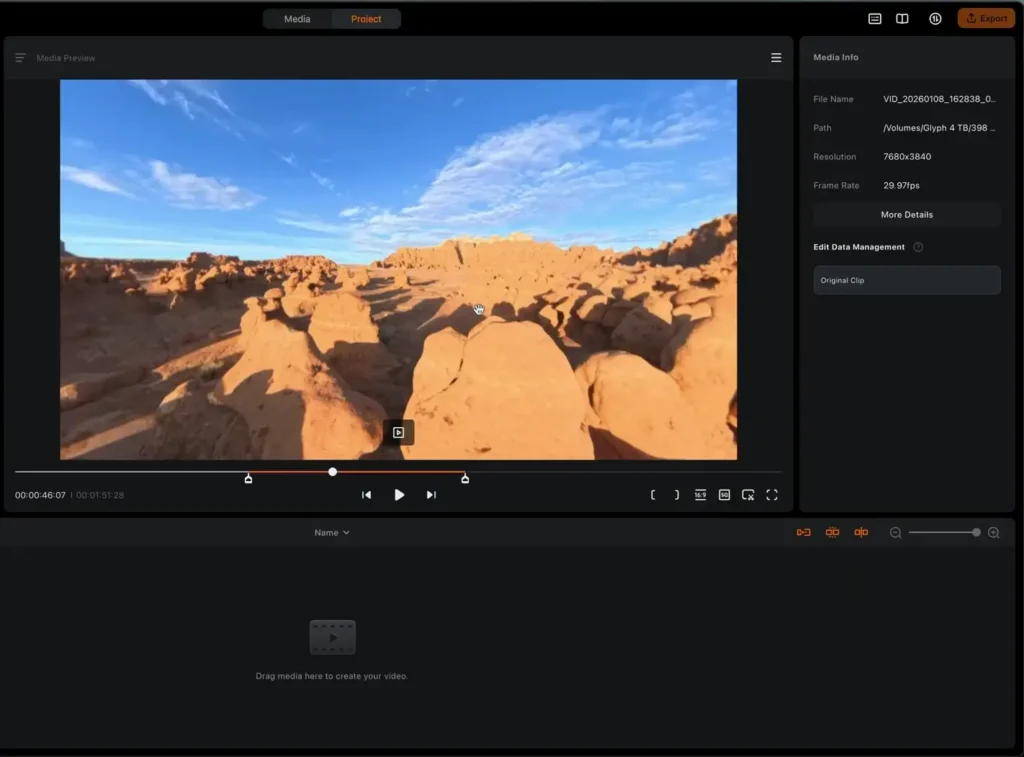
On the right side of the screen is called the Player. This is where your footage plays back as you’re sorting through clips or reviewing your edited video. You can even look around and drag and scroll within the 360 frame directly in the player. Down below is your timeline where you place your clips to edit them.
Under the player, you have a few options. You have your start point and end point controls. You can set in and out points by clicking those buttons, but what I prefer is using the I and O keys on your keyboard. Press I for your in point and O for your out point, and then drag the clip down into the timeline.
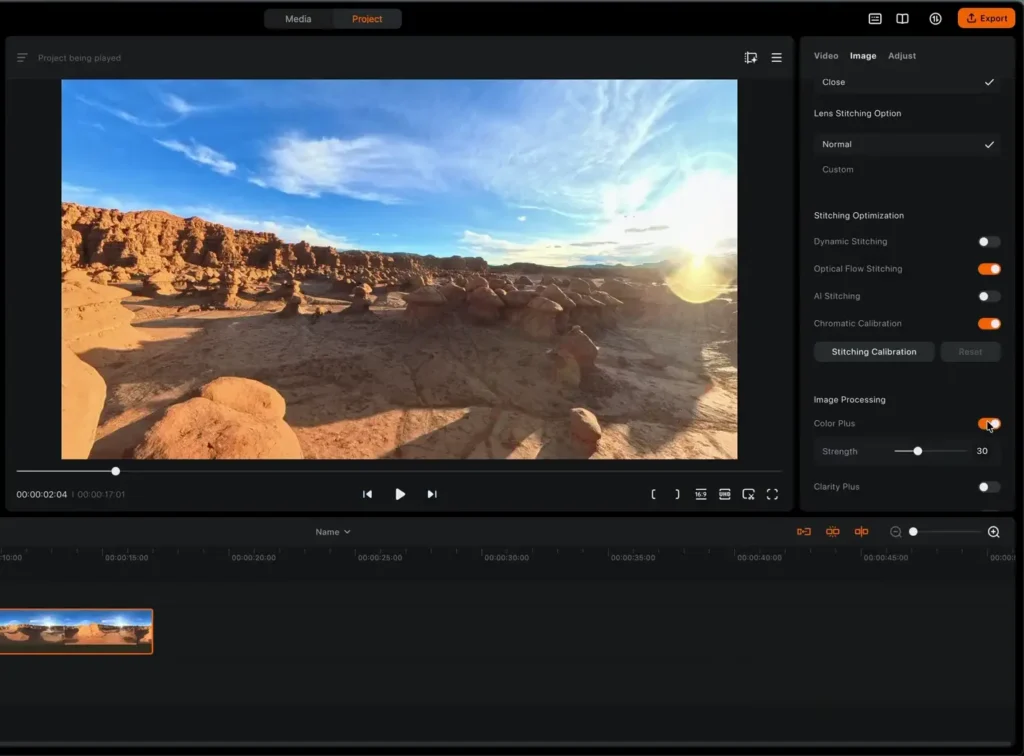
You can also change the ratio from here, switching between social media formats or other aspect ratios. There’s also a preview quality setting. I edit on the highest preview quality because my computer can handle it, but if your machine is struggling, you can drop down to HD preview or smooth preview, where quality gets progressively lower but playback stays smooth.
At the top left, you have all your clips, and you can also add music, text, and transitions from there. On the right side of the screen, you’ll find all your key framing controls and editing tools, but these won’t appear until you actually drag a clip into the timeline.
Working with Clips
Once you drag a clip into your timeline, three tabs appear on the right side. The first is the Video tab, which has all the main editing controls. The second is the Image tab, where you can toggle stabilization on and off.
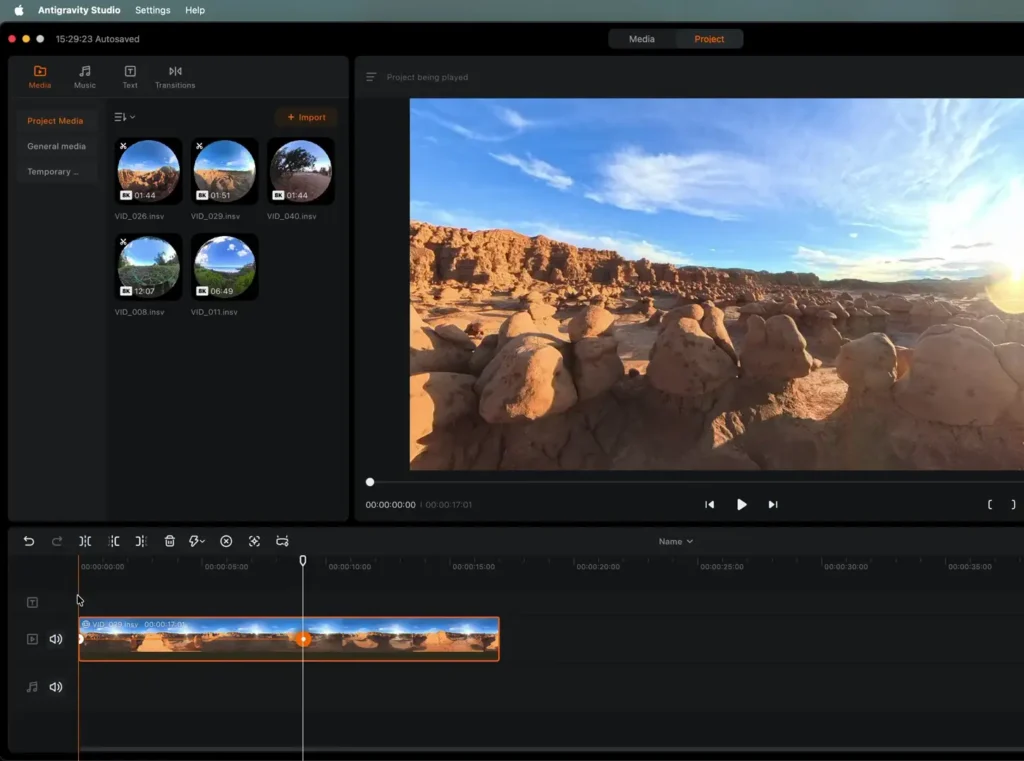
You definitely want stabilization on. There’s also a blade protector feature here. If you put blade protectors on your drone, you can turn this on and it will adjust the stitching so you don’t see them in the footage. I just keep everything at normal.
The third area allows you to do some color grading, including things like Color Plus and Clarity Plus. One setting you do want to pay attention to in this section is Motion ND.
Basically, Motion ND imitates an ND filter, which adjusts your shutter speed so you get that nice cinematic motion blur. You’re going to want to have that turned on. You can also adjust the exposure and other clip settings from here.

Reframing and Preset Viewing Directions
Now let’s talk about the controls in the Video tab. The first one is Preset Viewing Direction, which controls where the camera is pointed. Because it’s a 360 drone, you can point it wherever you want. The options are forward, rear view, left view, right view, top down view, and free view, which is basically wherever you choose.
Right next to that is your view angle or gear option. I usually like to use Dewarp because other options can introduce a curve to the horizon. Mega is just zoomed out even further. You can also do Tiny Planet or Linear, which is zoomed in a little more.
As you change all of these options, the corresponding properties update in the panel below as well. That’s really the magic of editing 360 footage in Antigravity Studio as a beginner and as a pro.
Key Frames
This is where things start to get really exciting. Let me walk you through key frames because this is how you unlock some of the most impressive shots possible with this drone.
I’m going to show you a rotating shot, which is one of the coolest effects I’ve seen pulled off with the Antigravity A1. Go to the beginning of your clip and add a key frame by clicking the plus button in the key frame panel. That tells the software what the first frame should look like. Then move your playhead further along in the clip and add another key frame.
Now, on that second key frame, I want to adjust the rotation. I’m going to take the rotation all the way to 360 degrees. What happens now is that the software animates the camera from the first key frame to the second, smoothly rotating the entire way.
You can drag the clip to preview the motion and watch the numbers update on the panel, but I prefer using the actual number panel because you can be more precise with it. Even just after a few seconds of setup, you end up with an incredibly impressive shot.
Let me show you another example. Clear all the key frames by going to Refframe and selecting “Clear All.” Now let’s say I want to fly through a scene and then rotate the camera to face backward. I’ll add a key frame at the start, move the playhead forward a few frames, add another key frame, and then rotate the camera to 180 degrees.
Now the clip plays forward and then rotates to face behind the drone. You can also see the motion blur at work here, which is that Motion ND setting imitating what the human eye would see naturally.
You can get really creative with key frames. If you wanted to also flip the footage upside down during that same move, you can do that too. Add another key frame, tilt it back forward, and now you have a rotation combined with a flip and then a return to normal. These transitions are incredibly creative and something you really can only achieve with 360 footage.
Key frames are also one of the best tools for creating transitions between clips. You can move the camera to the left at the end of one clip and then start the next clip also moving from the left, creating these really unique and seamless transitions between shots.
Creating a Hyperlapse Effect in Antigravity Studio
Now I want to show you the hyperlapse effect. If you’re not familiar, a hyperlapse is basically footage that plays super fast, creating a dramatic sense of speed and movement.
First, use Command B to blade the beginning of your clip so you’re left with just the section you want to use for the hyperlapse. I chose a section where the drone is moving in a straight line because it looks great sped up.
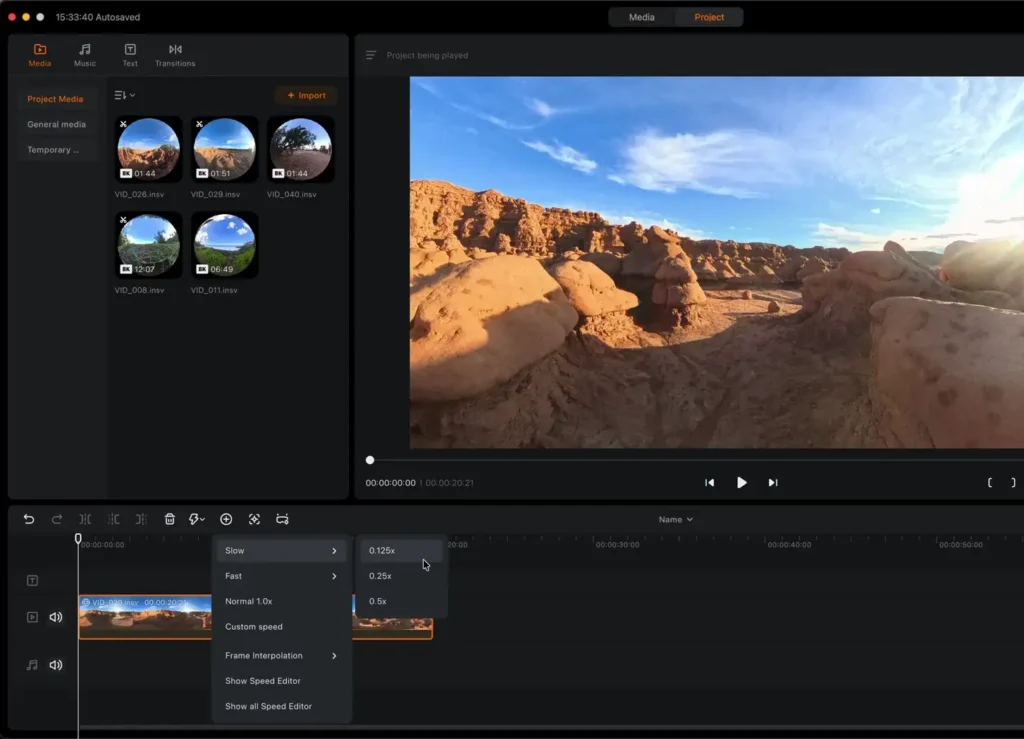
Then in the speed options, go ahead and select Fast and choose 8x speed. That speeds the clip up by eight times, turning it into that dramatic hyperlapse look. I usually pull it back a little, so something like 5x speed tends to work nicely.
The great part is that you can still apply key frames to a sped-up clip. So if I want to rotate the camera from forward to backward during the hyperlapse, I just set a key frame at the start, move forward a few frames, add another key frame, and set the rotation to 180 degrees.
The video might stutter a little during preview, but when you actually export it, it’s going to be super smooth. These shots are incredibly hard to pull off with any other drone, which is one of the things that makes the Antigravity A1 so special.
How to Track Subjects in Antigravity Studio
Next, let’s talk about tracking, which is one of the most powerful features in Antigravity Studio for beginners and advanced users alike. I’m going to delete the previous clip and pull in a clip I shot in Hawaii.
Once the clip is trimmed and in the timeline, I want to track a palm tree to create a smooth rightward pan. To start tracking, place your playhead at the point where you want tracking to begin.
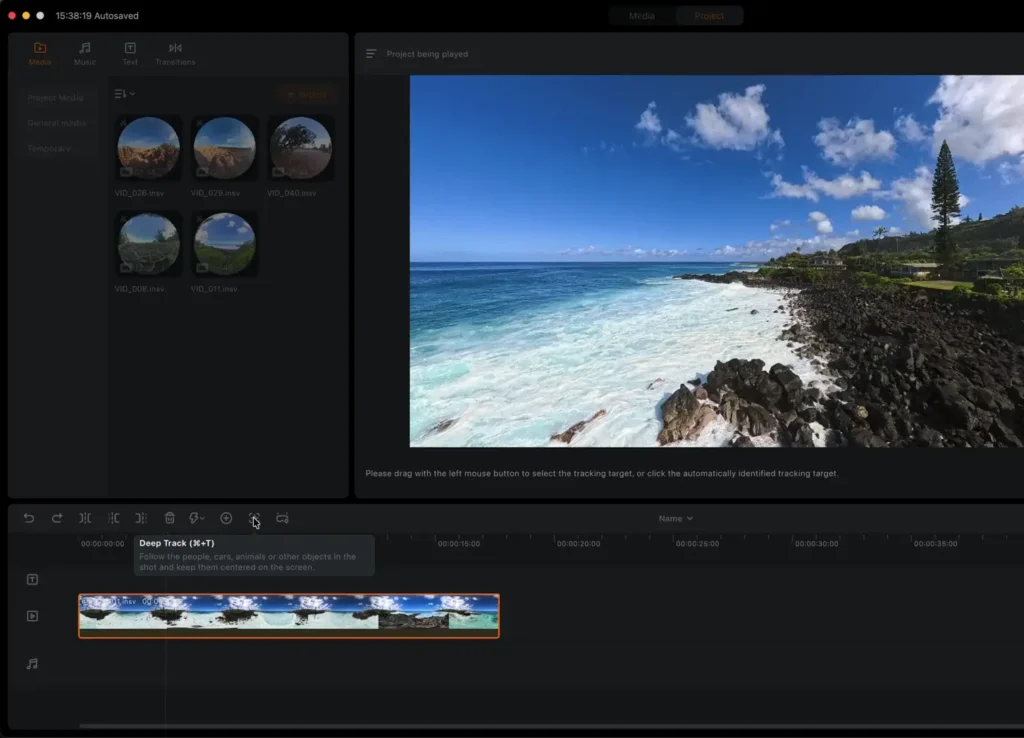
Then click the Deep Track icon in the panel. A selection box will appear and you just click on whatever subject you want to track. In this case, it’s a palm tree that is incredibly small in the frame. Hit “Start Deep Track” and the software gets to work.
It actually does a really good job. It switched to a nearby palm tree at one point, but it still looks great. When you play it back, you get this really smooth, cinematic pan that would be extremely difficult to recreate any other way.
Let me show you another tracking example with a moving subject. This one is a clip of a surfer and I wanted to keep the camera locked onto him as he paddles and rides waves. I trim the clip, drag it into the timeline, place the footage directly on the surfer, and then hit Deep Track.
It gets a pretty good lock on him right away. At one point, the tracking stopped mid-clip. If that ever happens, you just hit “Continue Tracking,” select the subject again, and click “Continue Deep Track” and it picks right back up. After a big wave hits, I hit Done and play it back.
The result is already a really cool shot. You can go in afterward and adjust key frames to smooth out any rough spots, but even straight out of the tracking feature, the results are impressive. This is just so helpful for shooting action clips because manually flying a drone to follow a moving subject is genuinely very challenging.
Multi-Clip Editing
Now let’s talk about multi-clip editing, along with music, text, and transitions. Multi-clip editing in Antigravity Studio is straightforward. You simply drag all your clips down into the timeline one after another.
When it comes time to export, you can either export the entire project and have it export everything as individual clips, or you can export it as a single combined project. If you want transitions and effects between clips, exporting as a project is the way to go.
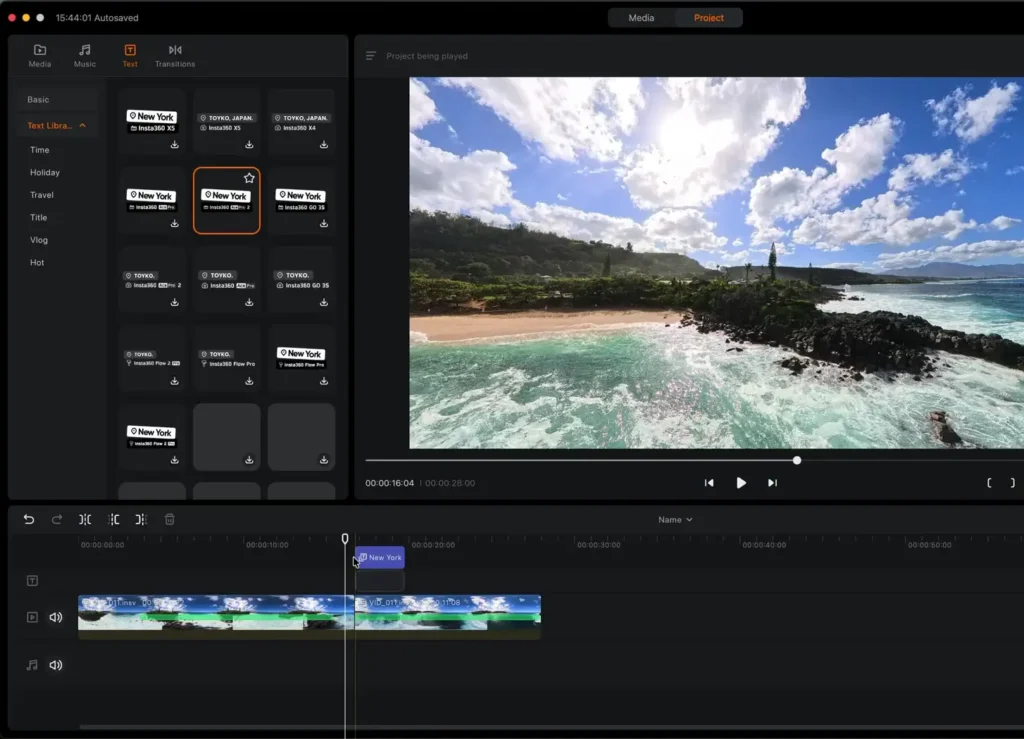
Up at the top left, you’ll find the Music tab. There are preset songs available in Antigravity Studio that you can actually use, and there’s some genuinely good music in there. You can filter by genre or mood to find something that fits your footage.
The Text tab gives you a variety of text styles that you can drag into the timeline just like a clip. Once you place a text layer, you can change what it says by editing it in the right panel. For example, just type “Hawaii” and your text shows up right over your footage.
For transitions, there are a few preset options available. I usually just key frame my own transitions because I like the creative control, but the preset transitions can be useful. You can drag one in between two clips and it’ll automatically play between them. A lot of them are honestly a bit gimmicky, but some of them are actually pretty cool and worth experimenting with.
Best Export Settings for Antigravity Studio
Getting your export settings right is important, so let me walk you through exactly what I use. To export, go to the top right corner and hit Export. From here, you can name your file and choose where it saves.
As I mentioned earlier, if you’re working with multiple clips, you can export them separately by choosing “Multiple Clips” or export everything as one combined video by choosing “Single Clip.”
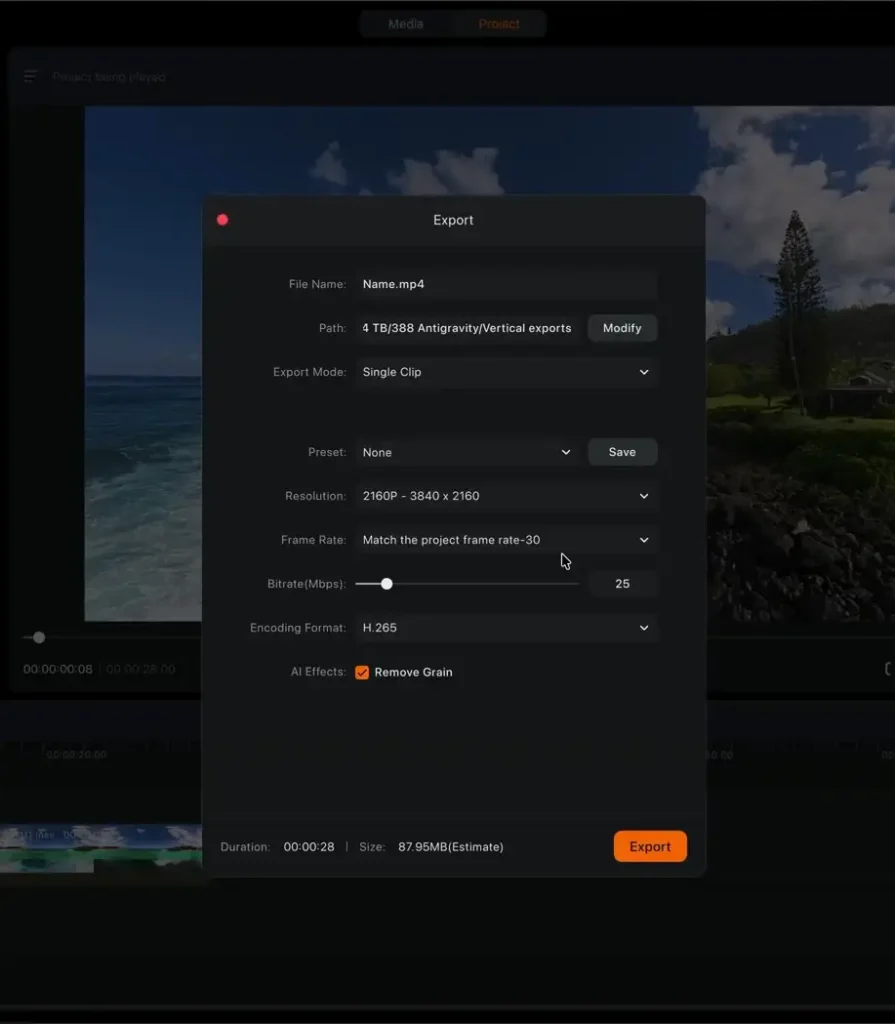
For resolution, you definitely want to export in 4K. For frame rate, match it to whatever frame rate your footage was shot in. For bit rate, I’ve experimented with increasing it and while it theoretically gives the video more information to work with, I haven’t seen a huge difference in practice. Just go with what Antigravity Studio recommends by default.
For encoding format, I use H.265. And then the Remove Grain feature is really worth using. Since the Antigravity A1 has a small sensor, you can sometimes get a bit of grain in your footage, and the Remove Grain feature helps a lot.
I’ve made all of these into a saved preset that I just call “4K” so I can apply it instantly to any export. These are exactly the settings I use every time.
Editing on Your Phone with the Antigravity App
The last section I want to cover is editing on your phone, and I think a lot of people are going to find this incredibly useful. The Antigravity app is available on the App Store and it’s really convenient, especially when you’re out shooting and you get a great shot you want to share right away.
You can connect your phone to the drone and the goggles and pull footage directly from there without needing a computer at all.
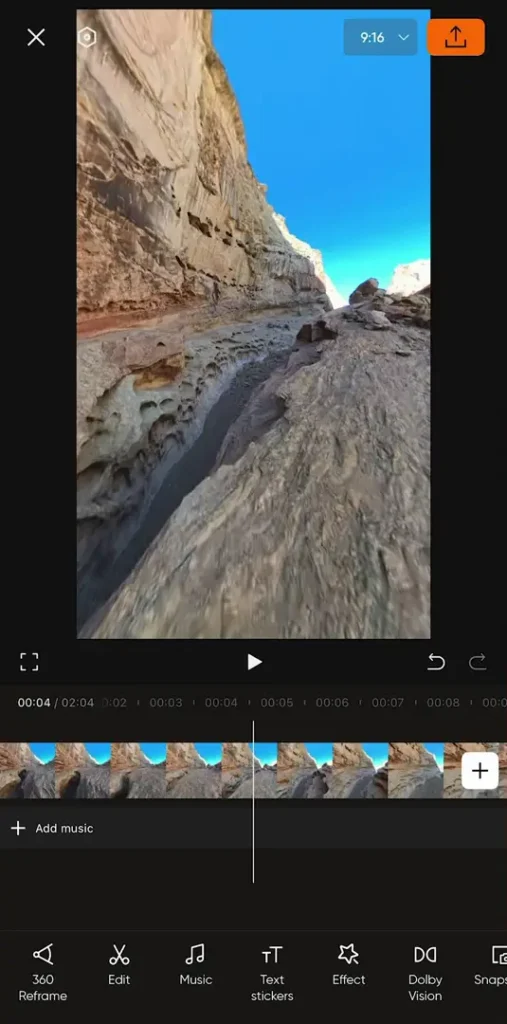
Once you open the app, head to the editing tab. I’ve already downloaded a couple of clips into the app. All you need to do is connect your phone to the drone and you can import footage directly. Hit “Start Creating,” select the clips you want to work with, and hit Next.
The mobile editor is actually pretty similar to the desktop version, which makes things easy to pick up. At the top, you can adjust your aspect ratio. If you’re editing for Instagram, just switch to 9×16. You can scrub through footage and play it back just like on desktop.
Along the bottom of the screen, you have all your editing controls including 360 Refframe, Edit, Music, Text, Effects, Dolby Vision (which is basically a built-in color grade), and Snapshot for taking a screenshot.
Key Frames and Tracking on Mobile
Tapping into the 360 Refframe section gives you a few options. You can manually pick a viewing direction just like on desktop, hit the goggles icon to use exactly what your goggles saw during the flight, or use AI Edit, which automatically picks the best framing for you.
I’ll go with front view for now. Then I’ll come into the clip, find the section I want, and add a key frame by tapping the orange key frame button. I notice the frame is tilted a little to the right, so I recenter it.
Then I scroll ahead to the end of the canyon section and add another key frame, this time rotating the view all the way backward and tapping “Update Key Frame.” In just a couple of seconds, you end up with a really cool rotating shot.
Tracking works the same way on mobile as it does on desktop. You select the subject, hit Deep Track, and let the software follow it through the shot.
There’s also a Movement feature right next to tracking that gives you preset automated movements. Options include a full 360 pan, left to right, fixed sky view, and more. You can just scroll through and pick whichever one fits your footage and then confirm it.
Recording Your Camera Movement with Your Phone
Here’s a feature on the mobile app that I think is genuinely awesome and I’m definitely going to start using more. Instead of manually setting key frames one at a time, you can actually record your camera movement in real time using your phone.
Basically, you start recording, physically move your phone around to look at different parts of the 360 frame, and all of those movements are captured and saved as key frames automatically.
I tried it by following a rock formation, panning down, and then swinging the camera all the way to the back for a dramatic transition. When you hit stop recording, all of that movement is locked in.
When you hit play, the footage moves exactly the way I moved my phone. This is something I honestly would rather do than go through the tedious key frame process by hand because it feels so much more intuitive and natural.
Additional Mobile Editing Features
Back on the main mobile editor screen, there are a few more things worth mentioning. Tapping on a clip gives you access to the speed controls, where you can either apply a speed change to the whole clip or select a specific segment to ramp. This is how you do speed ramping on mobile, and it works really well.
You can also add the Motion ND effect here, which I would definitely recommend doing just like on desktop. It makes a real difference in the cinematic quality of your footage. There’s also an option to display stats over your footage, which can be a cool look for certain types of content.
The Dolby Vision option in the effects panel functions like a preset color grade. I personally prefer to do my own color grading using a pack of LUTs, which you can find linked in the description if you’re interested in that approach. But Dolby Vision is a really quick and easy way to give your footage a polished look without any extra work.
Exporting from the Antigravity Mobile App
When you’re ready to export from the mobile app, just tap the export button in the top right corner and adjust your settings. Again, I recommend exporting in 4K. Keep the frame rate and bit rate at the default recommended settings.
For the watermark option, I would turn that off, but you can leave it on if you want to show what drone you shot on. Turn on Remove Grain for the same reasons as on desktop, and then hit Save to Album and the clip will export directly to your phone’s camera roll.
Table of Contents
Final Thoughts
The possibilities with the Antigravity A1 and Antigravity Studio are honestly just unlimited. I’m so excited about this drone and honestly, once you know how to use the software, the editing process becomes really fun rather than intimidating. This guide covered all the basics from project setup all the way through desktop and mobile editing and exporting, but there is so much more you can explore as you get more comfortable with the software.
Read More: Rayneo Air 4 Pro AR Glasses Review