
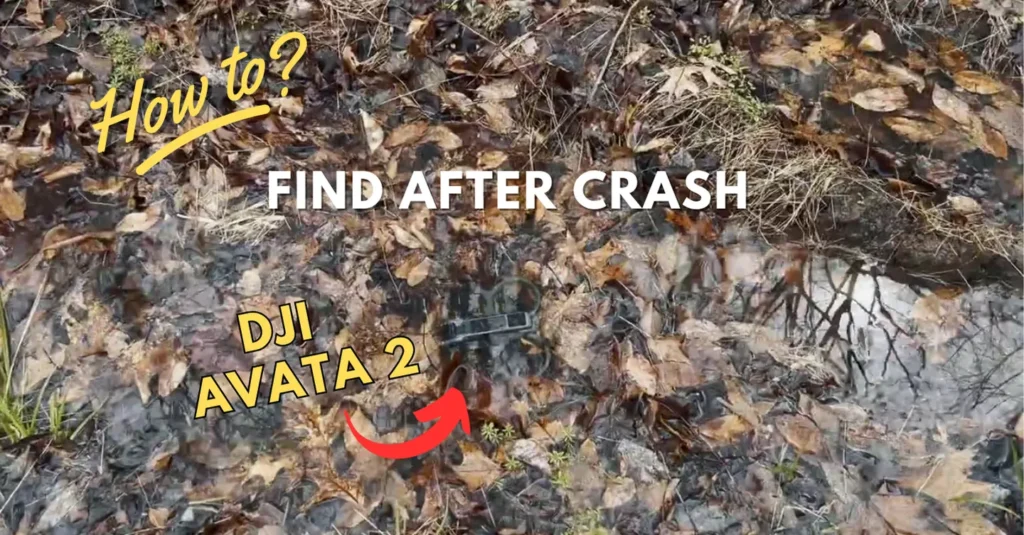
So you crashed your DJI Avata 2, and now you can’t find it? No need to worry in this guide, I’ll show you the three essential tools you can use to recover your Avata 2 after a crash. Some of these took me a while to figure out, so let’s save you that trouble.
Table of Contents
1. Use GPS Find My Drone
The first and most straightforward way to locate your Avata 2 is with the GPS Find My Drone feature.
Unlike regular camera drones, where you can just pull up the map directly on your controller to see both your location and the drone’s, the Goggles 3 don’t support this. You can scroll through every menu inside the goggles you won’t find a map view in there.
To use GPS Find My Drone with the Avata 2 while using the Goggles 3:
- Connect your phone to the goggles using a USB-C or Lightning cable (for older iPhones).
- Plug one end into the USB-C port on the goggles (next to the power button), and the other into your phone.
- Launch the DJI Fly app.
Now, it’s not immediately obvious where the “Find My Drone” feature is. You’ll need to:
- Tap on Profile in the DJI Fly app.
- Then tap on Find My Drone.
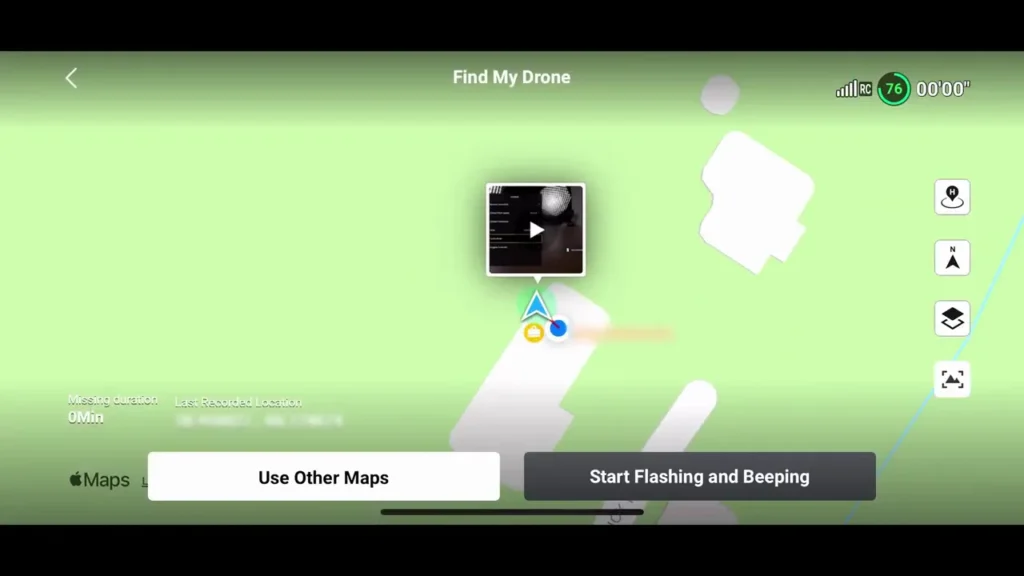
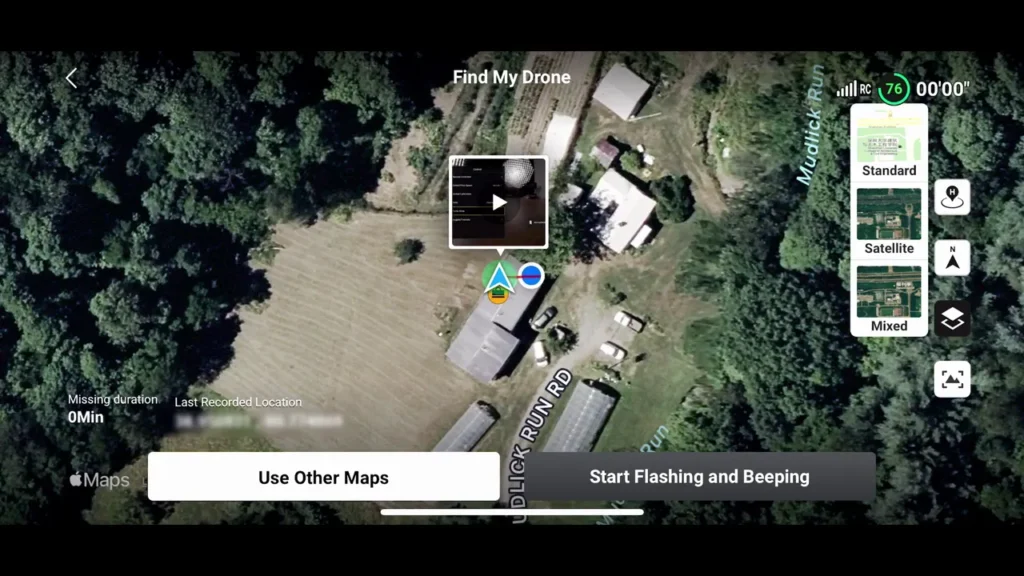
It will show your current GPS location and the last known position of your drone. If you’re flying in a remote area where roads and buildings don’t show up clearly, you can switch the map view:
- Tap the layers icon on the right side.
- Switch to Satellite or Mixed view for a clearer perspective.
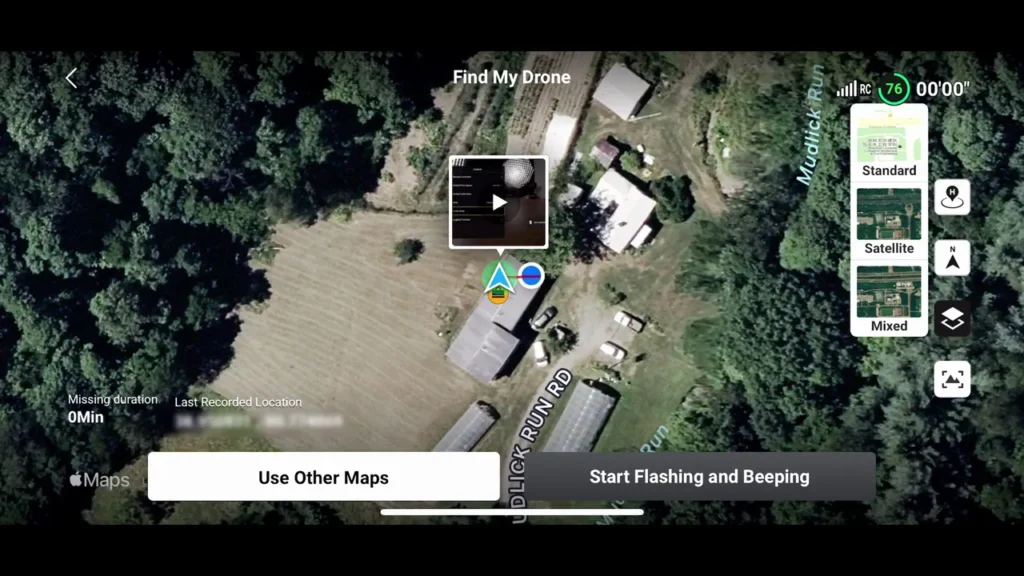
You’ll also see the last recorded GPS coordinates of your drone. If you prefer, you can even choose “Use Other Maps” to open the location in Google Maps. And if you need to come back later, you can save the GPS point for future reference. Just remember, GPS isn’t 100% accurate sometimes it might show your drone slightly off from where it actually is.
2. ESC Beeping: Audible Location Aid
If GPS gets you close but not all the way there, ESC Beeping can help you zero in on the exact spot. To trigger ESC beeping Open the DJI Fly app > Flashing and Beeping and “Tap” on Start. This will activate the drone’s motors and electronic speed controllers, making a pretty loud beeping noise to help you find it by sound.
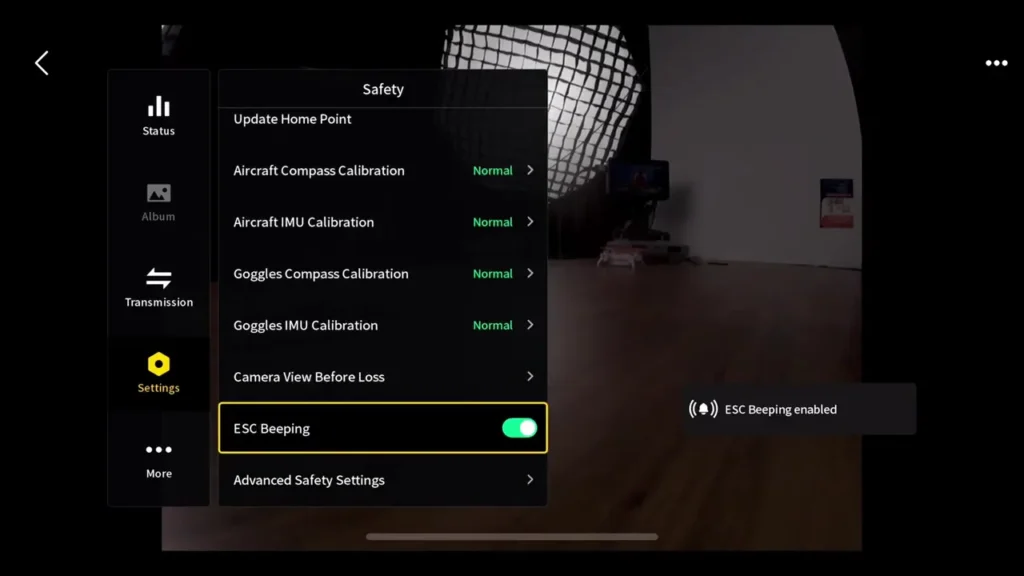
Sometimes, you might already know the general crash location especially if it’s close. In that case, you don’t even need to connect your phone. You can trigger ESC Beeping directly from the goggles, Put on your goggles. Open the Settings > Safety > ESC Beeping and turn it on.
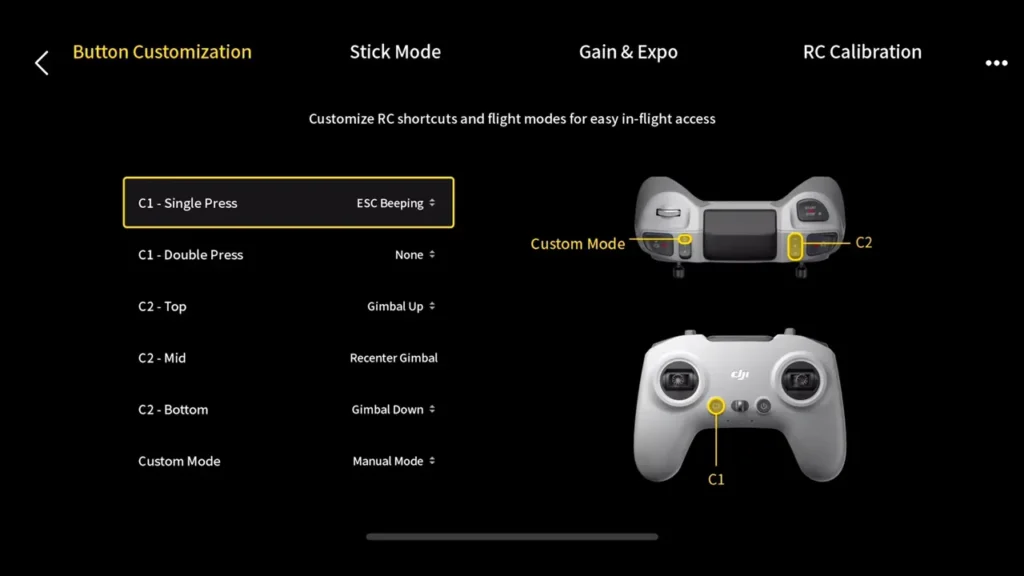
Pro Tip: If you crash your drone often, you can mapped ESC Beeping to the custom button on the DJI FPV Remote 3.
Here’s how Go to Settings > Control > Remote Controller > Button Customization > Custom 1 (Single Press) to “ESC Beeping“. Now, one quick tap and you’re beeping.
3. Camera View Before Loss
This feature automatically saves the last 30 seconds of footage to your goggles before a crash or signal loss. That short clip can give you visual clues about where your drone went down.
Just Open the Settings > Safety > Camera View Before Loss and click it.
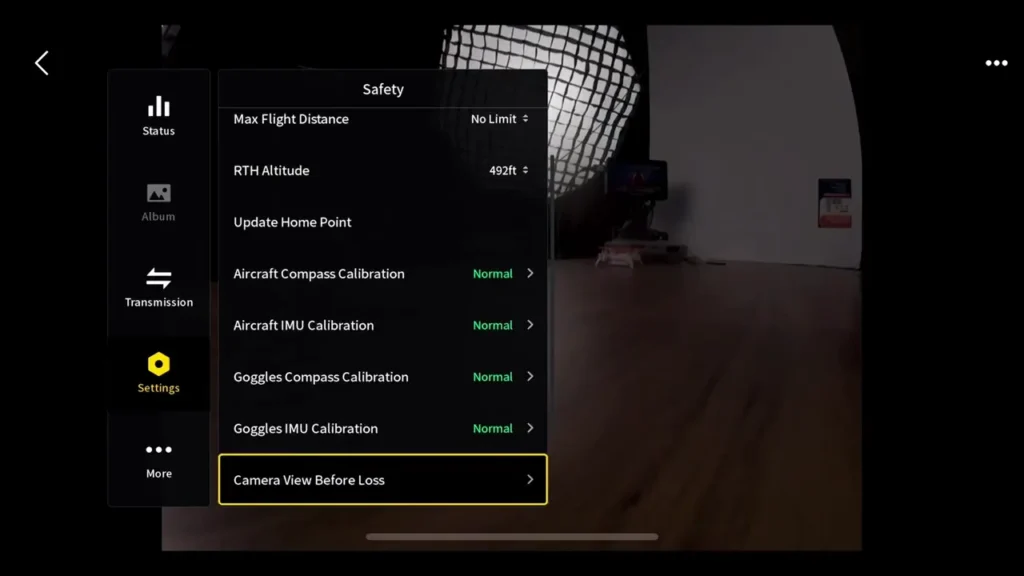
For example, you ran into a tree (again), and when you replayed the footage, you could see exactly where it happened. This makes it much easier to retrace your drone’s final moments and locate it faster.
Article Summary
I hope these three methods help you recover your Avata 2 the next time something goes wrong:
- GPS – Find My Drone: Connect your phone to the goggles and use the DJI Fly app to pinpoint your drone’s last known location.
- ESC Beeping: Activate the ESC beeping feature through the app or directly in the goggles to help you locate the drone by sound.
- Camera View Before Loss: Access the last 30 seconds of recorded footage from the goggles to visually track where the drone may have crashed.
Using these tools can greatly reduce the stress of losing your drone. And with a bit of practice and some cinematic flying tips, you’ll be back in the air with more confidence than ever.
Read More: Best SD Card for Drone in 2025