
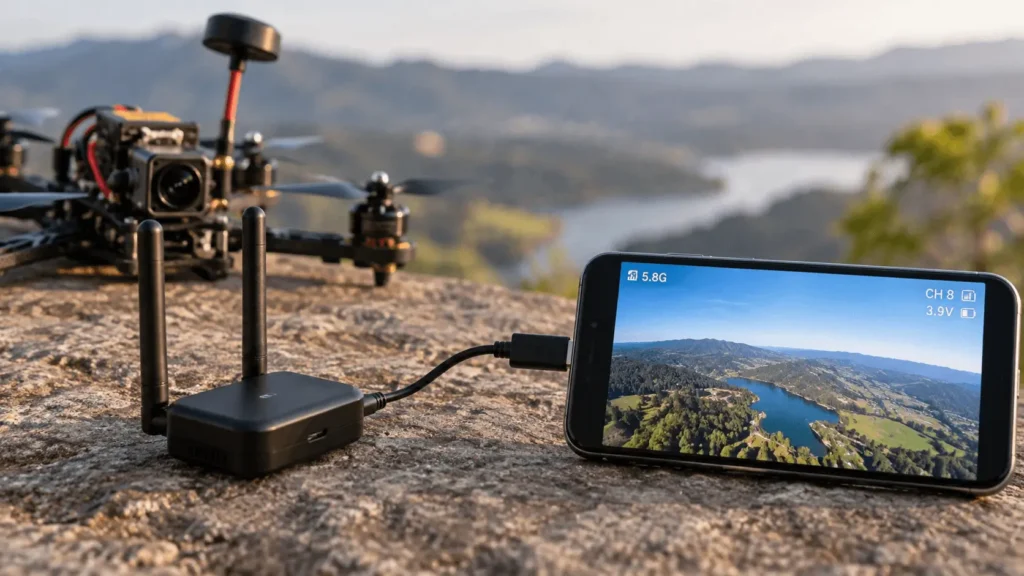
You can’t plug an analog FPV camera straight into a phone because phones don’t understand raw analog video signals. You need a UVC OTG FPV receiver (like the Eachine ROTG02 or a Skydroid UVC receiver) between the camera’s transmitter and your phone. The receiver picks up the 5.8GHz analog signal, converts it to a UVC video stream, and your phone displays it through a free FPV or USB camera app. Android handles this natively through USB OTG. iPhone support is limited but possible with the right receiver and a Lightning to USB-C adapter.
Table of Contents
Why You Can’t Just Plug an Analog Camera Into a Phone
Analog FPV cameras don’t send digital data. They send a continuous analog video signal, usually over the same 5.8GHz band used by most FPV video transmitters (VTX). Phones are digital devices. They have no analog video input, and there’s no cable that converts analog RF straight into something a phone’s screen can render on its own.
To bridge that gap, you need a receiver that does two things at once:
- Picks up the analog 5.8GHz signal from the FPV camera’s VTX
- Converts that signal into a digital video stream your phone can read, usually using the UVC (USB Video Class) protocol
Once the signal is converted to UVC, your phone treats the receiver like a plug in webcam. That’s the whole trick.
What You Need
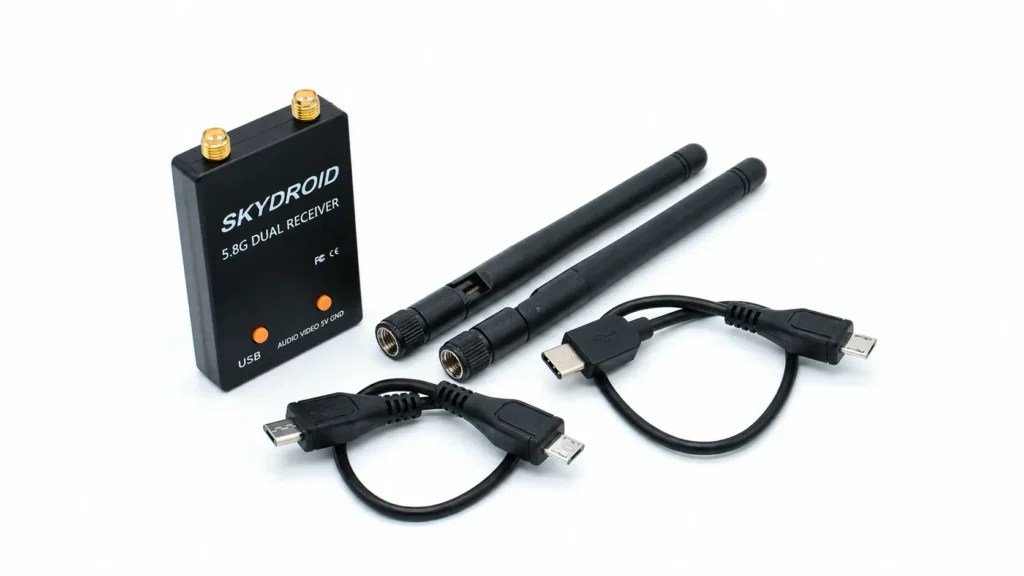
- An analog FPV camera and VTX combo (already on your drone, or a standalone AIO camera/VTX module)
- A UVC OTG FPV receiver, such as the Eachine ROTG02 or a Skydroid 5.8GHz UVC receiver
- A USB OTG cable or adapter that matches your phone’s port (USB-C or micro-USB for Android, Lightning for iPhone)
- An Android phone with USB OTG support, or an iPhone with a compatible UVC receiver
- A UVC compatible app such as FPV Free Monitor, Skydroid FPV, or a generic USB camera viewer app
Most Android phones released after 2018 support USB OTG, but it’s worth confirming yours does before buying anything. A free app like “USB OTG Checker” will tell you in seconds.
Method 1: Using a UVC OTG FPV Receiver (Recommended)
This is the simplest and most reliable way to connect an analog FPV camera feed to a phone screen, and it’s the method most FPV pilots use today.
Step 1: Match Your Receiver to Your VTX Frequency
Analog FPV video transmitters typically broadcast on the 5.8GHz band across 40 to 150 channels depending on the module. Your UVC receiver needs to cover the same frequency range as your camera’s VTX. Most modern UVC OTG receivers auto scan the full 5.8GHz range and lock onto the strongest signal automatically, so this usually isn’t a manual step, but it’s worth checking the receiver’s spec sheet against your VTX before buying.
Step 2: Connect the Receiver to Your Phone
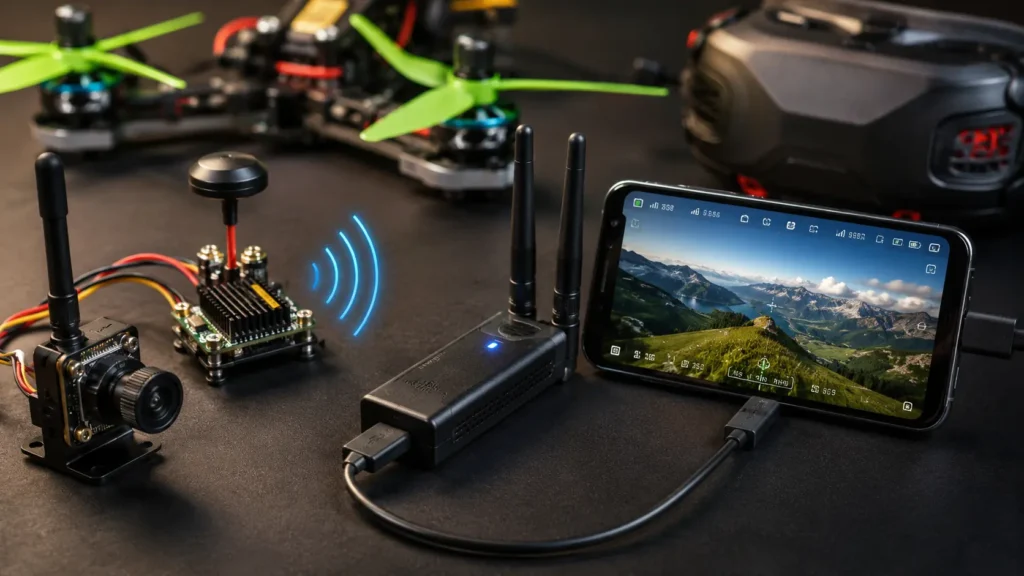
Plug the USB OTG cable into your phone’s charging port, then connect the other end to the FPV receiver. Most UVC OTG receivers draw their power directly from the phone, usually around 100 to 300mA, so you won’t need a separate battery for the receiver itself. If your phone’s stock cable is too short for comfortable handheld flying, a longer USB-C OTG extension cable makes the setup easier to hold.
Step 3: Power On the FPV Camera’s VTX
Turn on the drone or standalone camera so its video transmitter starts broadcasting. If your receiver has manual channel buttons, press and hold to trigger auto scan. It should lock onto the strongest 5.8GHz signal within a few seconds.
Step 4: Open a UVC Compatible App
On Android, open the app that came with your receiver, or a general purpose UVC viewer if the manufacturer doesn’t provide one. The live analog feed should appear on screen almost immediately, typically with well under 100ms of added latency from the receiver itself.
Step 5: Adjust Antennas and Channel if the Picture Is Weak
If you’re getting static, rolling video, or a blank screen, check that your receiver’s antenna matches the polarization (RHCP or LHCP) of your VTX antenna, and try switching channels manually if there’s interference from other 5.8GHz devices nearby, including Wi-Fi routers. Upgrading to a directional patch antenna can noticeably improve range and picture stability if you’re flying farther than a park-sized area.
Method 2: Using a Standalone FPV Receiver Box Plus a USB Video Capture Adapter
This is the older, more DIY approach, and it’s worth knowing even though most people now skip straight to a UVC OTG receiver.
Here’s how it works:
- A separate FPV receiver module (the kind normally used with FPV goggles) picks up the analog 5.8GHz signal and outputs it as composite video (RCA/AV) through a wired port
- That composite output connects to a USB video capture adapter, sometimes called an EasyCap device, using an RCA to USB cable
- The capture adapter plugs into your phone through a USB OTG connector
- An app such as EasyCap Viewer or a similar UVC capture app displays the feed
This route involves more cables and more points of failure than a dedicated UVC OTG receiver, but it’s useful if you already own a standalone FPV receiver and just want to add phone output without buying new hardware. Powering the receiver typically requires its own battery or a 5V regulated source, since capture adapters usually don’t supply enough current to run both the adapter and the receiver at once. A small portable USB power bank solves this cleanly if your receiver needs independent power.
Can You Connect an Analog FPV Camera to an iPhone?
Yes, but with more limitations than Android. iPhones support UVC through Apple’s official Lightning to USB-C or USB camera adapter, and certain UVC OTG receivers, such as the Skydroid UVC dual antenna receiver, have been confirmed to work when paired with that adapter. The video typically displays through a UVC capable app rather than the iPhone’s native camera app.
A few things to know before trying this on iOS:
- Not every “universal” FPV receiver actually supports UVC output, and non UVC receivers will not work with an iPhone no matter what adapter you use
- You’ll need Apple’s genuine Lightning to USB adapter or a certified equivalent, since off brand adapters frequently fail to pass UVC video correctly
- App support is thinner on iOS than Android, so check that your chosen app explicitly lists UVC accessory support before buying hardware
If you fly analog FPV regularly and want a phone as your primary display, Android currently offers a smoother, more predictable setup.
Best Apps for Viewing Analog FPV on a Phone
- Manufacturer specific apps (Skydroid FPV, Eachine’s official app) tend to have the best compatibility with their own receivers and often include extras like channel scanning and signal strength display
- Generic UVC viewer apps work across most OTG receivers and are a solid fallback if the manufacturer app is outdated or missing features
- DVR and recording apps let you save your FPV footage directly to your phone’s storage, which is handy if you want to review flights or clip highlights afterward. A spare microSD card or extra phone storage helps if you plan on recording full flights regularly
Common Problems and Fixes
Black screen after connecting the receiver
Usually means your phone doesn’t have USB OTG enabled, or the receiver isn’t outputting a proper UVC stream. Confirm OTG is turned on in your phone’s settings, and try a different app if the first one doesn’t detect the device.
Rolling or scrolling video
This is typically a lost sync pulse between the camera and receiver, often caused by a weak signal, mismatched antenna polarization, or interference on that channel. Try a different 5.8GHz channel first, since it’s the quickest fix.
No signal or heavy static
Check that your VTX and receiver antennas are both RHCP or both LHCP, not mixed. A mismatch here is one of the most common reasons analog FPV video looks unusable even when everything else is wired correctly.
Phone won’t recognize the receiver at all
Some phones need OTG manually enabled in developer settings, and a handful of budget phones simply don’t support UVC despite supporting OTG for storage devices. Testing with a UVC checker app before buying hardware saves a lot of frustration here.
Frequently Asked Questions
Can any phone connect to an analog FPV camera?
No. The phone needs USB OTG support and, more specifically, UVC (USB Video Class) support through that OTG connection. Most modern Android phones qualify. iPhone support depends on using a UVC compatible receiver with Apple’s official USB camera adapter.
Do I need an app to view analog FPV video on my phone?
Yes. The receiver converts analog video into a UVC stream, but you still need a UVC compatible app installed on the phone to display that stream on screen.
What’s the difference between a UVC OTG FPV receiver and a regular FPV receiver?
A regular FPV receiver outputs composite (RCA) video for goggles or monitors. A UVC OTG FPV receiver converts that same analog signal into a digital UVC stream that phones and tablets can read directly through a USB connection, without needing a separate capture adapter.
Is there noticeable lag when using a phone as an FPV screen?
A good UVC OTG receiver adds roughly 100ms or less of latency. That’s acceptable for line of sight flying and casual use, though dedicated FPV goggles generally offer lower latency for competitive or fast paced flying.
Can I record FPV footage directly on my phone?
Yes. Many UVC apps include a DVR or recording function that saves the live analog feed straight to your phone’s storage, which is one of the main reasons pilots use a phone setup in the first place.
Bottom Line
Getting an analog FPV camera onto your phone screen really just means adding the right translator, a UVC OTG receiver, between the camera’s 5.8GHz signal and your phone’s USB port. Match the receiver to your VTX frequency, confirm your phone supports OTG, pick a UVC app, and you’ll have a live feed in seconds.
Most connection problems trace back to OTG not being enabled, mismatched antenna polarization, or a crowded channel, so check those first if the screen stays black. It won’t replace goggles for serious racing, but as a backup screen or quick recording setup, it earns its place in any FPV pilot’s kit.
Read More: DJI FPV Remote Controller 3 Review: Is It Still Worth Buying?