
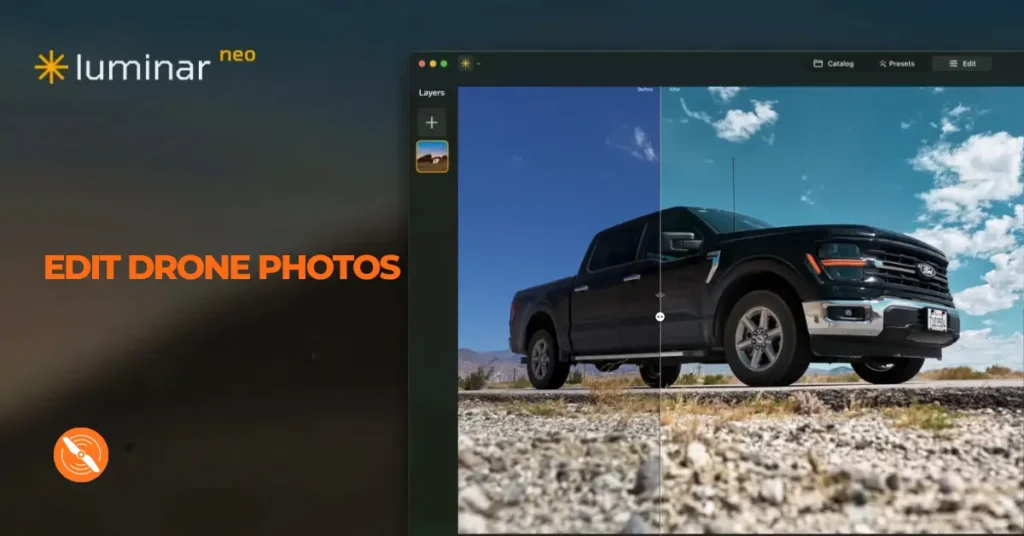
If you want to know how to edit DJI drone photos and make them look dramatically better without spending hours in front of a screen, you are in the right place. In this guide, I am going to walk you through exactly how to transform your drone photos from a standard, straight-out-of-the-camera shot into something that looks truly unique and stands out, all in about 30 seconds. And the best part? It is really easy to do.
So, it is a new year and you might have picked up a new drone for Christmas. Whether you own a drone from the Mavic series, the Air series, or the Mini series, the process is the same. There is nothing wrong with the photos that come straight out of any of these drones, but by following a few simple steps, you can make your photos look so much better. You can add your own style, make them pop, and turn them from something ordinary into something that genuinely stands out.
Getting Started with Luminar Neo
To edit DJI drone photos the easy way, we are going to be using a program called Luminar Neo. This is such a fantastic program for beginners because it makes editing incredibly simple. It has a wide range of tools available on the right-hand side of the interface, and the developers keep adding new ones all the time. It is also worth mentioning that Luminar Neo is not just great for drone photos. It works brilliantly for portrait photography as well, so it is a very versatile tool to have in your creative toolkit.
Now, in most photo editing software, you would normally head to something like a developing tab and start manually adjusting the exposure, highlights, shadows, sharpness, saturation, and vibrance. The problem with this approach, especially if you are a beginner, is that you are basically guessing what to do. It is very easy to overcook things and actually make the photo look worse than it did straight out of the camera. Luminar Neo solves this problem in a very clever way, which I will explain in detail below.
The Most Powerful Feature
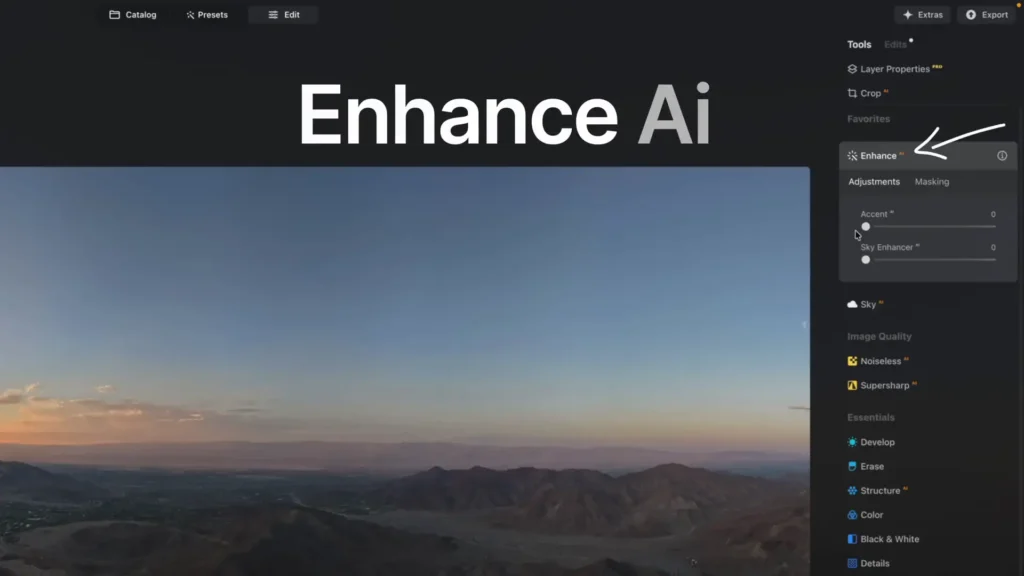
The most used feature in Luminar Neo, without question, is the Enhance AI tool. Instead of manually adjusting every individual slider in the developing tab, the AI software reads your photo and improves all of those areas, including exposure, contrast, highlights, shadows, temperature, and saturation, all through a single slider. In theory, you do not even have to touch the developing tab at all if you do not want to.
Editing a DJI Mini 5 Pro Shot
The first example I want to walk through was taken on the DJI Mini 5 Pro. It is a fantastic location within California, captured using the panoramic photo mode, which I really enjoy using. The photo looks great straight out of the camera, but we can make it pop a little bit more.
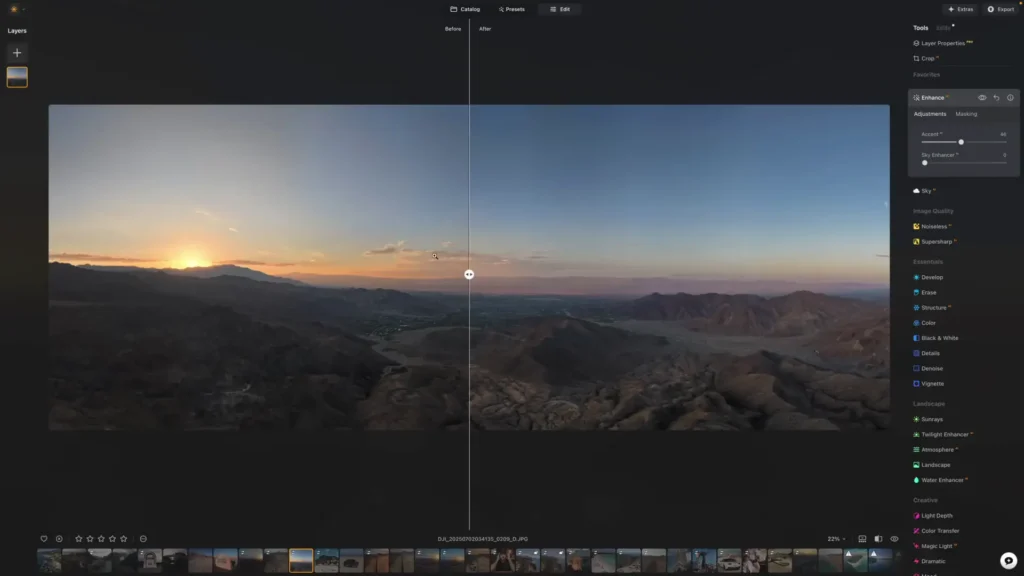
All you need to do is head to the Enhance AI slider and begin increasing it. You will see a dramatic difference happening in real time. At around 85%, you can start to overcook the photo, so I would recommend being a bit more subtle with your adjustments. Bringing it down to around 46% gives you a subtle but very effective improvement.
Using the before and after tool that is built into the software, you can clearly see just how much better the photo looks. It is genuinely ready to share or print at that point. Once you are happy, simply click export in the top right corner and save it as a JPEG.

Using AI Masking and Object Select
The next example is an interesting one. This photo was taken on the DJI Mavic 4 Pro, but it is not actually an aerial shot. The gimbal was pointed up from the ground to capture a really cool angle of a Ford F-150 truck. This gives us a great opportunity to explore a couple of additional tools in Luminar Neo.
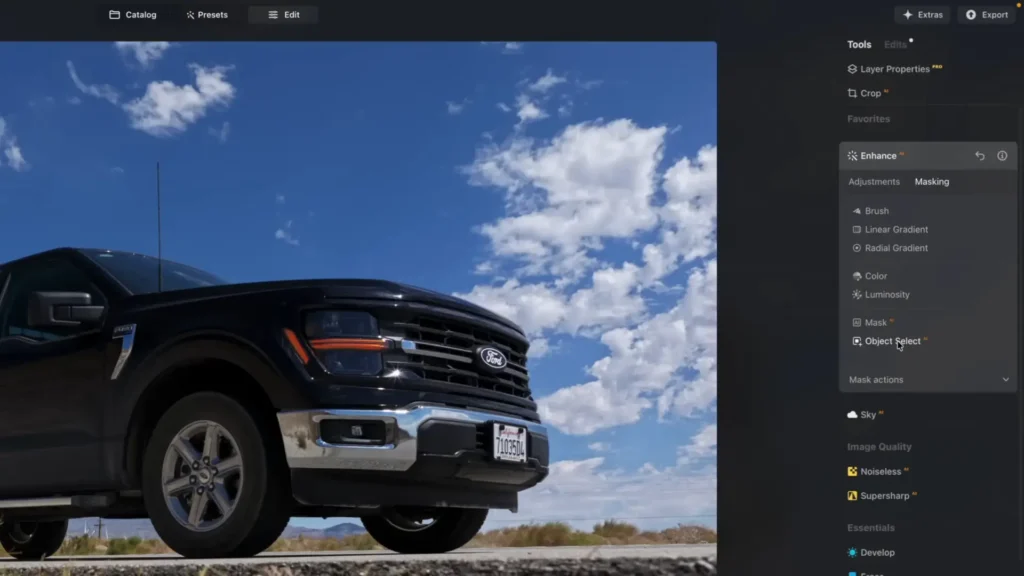
First, I increased the Accent AI slider, which immediately made the whole shot stand out so much more. But rather than just applying the enhancement to the entire image, I wanted to make the truck itself really pop. To do this, I clicked on the Masking button. You have two options here: Mask AI or Object Select.
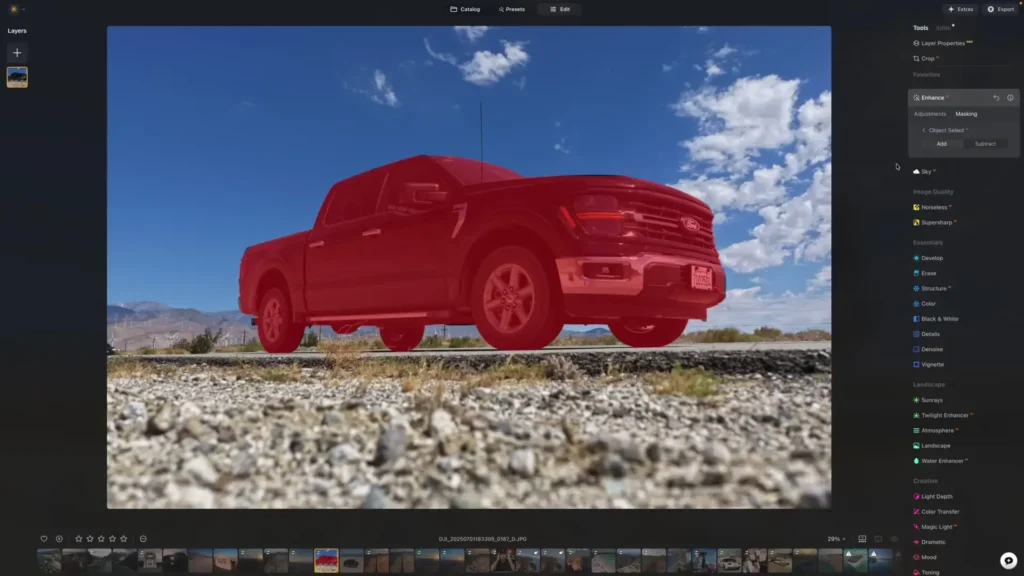
Object Select has recently been added to the software and it is a great feature. By clicking Object Select and then highlighting over the truck, Luminar Neo selects just that part of the image. From there, I went back to the adjustments and increased the Accent AI for just the truck up to around 70%. The result is a truck that has a really nice pop to it, looking far more vibrant and eye-catching than before.
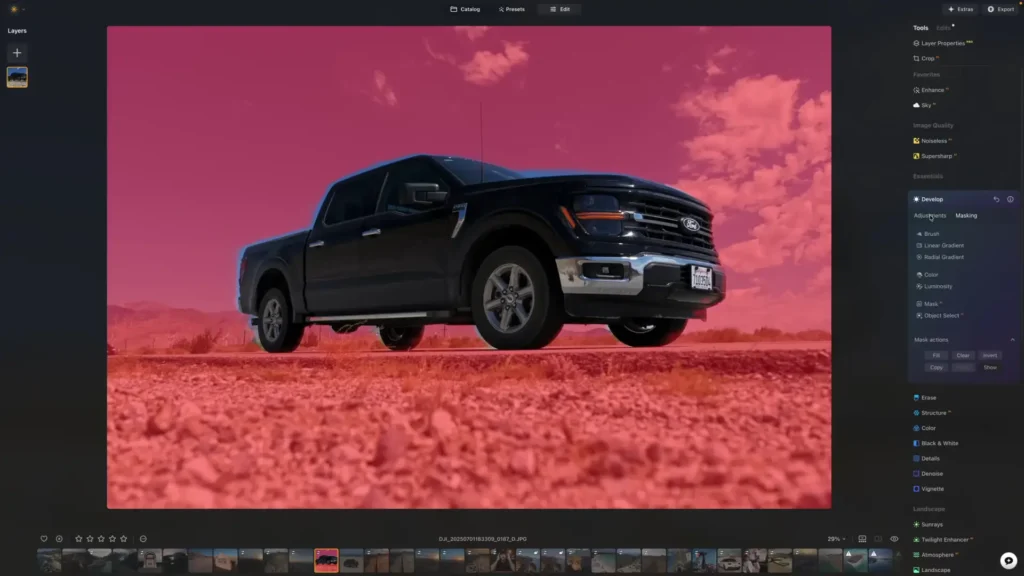
But I wanted to take it a step further. I went back to the Mask AI option and selected the transport category, which automatically selected the truck. Then I clicked on Mask Actions and chose Invert, which selected everything in the photo except the truck. Going back into the adjustments, I slightly reduced the exposure of the background and foreground.
Just a subtle amount. Too much and it looks ridiculous, but a small reduction makes the truck stand out even more by comparison. It is a really effective technique and takes only a minute or two to apply.
Using the AI Assistant for Creative Looks
Luminar Neo has also added an AI assistant at the very bottom of the interface. This tool allows you to edit your photo simply by clicking preset action buttons or by typing in your own text prompts. You can click options like “enhance this photo” or “turn it into black and white” without touching any sliders manually.
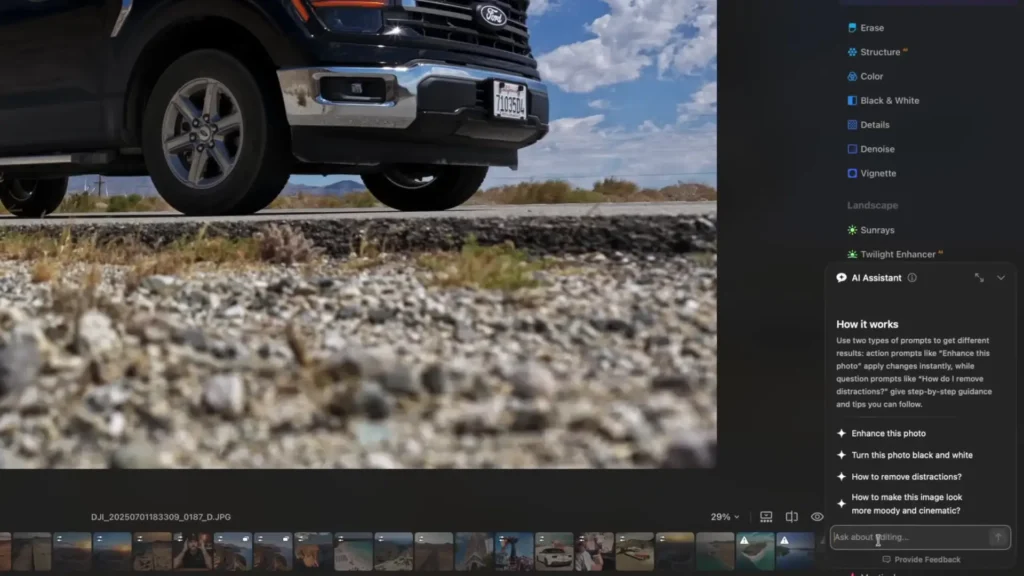
You can also type in a prompt yourself. For example, if you type “give this a film look” and press enter, the AI will think for a moment and then present you with three different creative options to choose from.
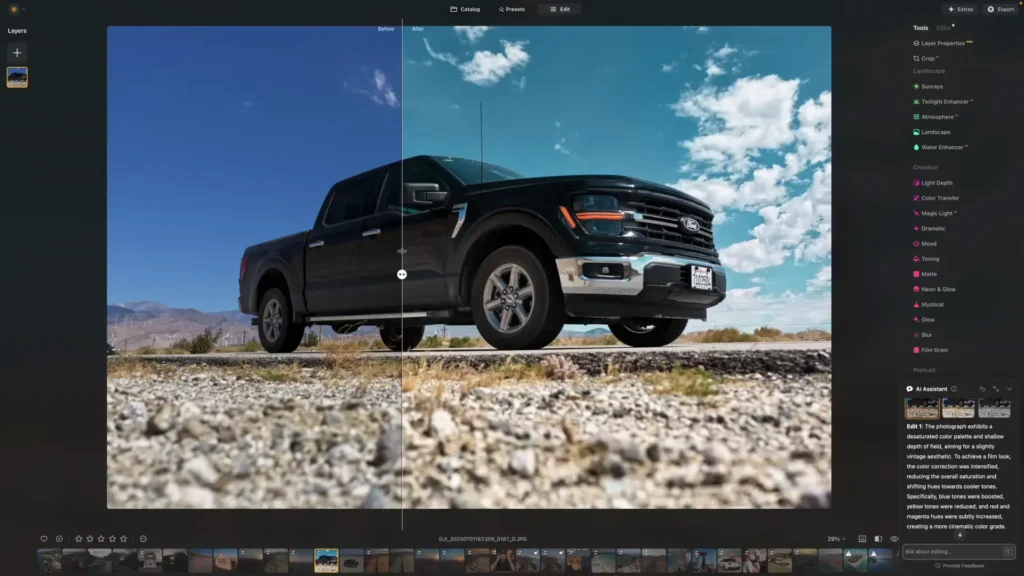
Each option gives you a different effect. One might be a black and white result with added grain. Another might be a stylised filmic color grade. The software even tells you exactly what adjustments have been made to achieve that particular look, which is a great way to learn as you go. Comparing the original straight-out-of-the-drone shot to the final result, the difference is remarkable.
The truck pops, the image has a beautiful filmic quality to it, and it was all achieved in just two or three slider adjustments. It is really quite extraordinary what this software can do.

Editing Low Light and Golden Hour Drone Photos
Luminar Neo is also excellent for photos taken in low light or during golden hour. The next example is a nicely composed shot taken on the DJI Mini 4 Pro. I boosted the Accent AI slider to around 65%, which already gave it a really cool look. Then I used a tool called Magic Light AI.
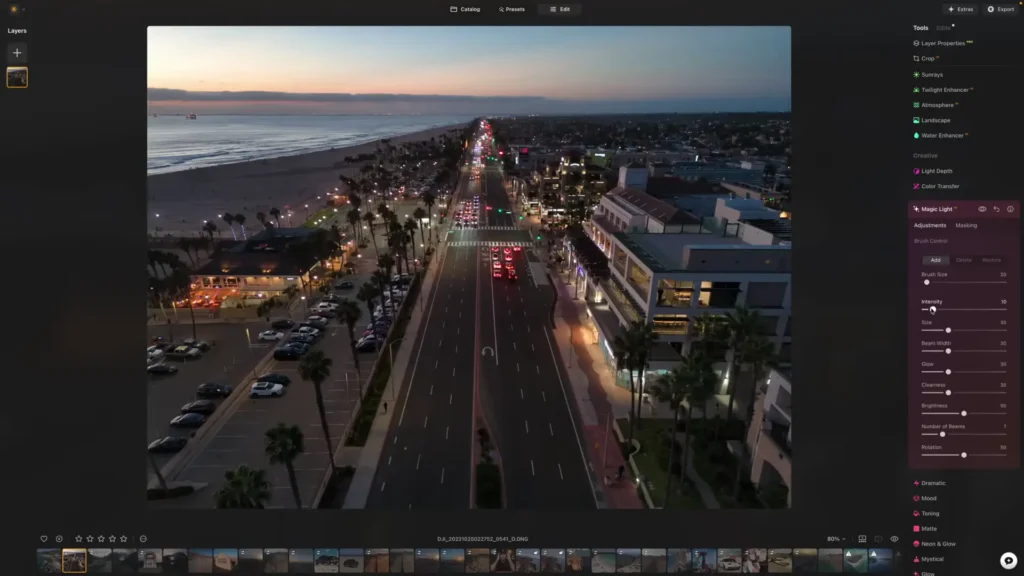
This tool is designed for scenes that contain street lights or other light sources. Normally, to make those lights glow and look atmospheric, you would have to manually highlight every single light source and adjust them individually. Magic Light AI does all of that automatically. By clicking on the Intensity slider and bringing it up to around 10%, those street lights get a subtle but beautiful glow that really elevates the atmosphere of the shot. It is the kind of detail that makes a photo feel polished and professional.
Formatting Photos for Instagram
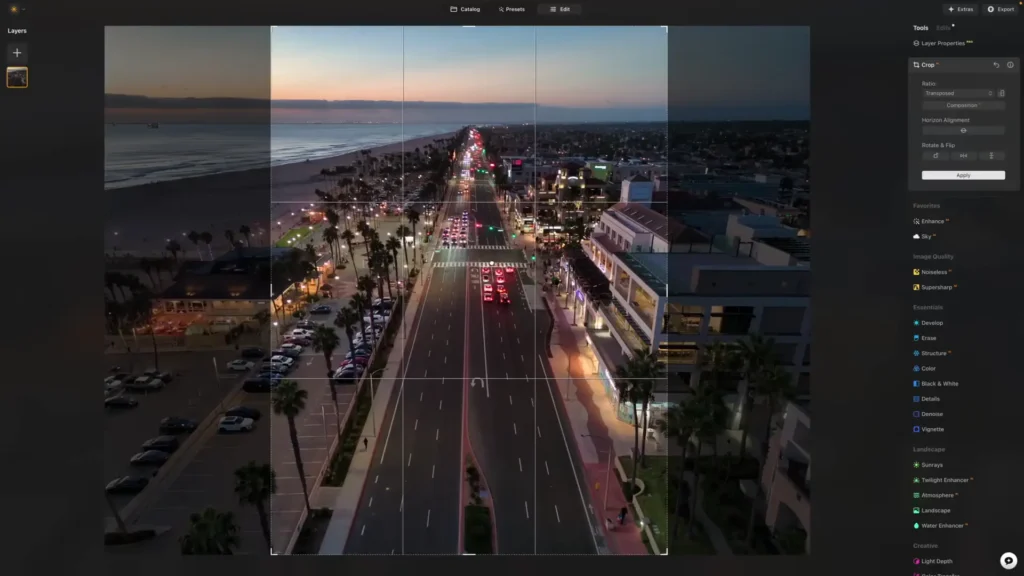
If you want to share this kind of photo to Instagram Stories, Luminar Neo makes the format adjustment incredibly easy. Head to the top right corner, click on Crop AI, and then change the aspect ratio from a horizontal orientation to a vertical one by simply clicking a button. Once you click Apply, the software automatically adjusts the composition for an Instagram Story format. It could not be simpler.
Replacing Skies and Adding Atmosphere with Sky AI
The next example is from a really cool location and was taken on a drone after sunset. After boosting the Accent AI, I decided to use the Sky AI feature. This is one of the most impressive tools in Luminar Neo. It comes with a large library of built-in skies that you can use to completely replace the sky in your photo. So if you visit a location on an overcast day and feel like the sky is letting the image down, you can swap it out for something far more dramatic, and the results look genuinely realistic.
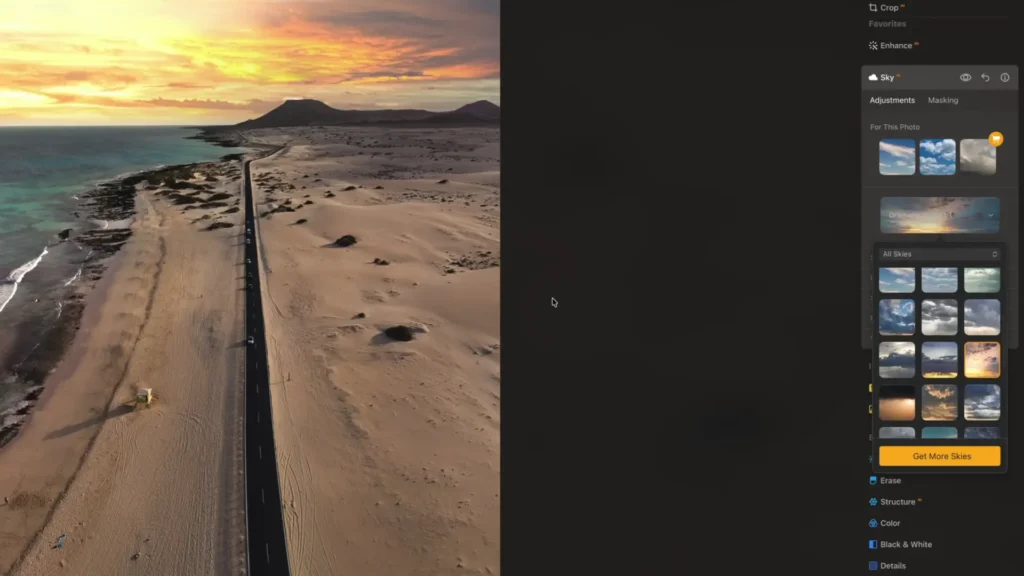
You can change the sky from a flat, grey overcast look to a stunning sunset, and the AI does a remarkable job of masking around complex edges like mountains and treelines. Zooming in to check the mask quality around the mountains in my example, it was impressive right out of the box. There are also refinement tools available if you need to tighten up any edges.
Once you have your new sky in place, you can adjust its horizontal and vertical position to get it sitting exactly where you want it. With a sunset sky selected, I then went into the Landscape tools and used the Place Sun Center option to add some sun rays to the image. A small dot appears on screen that you can drag to position exactly where the sun sits in the sky.
By bringing the Amount slider up to just 1 and slightly reducing the Penetration, the result is a beautifully subtle beam of light coming through the scene. It adds a real sense of depth and warmth without looking overdone.
Removing Unwanted Objects with the Erase Tool
In that same beach shot, there were some people visible in the frame. If you want a cleaner, more minimal look, Luminar Neo has an Erase tool that makes removing distractions effortless. You simply circle around whatever you want to remove and click Erase. The AI software does the rest.
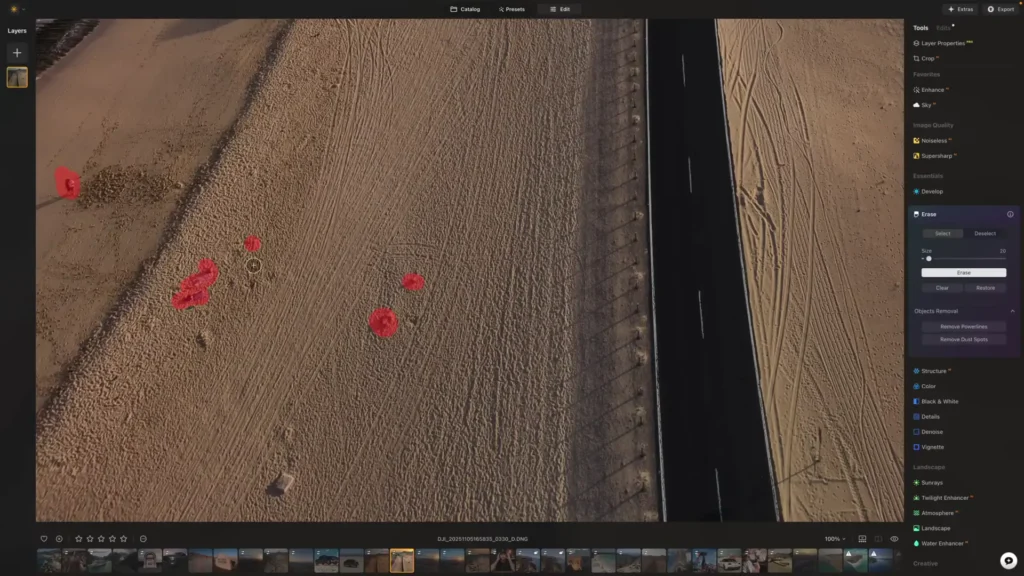
It works on people, poles, or any other unwanted elements in the frame. There was also a pole in the shot that I did not want there, and by highlighting over it and clicking Erase, it disappeared cleanly. The more precise you are when selecting the area, the better the result will be, but even when doing it quickly, the tool does a great job.
Comparing the original shot to the final version after replacing the sky, adding sun rays, removing the people and the pole, and enhancing the overall color and tone, the transformation is genuinely stunning. And it all took a couple of minutes, not hours.
Editing a DJI Air 3S Shot with Water Enhancer
It was captured on the DJI Air 3S, and this shot gave me a great opportunity to showcase the Water Enhancer tool. After boosting the Accent AI slider, which already made the photo look ready to share in about 10 seconds, I wanted to take things a little further by enhancing the water in the scene.
The Water Enhancer tool automatically detects and selects just the water in your image, whether that is a lake, the sea, or a river. Once selected, you can increase the Amount slider to improve the overall look of the water, and then adjust the color using the Blues and Greens sliders. Pushing the saturation too high can make it look unrealistic, so I kept it around 36% for a natural but noticeably more appealing result.
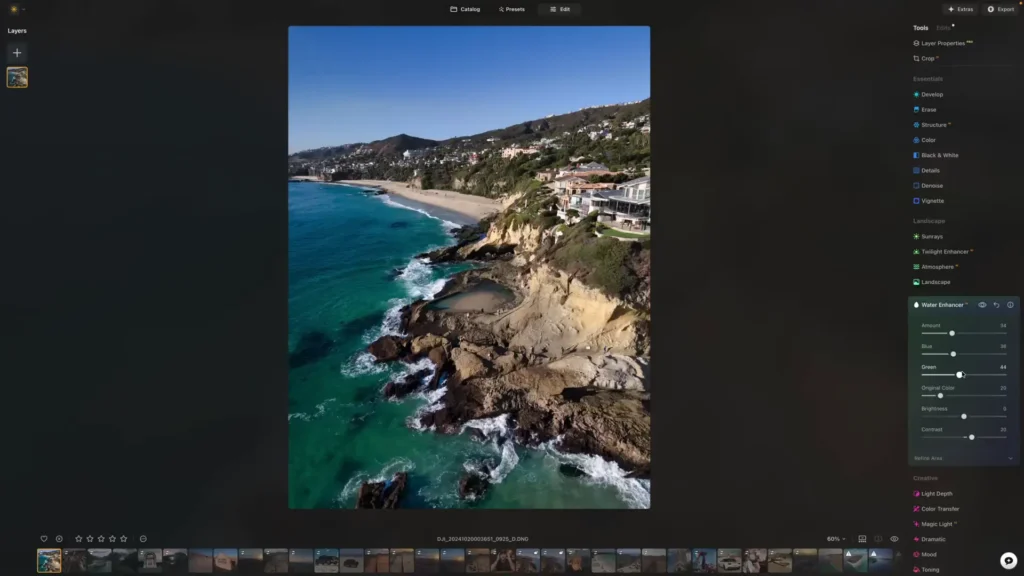
You can also add more greens to the water if you want to recreate that beautiful teal color you often see in places like Mallorca in Europe. Looking at the before and after of just the water area, the difference is subtle but meaningful. The water looks warmer, more inviting, and makes the whole location feel like somewhere you genuinely want to be.
I also removed a few people from that shot using the Erase tool, and even though I was working quickly, the results were clean and convincing. Going back to the original and comparing it to the final version, the improvement is clear. This is what I love about Luminar Neo.
Using Custom LUTs for a Consistent Style
If you have purchased video LUTs from online, including ones designed specifically for the DJI Mini 5 Pro, the DJI Air 3S, or any other drone, you can actually apply those same LUTs to your photos inside Luminar Neo. This is something that very few other photo editing programs allow you to do, making it a genuinely unique feature.
Under the Mood section, there is a Choose LUT option. By clicking on Custom LUTs, you can add your own LUT files simply by clicking Add Custom LUT File and dragging them in. Once added, you can apply them to your photos just like you would apply a color grade to video footage.
The Traditional Editing Approach Still Works Too
It is worth noting that while the AI tools in Luminar Neo are genuinely impressive, you can absolutely still use the program in the traditional manual way. The developing tab gives you full control over exposure, highlights, shadows, saturation, and all the other standard adjustments you would expect from a professional photo editor.
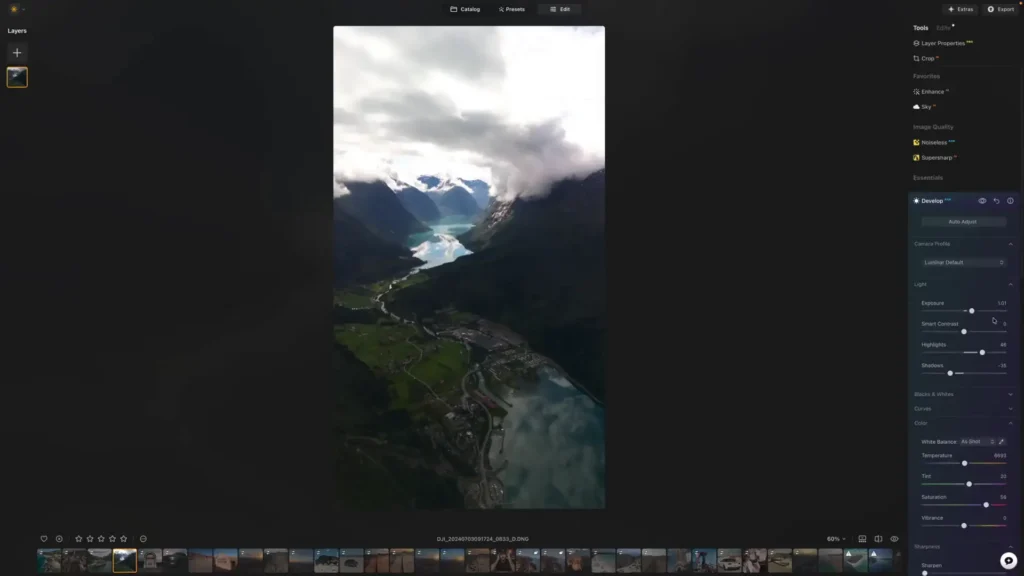
Many editors prefer to start with the AI tools to get a strong foundation and then go back into the developing tab to make fine-tuned manual adjustments on top of that. Both approaches work well, and the combination of the two gives you the best of both worlds.
Looking at the before and after of any of the shots covered in this guide, the difference is clear. It does not take long. It does not require a high level of skill. It just takes a willingness to move a few sliders and let the AI do the heavy lifting.

Getting the Best Settings on Your DJI Drone Before You Edit
Before we wrap up, it is worth talking about the camera settings on your drone controller, because getting these right before you shoot will make your photos look better straight out of the drone and give you more to work with during editing.
First, make sure you are actually in photo mode and not video mode. You can switch between the two by tapping the top right corner of your controller screen or within the app interface itself. Once you are in photo mode, pay attention to your megapixel setting. Depending on which drone you own, you may have options such as 12 megapixels, 48 megapixels, 50 megapixels, or even 100 megapixels.
If you are just taking casual shots in your local area and are not planning to edit them much, 12 megapixels is perfectly fine. But if you are visiting a spectacular landscape and want to capture as much detail as possible, always go for the highest megapixel option available to you, whether that is 48, 50, or 100 megapixels.
You should also make sure your grid lines are turned on, particularly the Rule of Thirds overlay. This helps enormously with composition and plays a huge part in how good a photo looks before any editing even begins. Good composition is something that no amount of AI editing can fully fix after the fact, so getting it right in the field is always worth the effort.
Table of Contents
Final Thoughts Edit DJI Drone Photos with Luminar Neo
Luminar Neo really is one of the most beginner-friendly and efficient photo editing tools available right now, particularly if your goal is to edit DJI drone photos quickly and get great results. Whether you are using the Enhance AI slider for a one-click improvement, applying Sky AI to transform a dull overcast scene, using the Water Enhancer to bring out beautiful blues and greens, or applying your own custom LUTs for a consistent creative style, the results speak for themselves.
Read More: Why DJI Mini Drones Are A Bad Idea in 2026 for UK & EU Pilots