
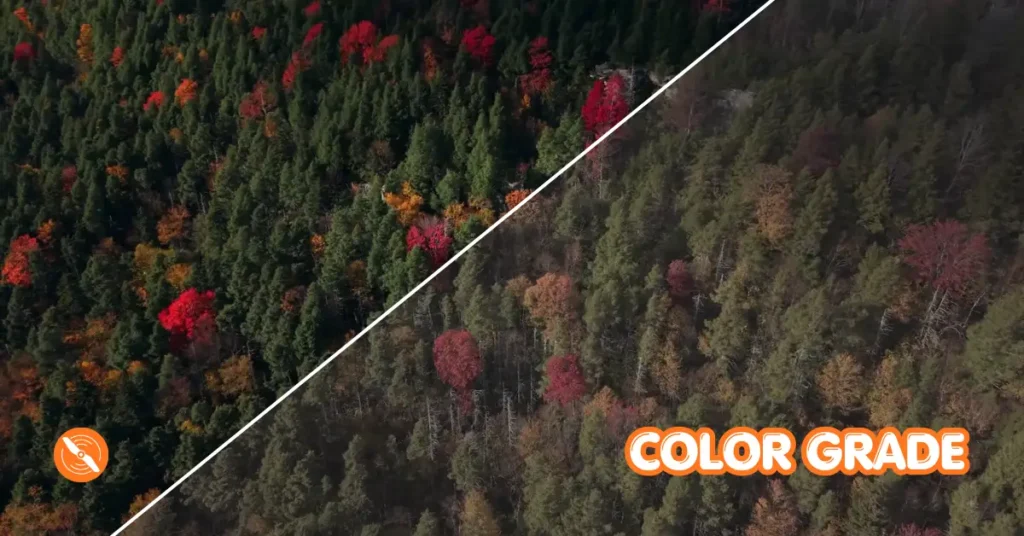
If you have been shooting with the DJI Mini 5 Pro and wondering why your footage still looks flat and lifeless even after importing it into your editing software, you are not alone.Color grading drone footage, especially from a compact camera like the Mini 5 Pro, requires a few specific steps that most beginners overlook.
In this guide, you will learn exactly how to color grade DJI Mini 5 Pro footage from start to finish, using two real-world examples that will walk you through every adjustment, node by node.
Why Color Grading Matters for the Mini 5 Pro
The DJI Mini 5 Pro produces incredible footage, but it is designed to be shot in a flat, low-contrast profile called D-Log M. This gives you maximum dynamic range and flexibility in post-production, but it means your clips will look washed out and dull straight out of the drone. Getting that cinematic, polished look requires deliberate color grading work in post.
For this tutorial, DaVinci Resolve is the software of choice. Other programs can absolutely work and the same principles will apply across platforms, but DaVinci Resolve is one of the best tools available for color work and it offers a free version that is more than capable of handling everything covered here.

Understanding Nodes in DaVinci Resolve
Before diving into the actual grading process, it helps to understand how nodes work in DaVinci Resolve because a lot of beginners find them intimidating at first glance. Nodes are simply color grading adjustment layers that work in sequence.
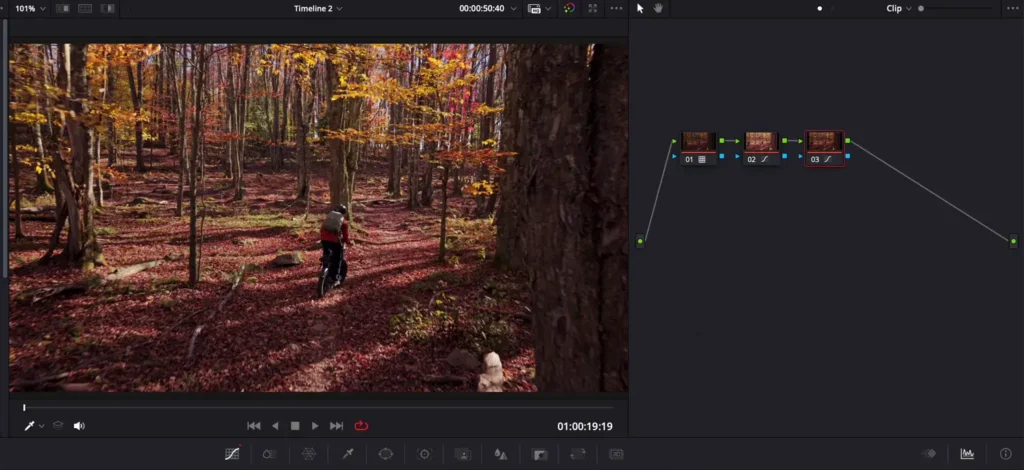
Each node you add applies its adjustments on top of the previous one, and you can stack as many as you need. Think of them as individual steps in your color grade, each one doing a specific job. Once you see them that way, they are not scary at all.
How to Color Grade DJI Mini 5 Pro Footage
The very first thing you need to do when working with D-Log M footage is jump into the Color workspace in DaVinci Resolve. From there, open your LUTs panel, find your D-Log M to Rec.709 conversion LUT, and drag it onto your first node. If you do not already have this LUT, you can download it directly from DJI’s website for free.
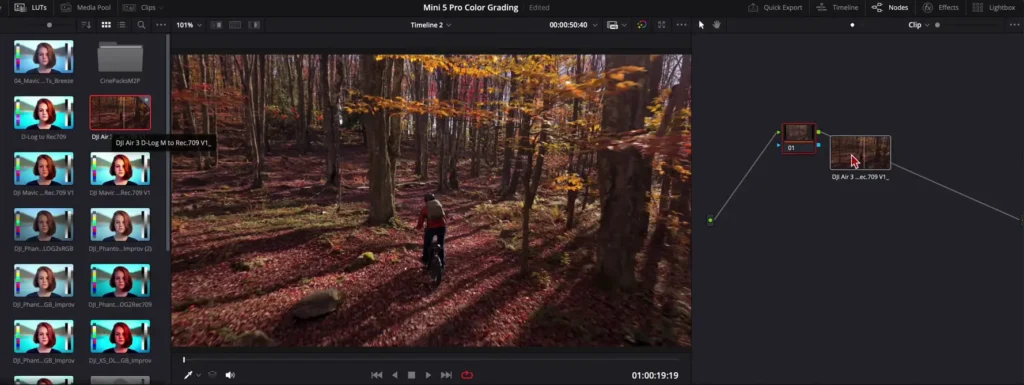
Once the LUT is applied, you will immediately see the footage gain some contrast and the colors start to look more like what you see with your naked eye. However, and this is where a lot of beginner drone pilots go wrong, the conversion LUT is not a finished color grade. It is simply a starting point that moves your footage into the correct color space. The image will still look relatively flat, boring, and lifeless. There is still a lot of work to do.
Step 2: Add Contrast with the Curves Tool
To give the shot more life and dimension, right-click on your first node and select Add Serial Node, or simply press Option + S on your keyboard to add a new node. On this second node, open your Curves panel.
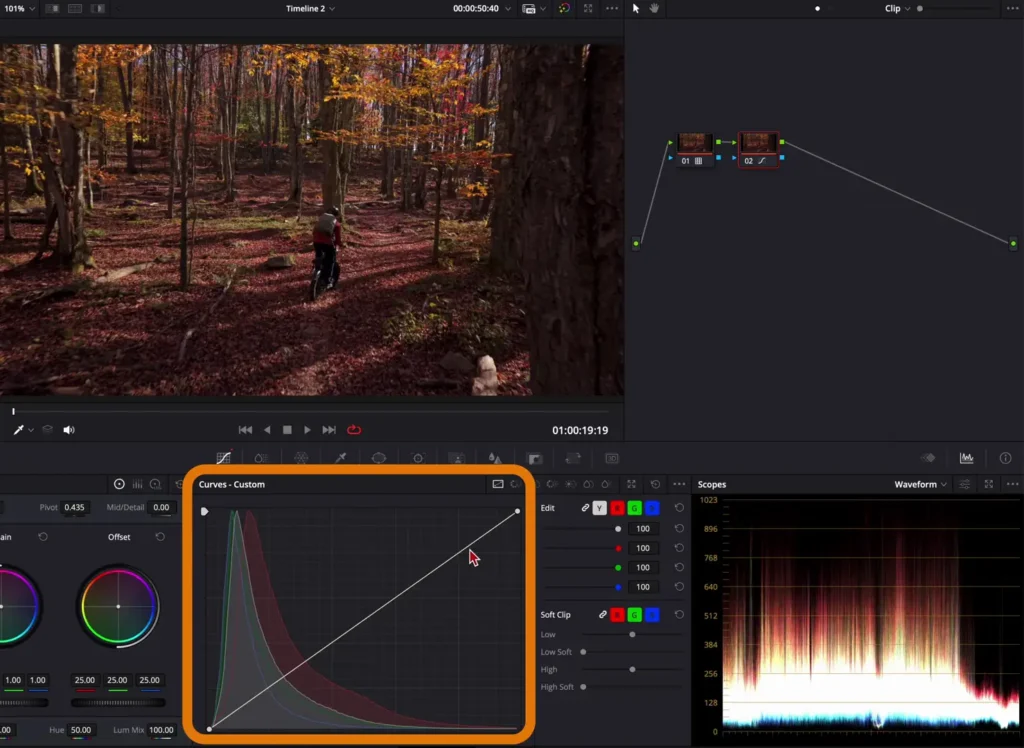
Click toward the top of the diagonal line to create a point in the highlights region and drag it upward to brighten the highlights. Then click near the bottom of the line to create a point in the shadow region and drag it downward to deepen the shadows.
This classic S-curve move adds contrast and makes the image feel more three-dimensional. You do not want to overdo it, but a moderate adjustment here will make an enormous difference.
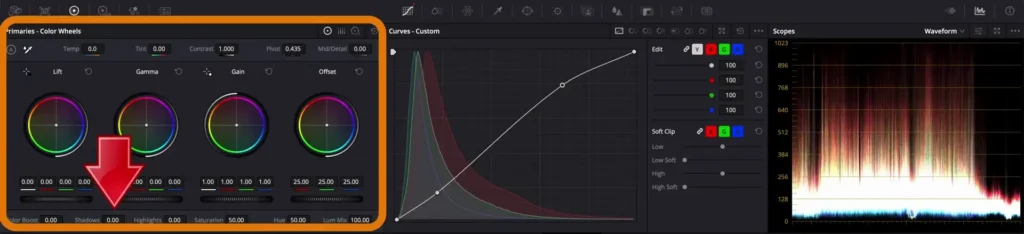
After setting your curve, head over to your Primaries panel and slightly lift the shadows so the darkest areas of the image do not become too muddy or crushed. The goal is to add pop and contrast while keeping detail visible throughout the tonal range.
Step 3: Correct the Warm Magenta Color Cast
This is one of the most important steps specifically for anyone looking to color grade DJI Mini 5 Pro footage, and it is something unique to this camera. Even when you set your white balance correctly in the field, the footage from the Mini 5 Pro tends to have a noticeable magenta shift along with a slightly warm overall tone.
You can see this clearly in the shadows of many shots where tree trunks and other neutral surfaces appear pinkish instead of a true neutral gray or brown. If you look at your waveform in DaVinci Resolve, you will often see the red channel sitting higher than it should across the entire image.
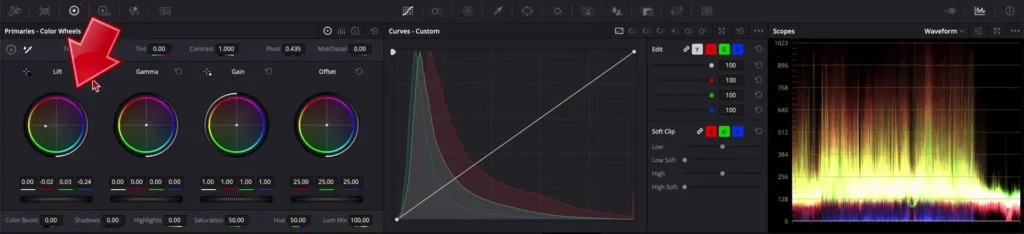
You could try to fix this by adjusting the color temperature and tint sliders in the Primary panel, but the problem with that approach is it shifts the entire image uniformly. A more targeted fix is to use the Lift, Gamma, and Gain color wheels.
Here is how each wheel works: the Lift wheel primarily affects the shadows, the Gamma wheel affects the midtones, and the Gain wheel affects the highlights. By pushing each wheel in a specific direction, you can add or remove color casts selectively in each tonal range rather than applying a blanket shift across everything.
To fix the shadow cast on Mini 5 Pro footage, click and drag the Lift wheel’s center point down and to the right, toward the cyan and green area of the color spectrum. This pulls cooler and greener tones into the shadows, which neutralizes the magenta cast. The key here is subtlety.
Push the wheel too far and the image will look obviously tinted. You want just enough to take the pinkish edge off the shadows and bring them closer to neutral, maybe with a very slight cool lean that can actually create pleasing color contrast against the warmer highlights.
For the Gain wheel, push it ever so slightly upward and to the left toward the warm, slightly green side of the spectrum. This preserves some warmth in the highlights, which looks natural and cinematic, while avoiding the magenta and pink tones that make the footage look unpleasant.
The difference this adjustment makes is dramatic. Toggle the node off and back on and you will immediately see how much the magenta cast has been canceled out across the entire image.
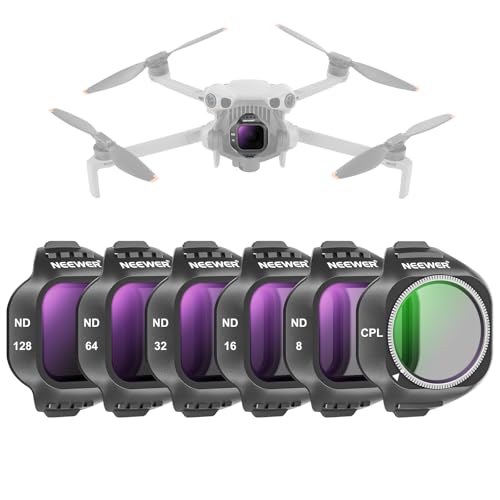
Read More: ND Filter Selection Guide for DJI Mini 5 Pro
Step 4: Apply a Creative LUT
With the technical corrections done, you can now add a creative LUT to give the footage a specific look and feel. In this example, a LUT called Cold Fog from the Flying Filmmaker LUT pack is applied to the third node. This adds some additional contrast and shifts the color palette toward a cooler, more cinematic tone.
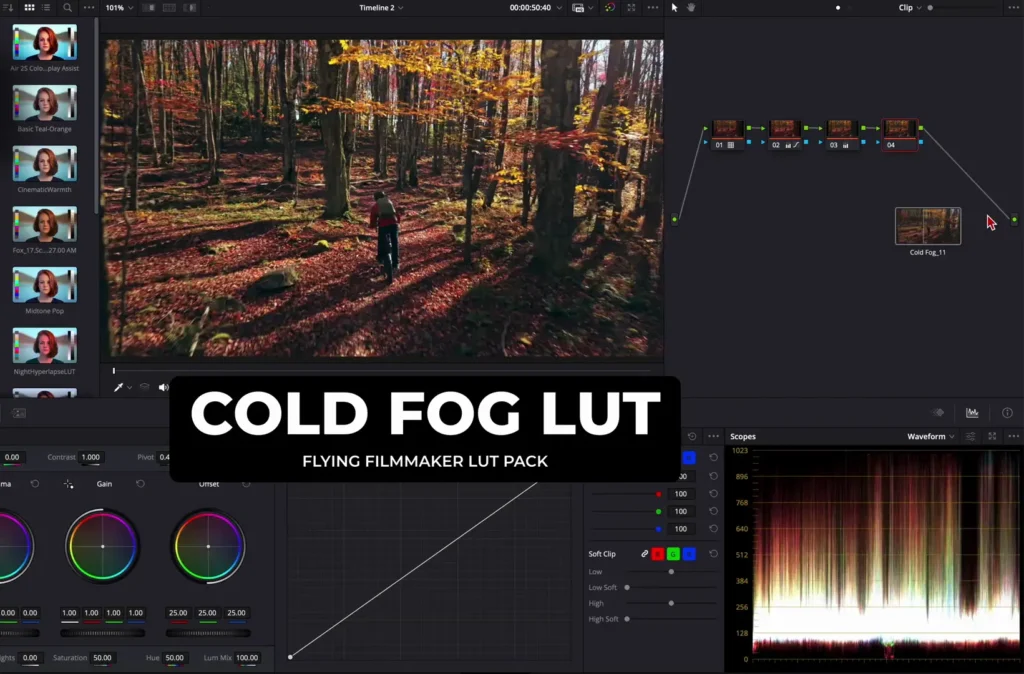
After applying any creative LUT, it is always a good idea to check whether it is crushing your shadows more than you would like. If it is, simply go back to your Primary panel and lift the shadows slightly to recover that detail. You want the LUT to add character and mood without destroying the tonal balance you worked to achieve in the earlier nodes.
With all nodes toggled on, the difference from the original flat D-Log M footage is striking. The image has depth, dimension, correct color balance, and a cinematic quality that the raw footage was never going to deliver on its own.

Key Takeaways for Color Grading DJI Mini 5 Pro Footage
There are a few important lessons to take away from this process. The log conversion LUT is always just a starting point and never a finished grade. Every Mini 5 Pro clip will likely need a targeted correction for the warm magenta color cast in the shadows using the Lift and Gain wheels.
Footage with outdoor greens almost always benefits from HSL curve work to push those yellowish greens toward a true forest green and to bring out the saturation of warm tones. Creative LUTs work best when applied last, after all of your technical corrections are already in place, and they often look better when pulled back to a lower intensity.
Working with nodes in DaVinci Resolve keeps everything organized and allows you to toggle individual corrections on and off at any point to evaluate what each step is contributing to the final look.
Get Your Settings Right Before You Grade
Color grading can only do so much if the original footage is not captured correctly in the first place. If you are not using the right camera settings before you fly, you will not have great footage to work with in post no matter how good your grade is.
Make sure you are shooting in D-Log M, setting your white balance manually, and using the right shutter speed, ISO, and ND filters for the conditions you are shooting in. With the right settings in the field and this color grading workflow in post, your DJI Mini 5 Pro footage will look cinematic, professional, and ready to impress.
Table of Contents
Read More: Best Places to Buy DJI Drones in the US Right Now